<On>
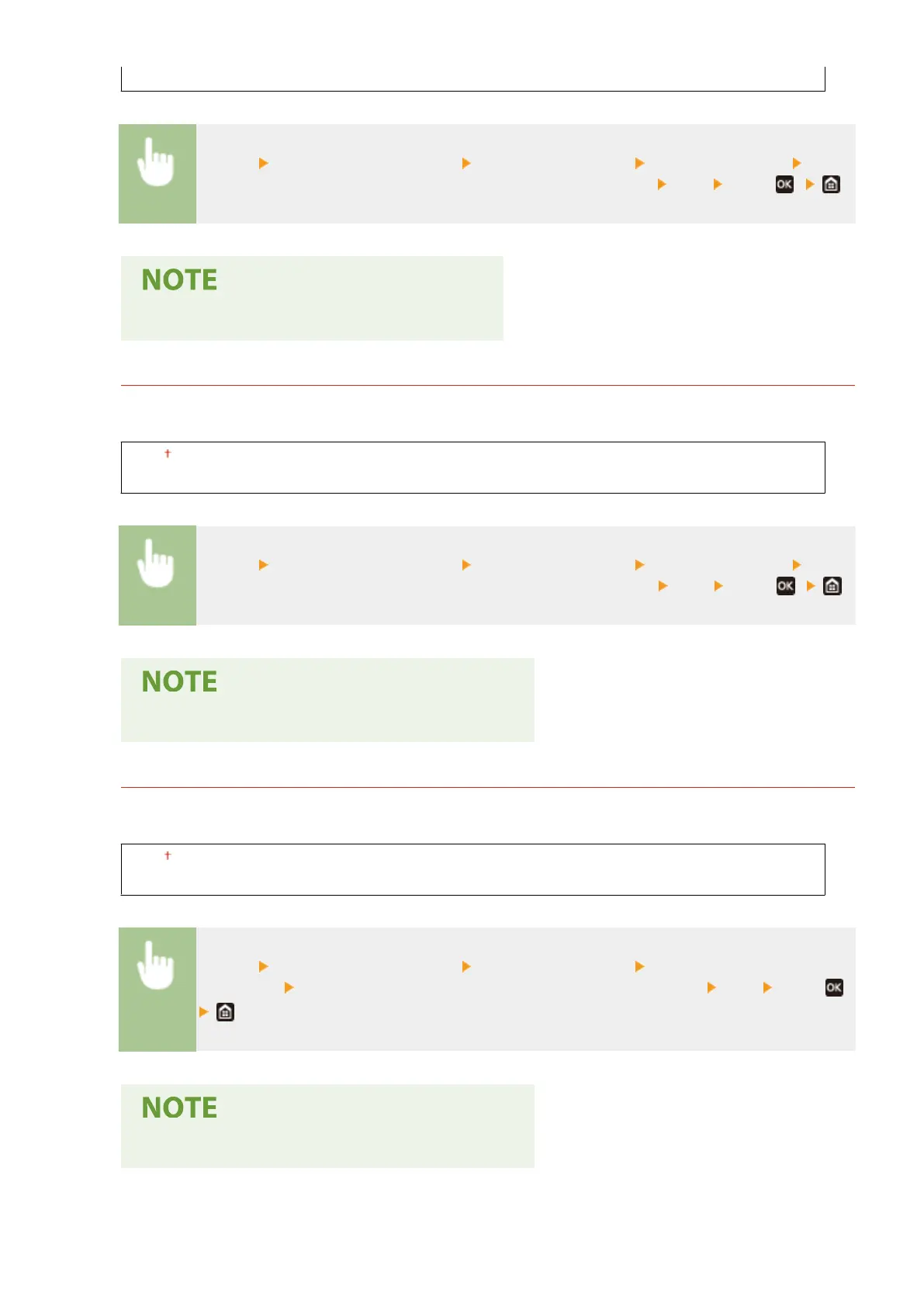
<Menu> <Adjustment/Maintenance> <Adjust Image Quality> <Special Processing> <Drop
Pattern Reduction Mode>/<Reduce Formation of Waterdrop Pattern> <On> <Yes> ( )
● If you set to <On>, print quality may be affected.
<Corr. Img. Corrup. by Ppr Dust>/<Correct Image Corrupted by Paper Dust>
*
Using paper containing much paper dust may result in a faded or streaky printout. In this case, setting this item
to <On> may solve the problem.
<Off>
<On>
<Menu> <Adjustment/Maintenance> <Adjust Image Quality> <Special Processing> <Corr.
Img. Corrup. by Ppr Dust>/<Correct Image Corrupted by Paper Dust> <On> <Yes> ( )
● If you set to <On>, the printing speed may be slower.
<Correct Blurry Image>/<Correct Blurred Image on 2nd Side>
*
When performing 2-sided printing, the image may be blurry on the back side of paper in the trailing edge. In
this case, setting this item to <On> may solve the problem.
<Off>
<On>
<Menu> <Adjustment/Maintenance> <Adjust Image Quality> <Special
Processing> <Correct Blurry Image>/<Correct Blurred Image on 2nd Side> <On> <Yes> ( )
● If you set to <On>, the printing speed may be slower.
Setting Menu List
341











 To Next Page