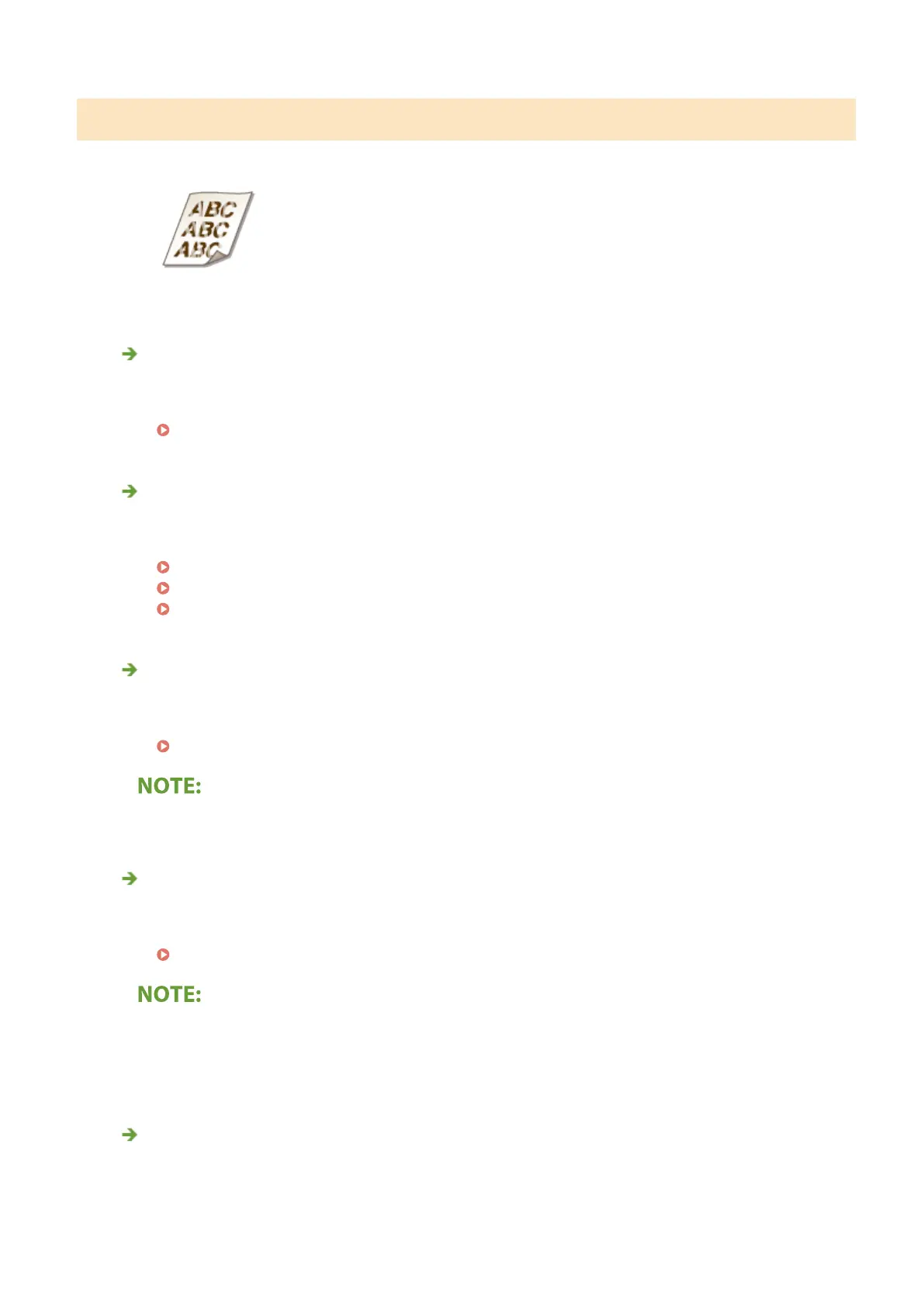
Printouts Are Faded
Is the amount remaining in toner cartridge running low?
● Check how much the amount remaining in toner cartridges is left, and replace the toner cartridges as
necessary.
Replacing the Toner Cartridge(P. 427)
Are you using appropriate paper?
● Check usable paper, and replace with appropriate paper. Also, specify the paper size and type settings
properly.
Available Paper(P. 521)
Loading Paper(P. 124)
Specifying Paper Size and Type(P. 144)
Are you using paper containing much paper dust? (LBP654Cdw)
● Using paper containing much paper dust may result in a faded or streaky printout. Setting <Corr. Img.
Corrup. by Ppr Dust> to <On> may solve the problem.
<Corr. Img. Corrup. by Ppr Dust>/<Correct Image Corrupted by Paper Dust>(P. 341)
● If you set to <On>, the printing speed may be slower.
Are printouts faded immediately after toner cartridge replacement?
● Printouts may be faded immediately after replacement of toner cartridges with new ones. In this case,
setting <Rdc. Faint Print After Rplc. Cart.> to <On> may solve the problem.
<Rdc. Faint Print After Rplc. Cart.>/<Reduce Faint Print After Replacing Cart.>(P. 344)
● If you set to <On>, the setting will become effective with next replacement of toner cartridges.
● Immediately after cartridge replacement, a certain amount of time is required for toner to be evenly
distributed inside the cartridge.
Is the print faded or uneven in density depending on the paper type or the
environmental conditions? (LBP654Cdw)
● Change the setting for <Reduce Toner Flaking>. The improvement effect is stronger with <Mode 2> than
<Mode 1>. First try with <Mode 1>.
Troubleshooting
464



 To Next Page