019A-04C
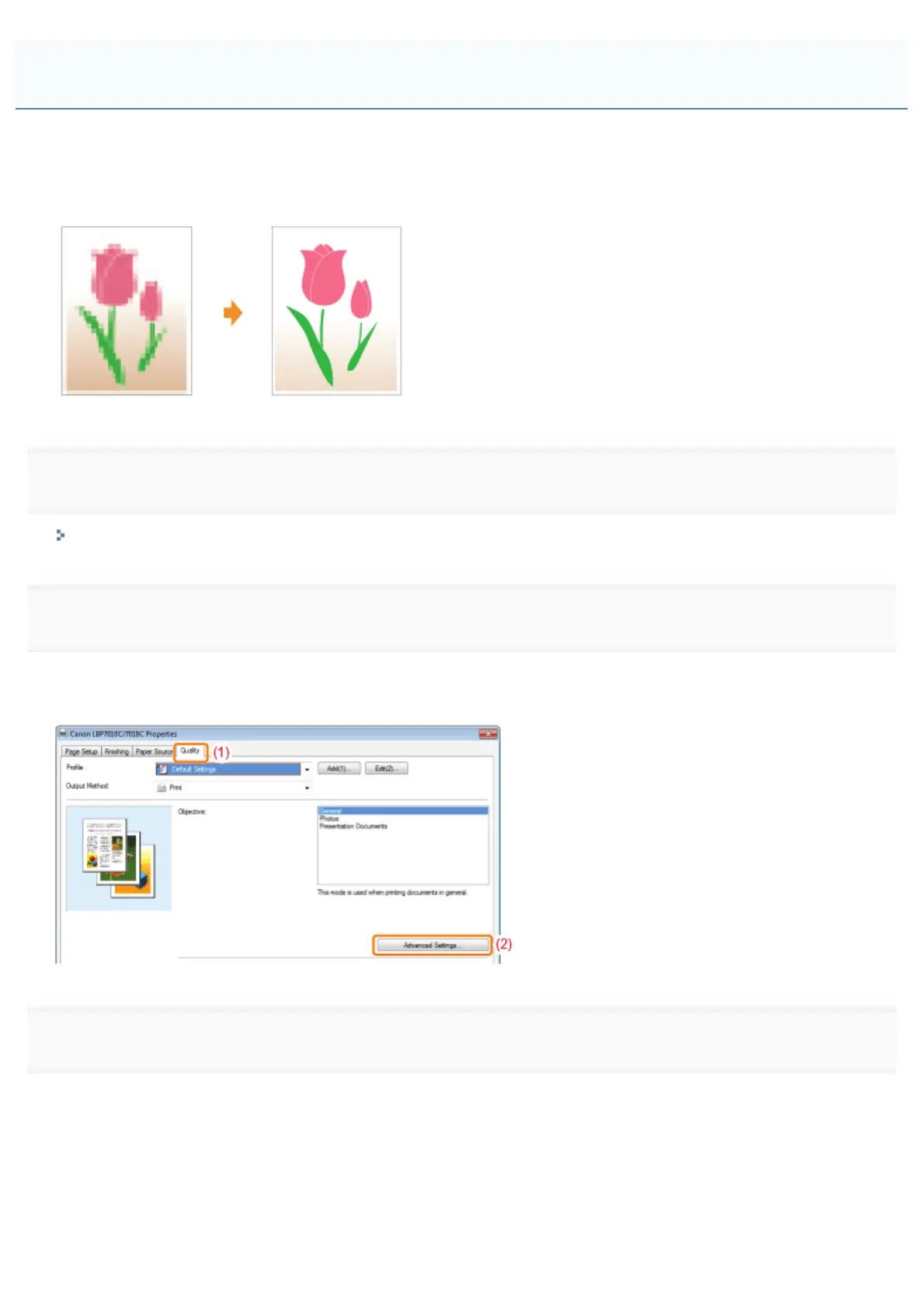
If image data such as photographic images are enlarged in size in an application and printed, the printed images may look
rough or jagged.
You can correct and smooth out this kind of low-resolution image data.
1
Display the setting screen of the printer driver.
"Displaying the Setting Screen"
2
Display the [Advanced Settings] dialog box.
(1) Display the [Quality] sheet.
(2) Click [Advanced Settings].
3
Specify the setting for image correction.
(1) Select [Enable Image Correction].
(2) Select [On].
(3) Click [OK]. Then, the [Quality] sheet reappears.
Correcting Rough-Textured Images
㻞㻜㻢㻌㻛㻌㻟㻠㻟




 To Next Page