(8) [Progress Bar]
Displays the printing progress of the current job. The bar gradually grows indicating
the printing progress.
(9) [Status Bar] Displays the device to which the printer is connected.
(10) [
] (Resolve Error)
You can resume a job when it is paused during printing for some reason.
(11) [
] (Cancel Job)
Cancels the current job. While another user's job is being printed, the [Cancel Job]
button is displayed in gray.
NOTE
For details on each option in the Printer Status Window
See Help.
"How to Use Help"
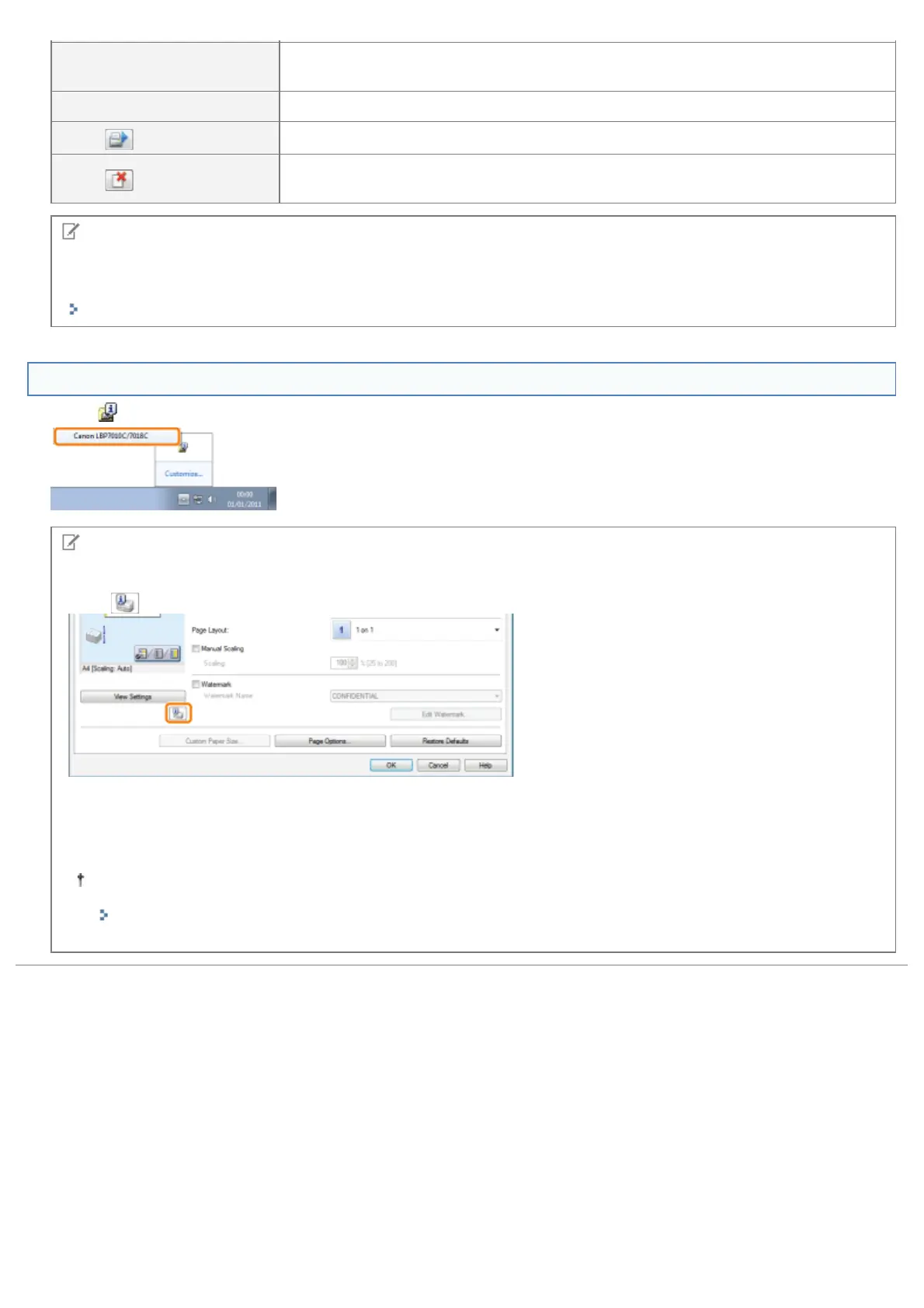
Displaying the Printer Status Window
Click [ ] in the Windows task tray, and then select the printer name.
NOTE
When displaying the Printer Status Window from the printer driver
Click [
] (Display Printer Status Window) in locations such as in the [Page Setup] sheet.
Displaying the Printer Status Window automatically
When an error or consumables warnings occurred, the Printer Status Window will be displayed automatically if the printer
receives a printing job.
You can change the display settings in the [Preferences (Users)] or [Preferences (Administrators)] dialog box in
the Printer Status Window. For more details, see Help.
"How to Use Help"
㻠㻤㻌㻛㻌㻟㻠㻟




 To Next Page