Using the Traffic Monitor
Chapter 11: Viewing Reports 309
You can export a detailed traffic report for all enabled networks and all defined QoS
classes, using the procedure Exporting General Traffic Reports on page
310.
Viewing Traffic Reports
To view a traffic report
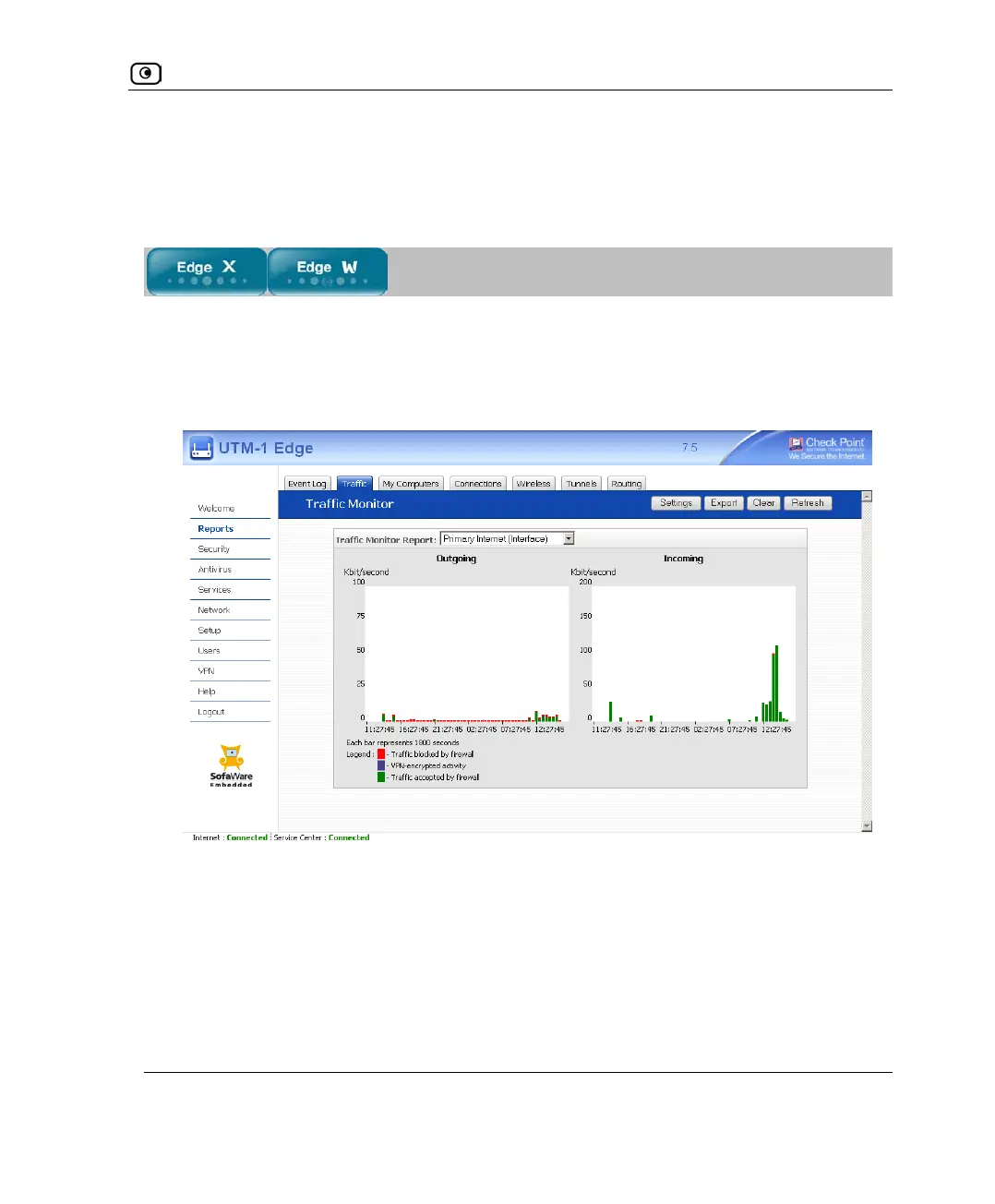
1. Click Reports in the main menu, and click the Traffic tab.
The Traffic Monitor page appears.
2. In the Traffic Monitor Report drop-down list, select the network interface for
which you want to view a report.
The list includes all currently enabled networks. For example, if the DMZ network is
enabled, it will appear in the list.
If Traffic Shaper is enabled, the list also includes the defined QoS classes. Choose All
QoS Classes to display a report including all QoS classes. For information on enabling
Traffic Shaper see Using Internet Setup on page
113.















 To Next Page