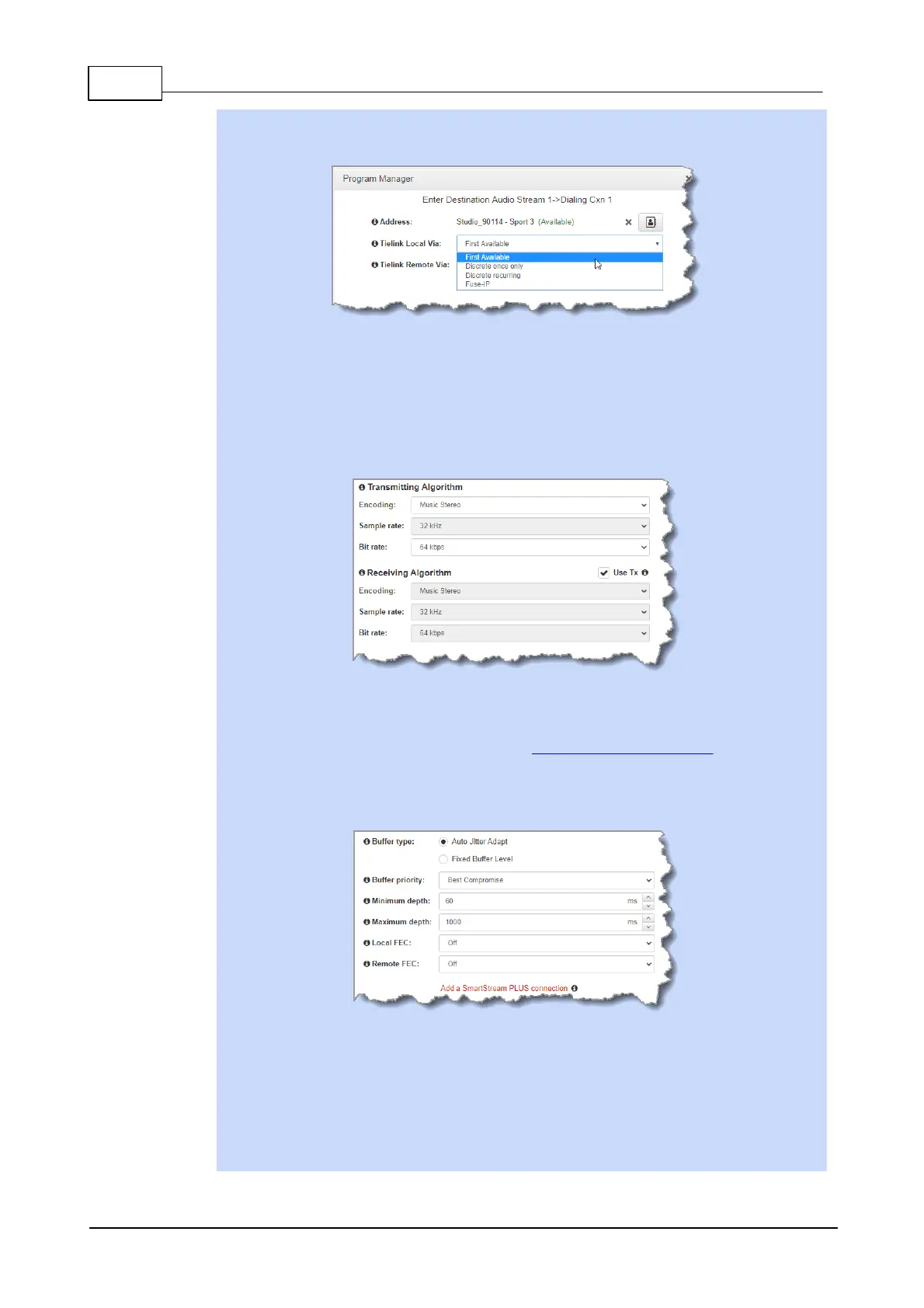
2. Select the interface options to use on local and remote codecs when dialing
TieLink connections. Note: see Configuring TieLink Settings for more info.
Click Save to save the program with the default algorithm, jitter and FEC settings which
are physically entered in the codec. Alternatively, click Next to specify individual
algorithm, jitter buffer and FEC settings and configure a failover connection or
SmartStream PLUS for this audio stream (recommended).
Click the drop-down arrows on the right-hand side of each text box to adjust the
Encoding, Sample rate and Bit rate options.
For IP connections click to configure:
· Auto Jitter Adapt and the preferred auto jitter setting using the drop-down arrow for
Buffer priority. It is also possible to configure the Minimum depth and Maximum
depth of jitter over the connection. See Configuring the Jitter Buffer for more details.
· Alternatively, select a Fixed Buffer Level and enter the Jitter Depth, which must
be between 12ms and 5000ms depending on the algorithm you select.
· Local and Remote FEC settings if required.
Important Notes:
· If you select Sessionless or SIP as the Session Protocol then RFC-compliant FEC is
displayed.
· FEC Delay is only available when the FEC percentage is 100%. This is designed to
delay the sending of FEC packets for a predetermined period after the primary audio
stream's packets are sent. This will increase the likelihood that the FEC packets will
take an alternate route to the primary stream's packets. This means that if primary
audio stream packets are not received at the remote codec, there is a good chance



 To Next Page