261
© Tieline Research Pty. Ltd. 2021
Gateway and Gateway 4 Manual v1.2
24.13
Configuring TCP/UDP Ports
In TCP and UDP networks the codec port is the endpoint of your connection. Software network
ports are doorways for systems to communicate with each other. For example, several codecs in
your studio may use the same public static IP address. Unique port numbers can be used to port
forward audio to each codec.
Tieline Codec Default Port Settings
By default, the codec uses a TCP session port to send session data and a UDP port to send audio.
The session port uses the TCP protocol because it is most likely to get through firewalls – ensuring
critical session data (including dial, connect and hang-up data) will be received reliably. The default
session and audio port settings in Tieline codecs, for both TCP and UDP connections, are outlined
in the Default Program Ports section of the manual.
Changing Codec Port Numbers
Reasons for adjusting the port setting on your codec include:
· Creating a path through gateways and firewalls.
· Another IP device is already using a codec’s port number.
· More than one studio codec is in use and each codec requires a different port number.
Changing Tieline Session Ports when Answering
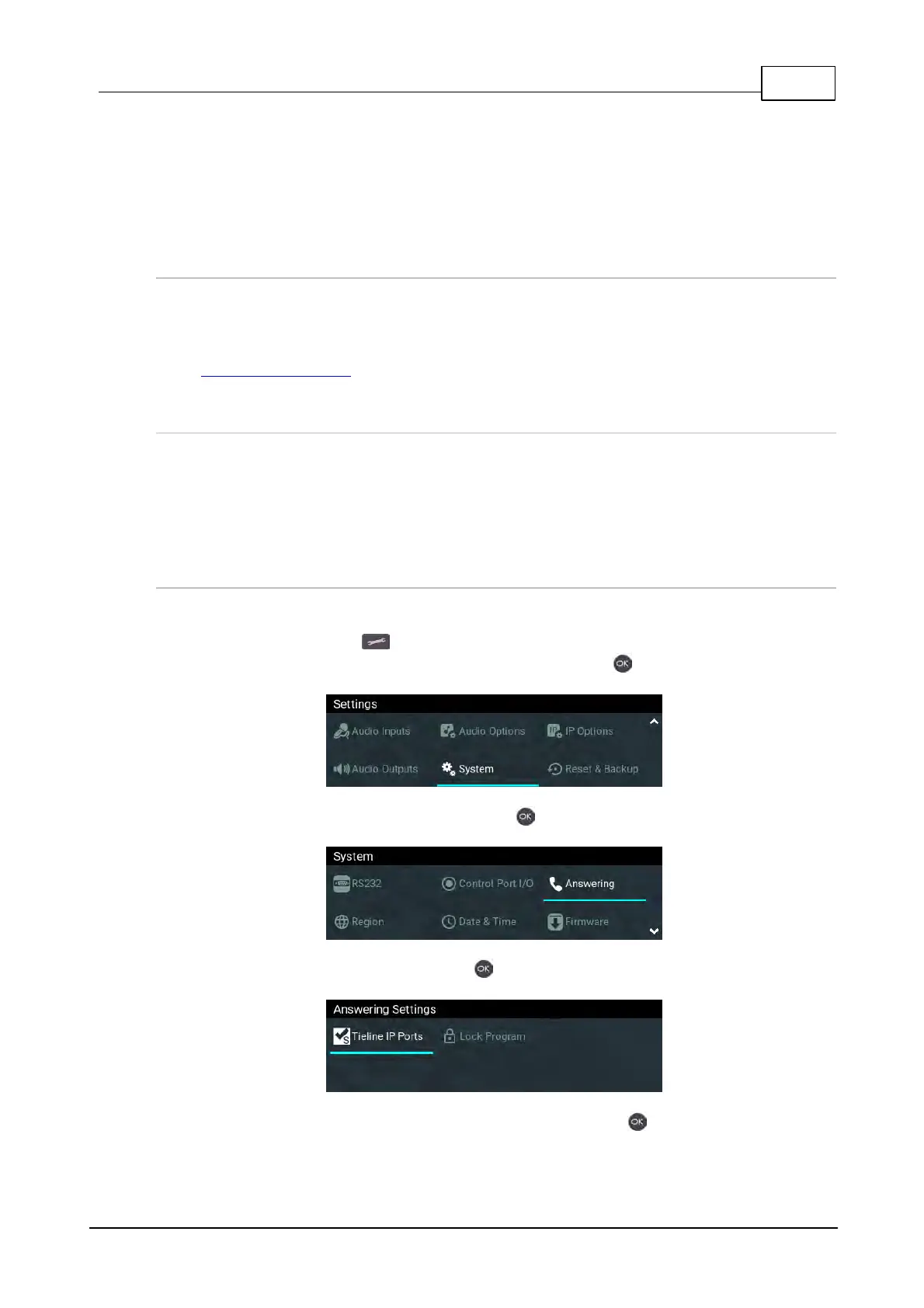
To adjust the local Tieline session data port used by your codec:
1. Press the SETTINGS button.
2. Use the navigation buttons to select System and press the button.
3. Navigate to select Answering and press the button.
4. Select Tieline IP Ports and press the button.
5. Navigate to Session Port or Alt. Session Port and press the button.



 To Next Page