264 Gateway and Gateway 4 Manual v1.2
© Tieline Research Pty. Ltd. 2021
24.15
Reset and Restore Factory Default Settings
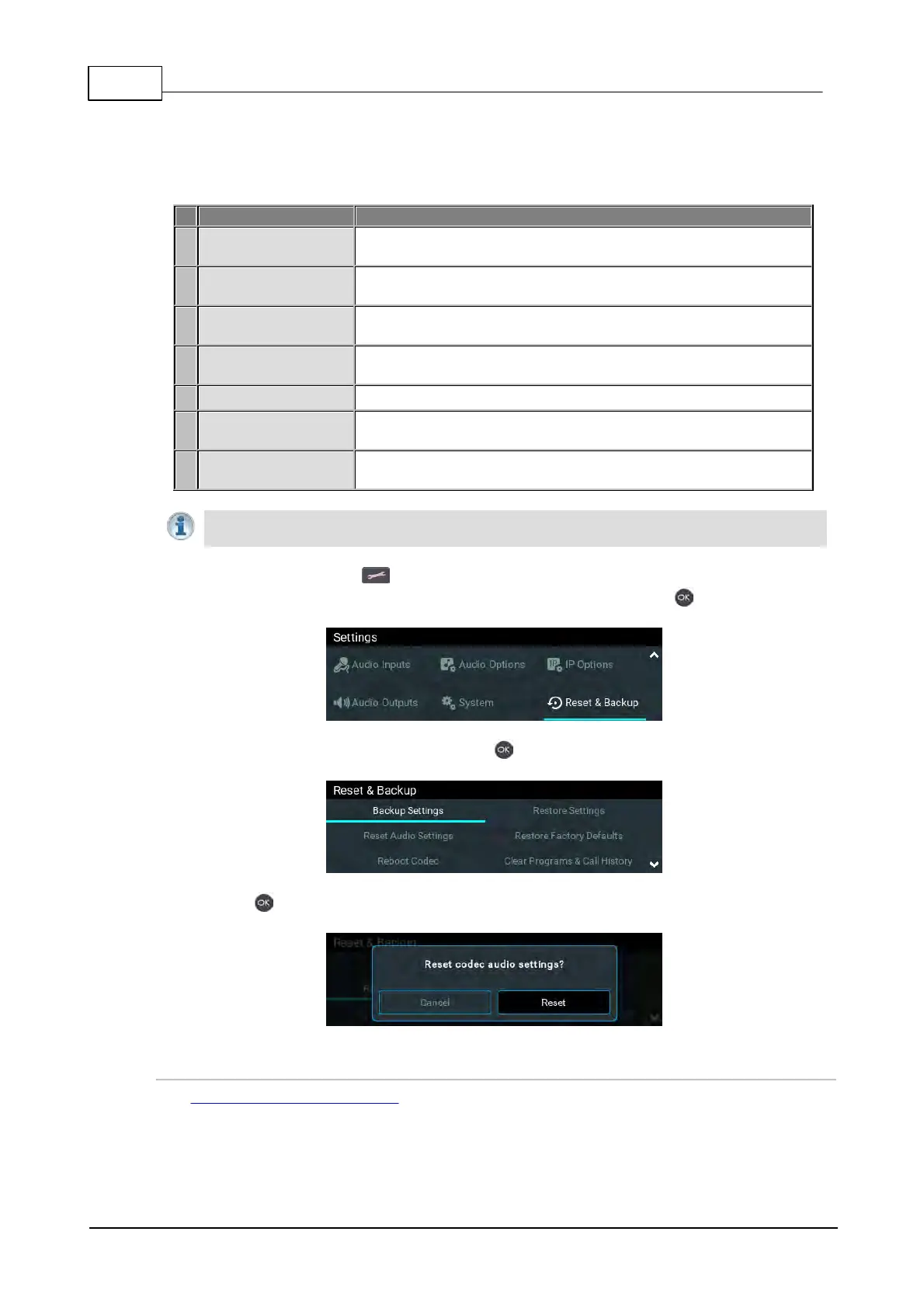
There are several options in the Reset & Restore menu allowing restoration of factory default
settings within the codec.
Select to backup custom Program and Scheduler data, and/or
System data.
Select to restore custom Program and Scheduler data, and/or
System data.
Select to restore factory default settings for Audio and connection-
related menu settings
Select to restore factory default settings, excluding user defined
programs and call history
Select to reboot the codec
Clear Programs &
Call History
Deletes custom programs and recent calls in the codec; speed
dial contacts are retained
Deletes codec event and log history. Note: This should only be
performed if instructed to by Tieline support staff.
Important Note: After restoring factory defaults, always reboot the codec using the
Reboot Codec function, not by removing power from the codec.
1. Press the SETTINGS button.
2. Use the navigation buttons to select Reset & Backup and press the button.
3. Navigate to the preferred option and press the button.
4. Press the button to confirm the function using the confirmation dialog.
Reset and Restore Factory Defaults using the Web-GUI
See Reset Factory Default Settings to use the HTML5 Toolbox Web-GUI to reset and restore factory
defaults.



 To Next Page