62 Gateway and Gateway 4 Manual v1.2
© Tieline Research Pty. Ltd. 2021
21.5
Lock or Unlock a Program in the Codec
It is possible to lock a loaded custom program in a codec to ensure the currently loaded program
type, e.g. dual stereo, cannot be unloaded by a codec dialing in with a different program type, e.g.
stereo. It is essential to lock multi-stream programs in a codec or they will be unloaded by the first
call received. Only mono and stereo connections can be answered when the Lock Program feature
is disabled.
For example, if routing requirements require the codec at the studio to always connect using dual
stereo connections, simply load and lock this program in the codec. Another reason for locking a
program in the answering codec is to always use a particular jitter buffer or FEC setting.
Generally programs will be up or down-mixed by the answering codec to match the loaded program
type. In some situations incompatible program types will be rejected. A compatible program type can
still connect and specify different connection parameters such as algorithm preferences and bit rates
via session data.
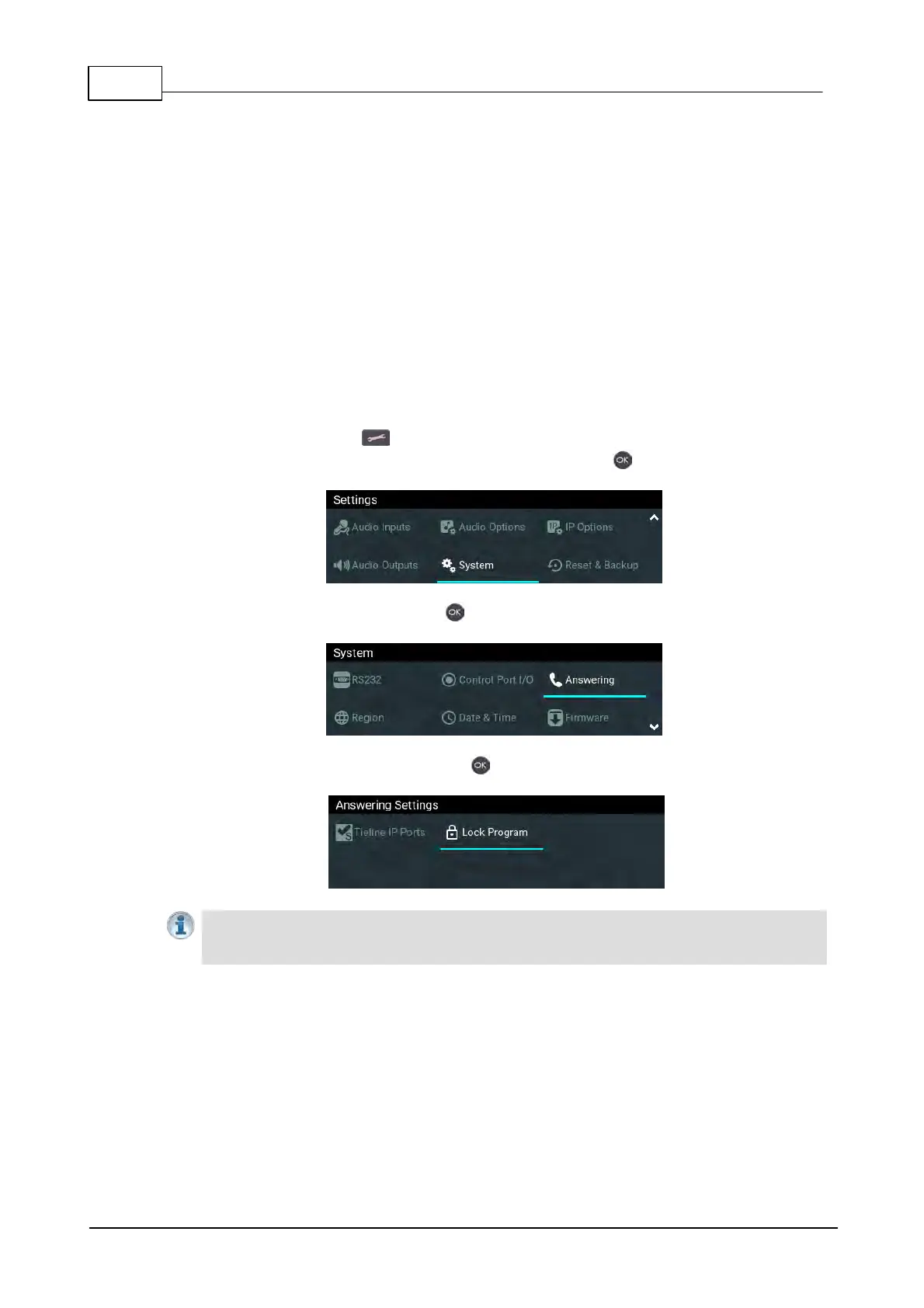
1. Press the SETTINGS button.
2. Use the navigation buttons to select System and press the button.
3. Navigate to Answering and press .
4. Navigate to Lock Program and press to toggle between Enabled and Disabled.
Important Note: It is only possible to lock custom programs in a codec. If Lock Program
is enabled and a new custom program is loaded, Lock Program remains enabled and
locks the most recently loaded custom program.



 To Next Page