204 Gateway and Gateway 4 Manual v1.2
© Tieline Research Pty. Ltd. 2021
23.33
Using the Program Scheduler
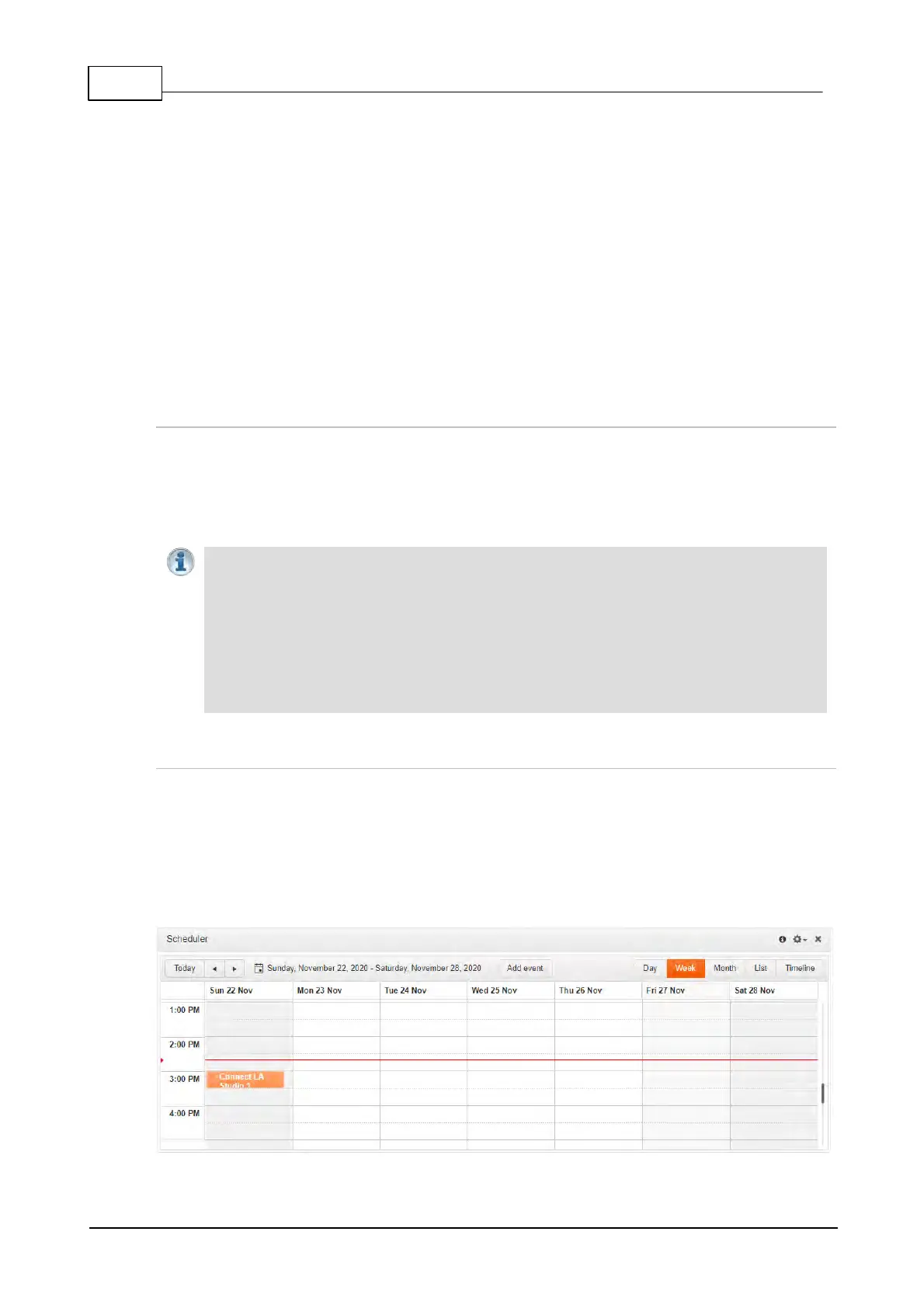
The program Scheduler is a powerful tool which facilitates automatically connecting and
disconnecting programs using a simple calendar-based user interface. Key features include:
· Drag and drop to add programs into the scheduler.
· Automatically load and unload programs.
· Automatically connect and disconnect individual audio streams, including editing stream
settings like IP address, port and encoding details.
· Drag the top or bottom of a scheduled program to adjust the scheduled time.
· Customization of time-zones displayed in the scheduler.
· Day, week, month, list and timeline views available.
· View a list of scheduled upcoming 'events' in a separate panel.
· Enable and disable scheduled events in a snap.
Scheduler Overview
There are several panels associated with the Program Scheduler:
1. Scheduler: Create and manage scheduled "events."
2. Scheduler Events: View a list of all scheduled events.
3. Scheduler History: View previously scheduled events.
Important Notes:
· A program attempts to dial and connect at the scheduled event start time. Allow enough
dial time when scheduling events.
· Allow sufficient time to disconnect and dial between consecutive events.
· A scheduled event will fail if a program is already connected.
· Consider configuring events in UTC time during daylight saving transitions to simplify set
up.
· Events shorter than 15 minutes display a 15 minute time slot in the scheduler to enhance
event visibility.
Scheduling New Events
To launch the Event dialog and schedule a new program event:
1. Open the HTML5 Toolbox Web-GUI and click Connect in the Menu Bar, then select
Scheduler to launch the Scheduler panel.
2. To add a new event click the Add event button in the Scheduler panel, or navigate to a
day and time in the Scheduler panel and double-click when you want the programmed
event to commence.



 To Next Page