149
© Tieline Research Pty. Ltd. 2021
Gateway and Gateway 4 Manual v1.2
· The Time to Live (TTL) value you need to use is dependent upon your network
infrastructure. Please consult your network administrator if you are unsure about how to
configure this setting.
· Use firmware higher than 2.8.xx in the Bridge-IT, Genie and Merlin families of codecs to
enable auxiliary data.
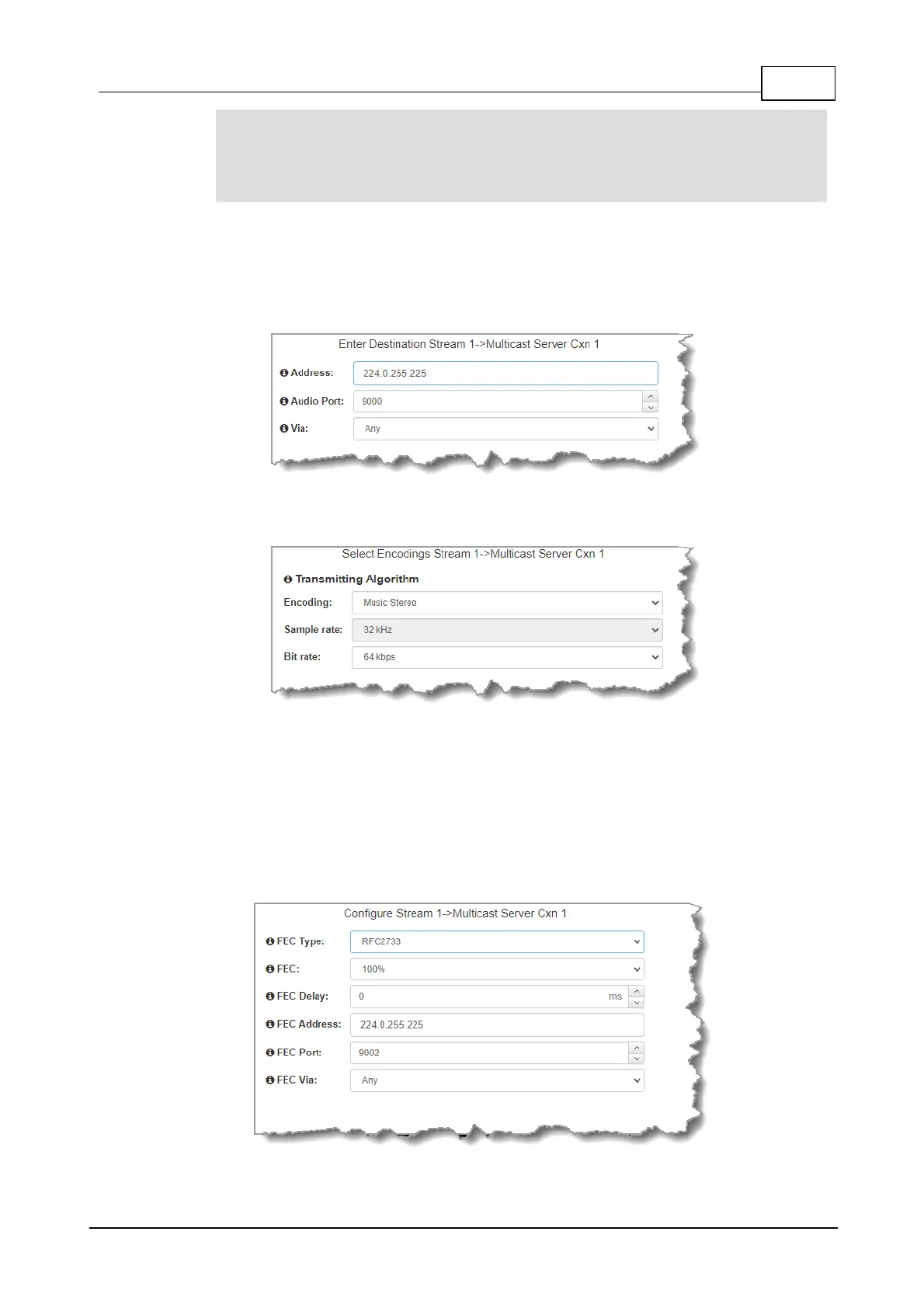
7. Configure the multicast IP address and Remote Audio Port (the same multicast address and
port must be used for both the server and client programs), then specify which IP streaming
interface is used to dial this connection, e.g. Primary (port LAN1) or Secondary (port LAN2),
then click Next. Note: By default Any will select LAN1 if it is available and LAN2 if it is
unavailable.
8. Click the drop-down arrows on the right-hand side of each text box to select the Encoding,
Sample rate, Bit rate or Sample size options. Click Next to continue.
9. Click the drop-down arrow for Send FEC Type to enable RFC-compliant FEC. Configuration
instructions are displayed in the right-hand Program Manager panel pane. FEC Delay is only
available when the FEC percentage is 100%. This is designed to delay the sending of FEC
packets for a predetermined period after the primary audio stream's packets are sent. This will
increase the likelihood that the FEC packets will take an alternate route to the primary stream's
packets. This means that if primary audio stream packets are not received at the remote codec,
there is a good chance that FEC packets taking an alternate route will be received and replace
them. When a FEC percentage lower than 100% is configured, FEC packets are automatically
delayed based on the ratio of primary packets to FEC packets sent.



 To Next Page