159
© Tieline Research Pty. Ltd. 2021
Gateway and Gateway 4 Manual v1.2
23.17.1 Configuring SIP Interfaces
The codec supports dialing over two SIP interfaces simultaneously.
Important Notes:
1. SIP interfaces are disabled by default.
2. SIP1 is configured to use LAN1 by default, which is mapped to the Primary Via
interface by default.
3. SIP2 is configured to use LAN2 by default, which is mapped to the Secondary Via
interface by default.
4. SIP1 and SIP2 each need to use a separate IP interface when connecting, e.g. LAN1 or
LAN2.
5. SIP1 and SIP2 can each make multiple SIP calls, e.g. two calls can be made over
SIP1, or two calls can be made over SIP2.
6. The settings for SIP1 and SIP2 cannot be edited if the interface has been enabled.
7. Enter a public IP address in the Public IP text box if you want to dial over SIP from
behind a firewall. Then configure port forwarding to route traffic to the codec's local IP
address behind your firewall. Note: Do not enter a Public IP address if STUN is
configured. They cannot be used together because both will attempt to use a public IP
address over SIP. STUN settings are prioritized and used if both are configured.
To configure SIP1 or SIP2:
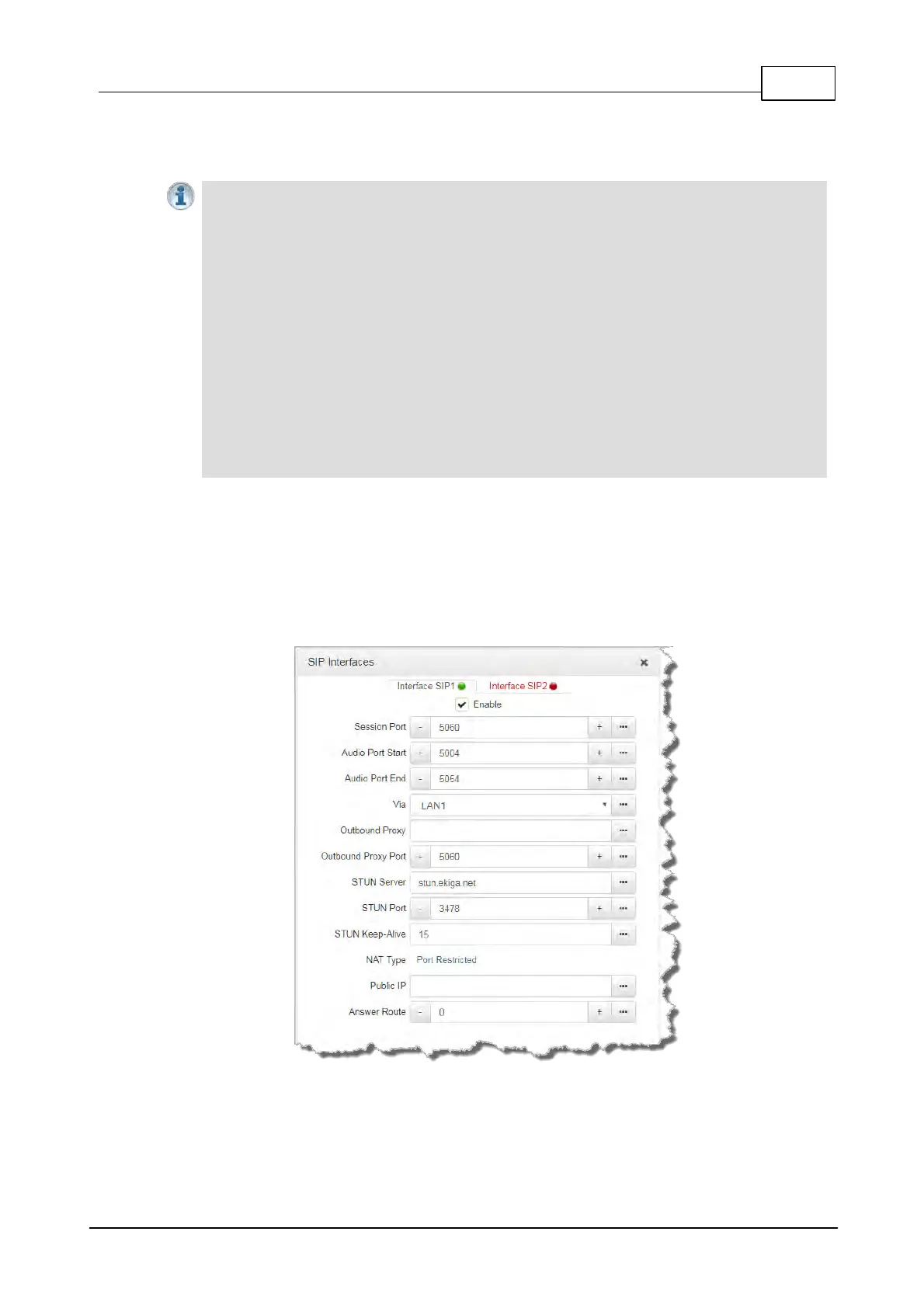
1. Open the HTML5 Toolbox Web-GUI and click Transport and then click SIP Interfaces to view
and configure SIP interface settings.
2. Default SIP settings are configured and select Interface SIP1 or Interface SIP2 to adjust each
interface. Note: Ensure each interface uses a unique "Via" IP interface because they can't share
one, e.g. LAN1.
3. Select the Enable check-box and then click the Save button to confirm settings.
4. The SIP interface indicator is green when an interface is enabled and red when it is disabled.



 To Next Page