274 Gateway and Gateway 4 Manual v1.2
© Tieline Research Pty. Ltd. 2021
d. Next, select your router model from the list.
e. Follow the instructions to complete port forwarding.
6. Visit www.portforward.com and download the port checking application to verify your router's
ports are open, or use a port checker like the one available at
https://www.ipfingerprints.com/portscan.php.
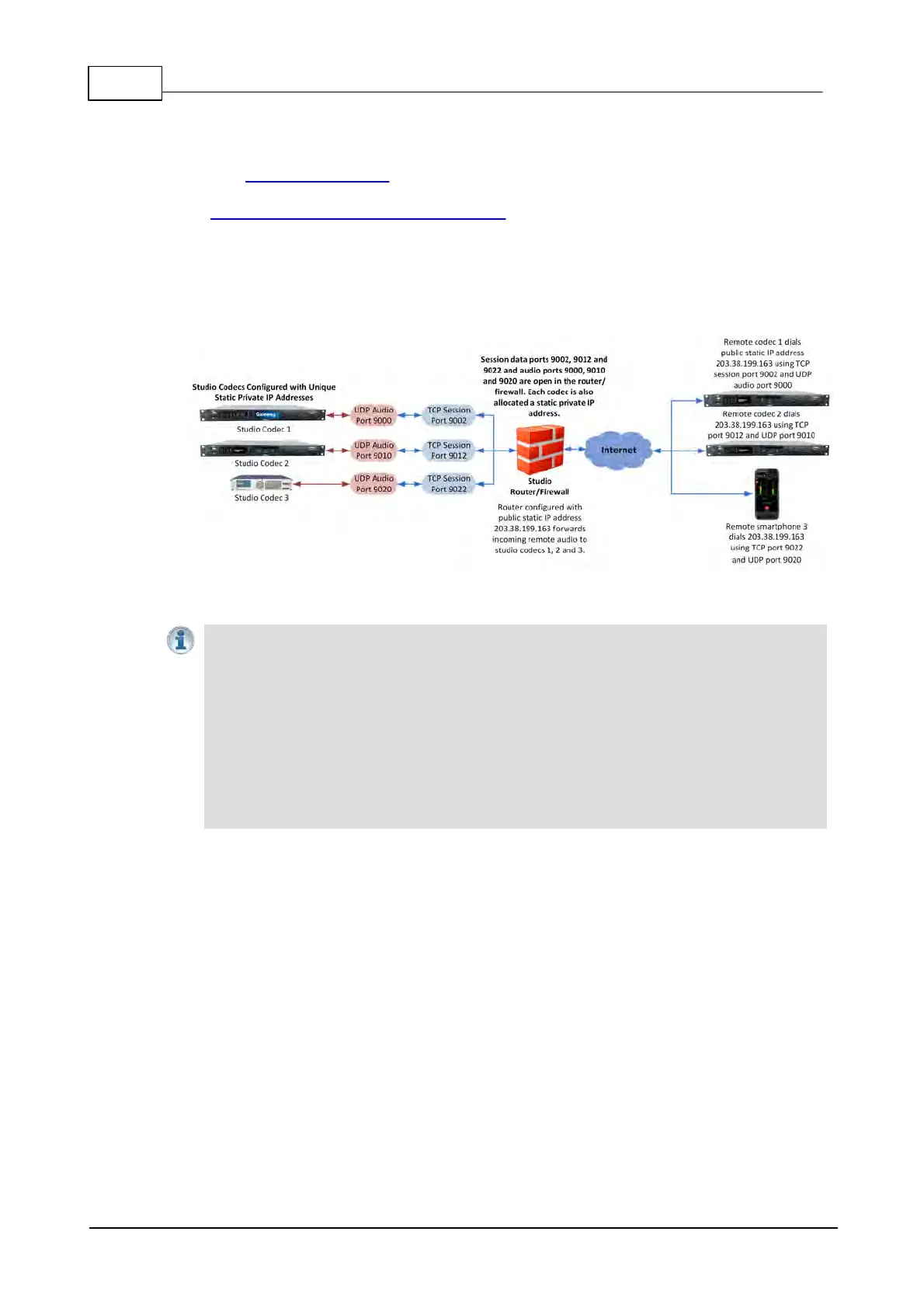
7. Configure the static IP address in your codec using the instructions in the next section. To
allow multiple codecs to share a single public static IP address behind a firewall and route
the calls correctly, your codecs and the firewall need to be configured similarly to the
example diagram which follows. Ensure the port, IP address, Subnet Mask and Gateway
settings in your codecs match those configured in your router.
Port Forwarding to 3 Studio Codecs Sharing a Public Static IP Address
Important Note:
· The most common studio configuration issue is a firewall which blocks the incoming
and/or outgoing TCP and UDP ports, or not configuring NAT and port forwarding correctly.
The following table lists the firewall ports you need to open for each model of Tieline
codec if they are dialing your router at the studio. If the remote codec is also connected
to a LAN with a firewall you may also need to open the ports at the remote end of the link
to connect successfully.
· Some firewalls require symmetric port configuration. The codec supports configuration of
the "send" audio port (codec port at the remote end of the link to which you are sending
audio) and "return" audio port (port used by the local codec to receive audio from the
remote codec).



 To Next Page