64 Gateway and Gateway 4 Manual v1.2
© Tieline Research Pty. Ltd. 2021
Launching the HTML5 Toolbox Web-GUI
1. Click to launch the HTML5 Toolbox Web-GUI.
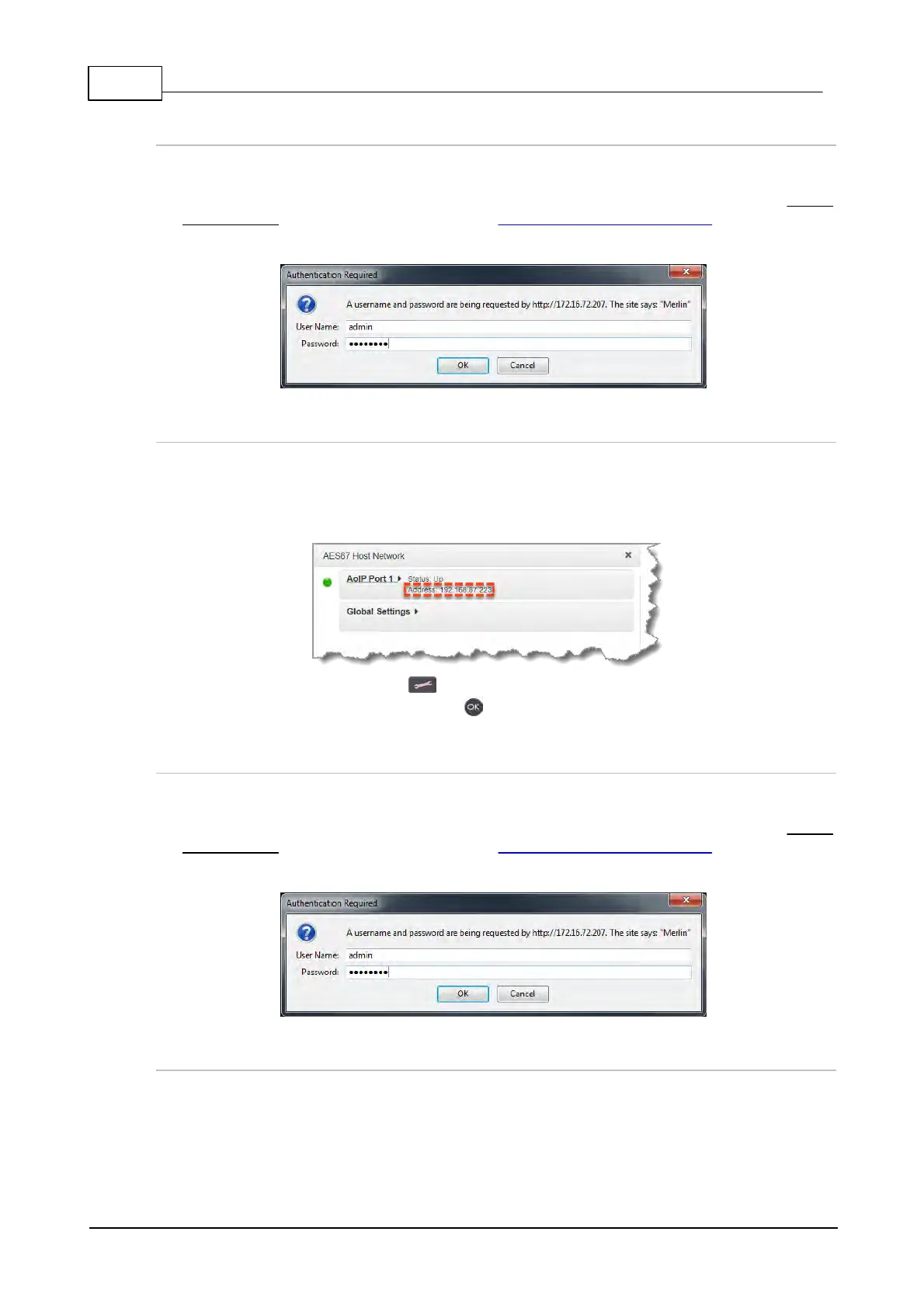
2. When you launch Toolbox for the first time an authentication dialog prompts you to enter the
user name "admin" and password "password" to login, then click the OK button. Tieline highly
recommends you change the password (see Changing the Default Password). This will provide
better network security to maintain reliability during live broadcasts.
Launching the AES67 Web-GUI
To access the AES67 Web-GUI type the IP address of the AES67 AoIP interface into a browser. IP
address details can be found in the codec via the AES67 Host Network panel accessed via the
HTML5 Toolbox Web-GUI AoIP menu. Note: This can only be accessed when a computer is
attached to the same AES67 LAN as the Tieline codec.
Alternatively, press the SETTINGS button on the codec front panel and use the navigation
buttons to select Unit Details and press the button to discover the AoIP port address details.
Launching the HTML5 Toolbox Quick Connect
1. Click to launch the HTML5 Toolbox Quick Connect Web-GUI.
2. When you launch Toolbox for the first time an authentication dialog prompts you to enter the
user name "admin" and password "password" to login, then click the OK button. Tieline highly
recommends you change the password (see Changing the Default Password). This will provide
better network security to maintain reliability during live broadcasts.
Using the Web-GUI over the Internet
If the codec is connected to the internet and is assigned a public static IP address it is possible to
connect and configure it from any PC connected to the internet. If multiple browsers are open on a
PC for different codecs it is possible to customize the browser title for simple identification. To
configure this setting using the HTML5 Toolbox Web-GUI, click Settings at the top of the screen,
then click Options to display the Options panel. Enter the Browser Title and then click Save.



 To Next Page