User’s Manual EM11A015B
intelligent Touch Manager
144
7. Data Management
7-1 Checking and Outputting History
The iTM automatically saves various status changes and equipment errors as history. You can
utilize this history data for maintenance and bug xing by either displaying or re-saving it on a USB
memory.
For the PC/USB memory requirements to use this function, see “Peripheral Equipment
Specications (CB14A005)”.
The following describes how to display and output the history data.
1. Touch the History button on the Operation Mgmt. tab of the Menu List screen and display the
History screen (see “4-5 Menu List Screen: Operation Mgmt. Tab”).
A Wait dialog is displayed while the history is being acquired.
NOTE
(1)
(3)
(4)
(5)
(6)
(2)
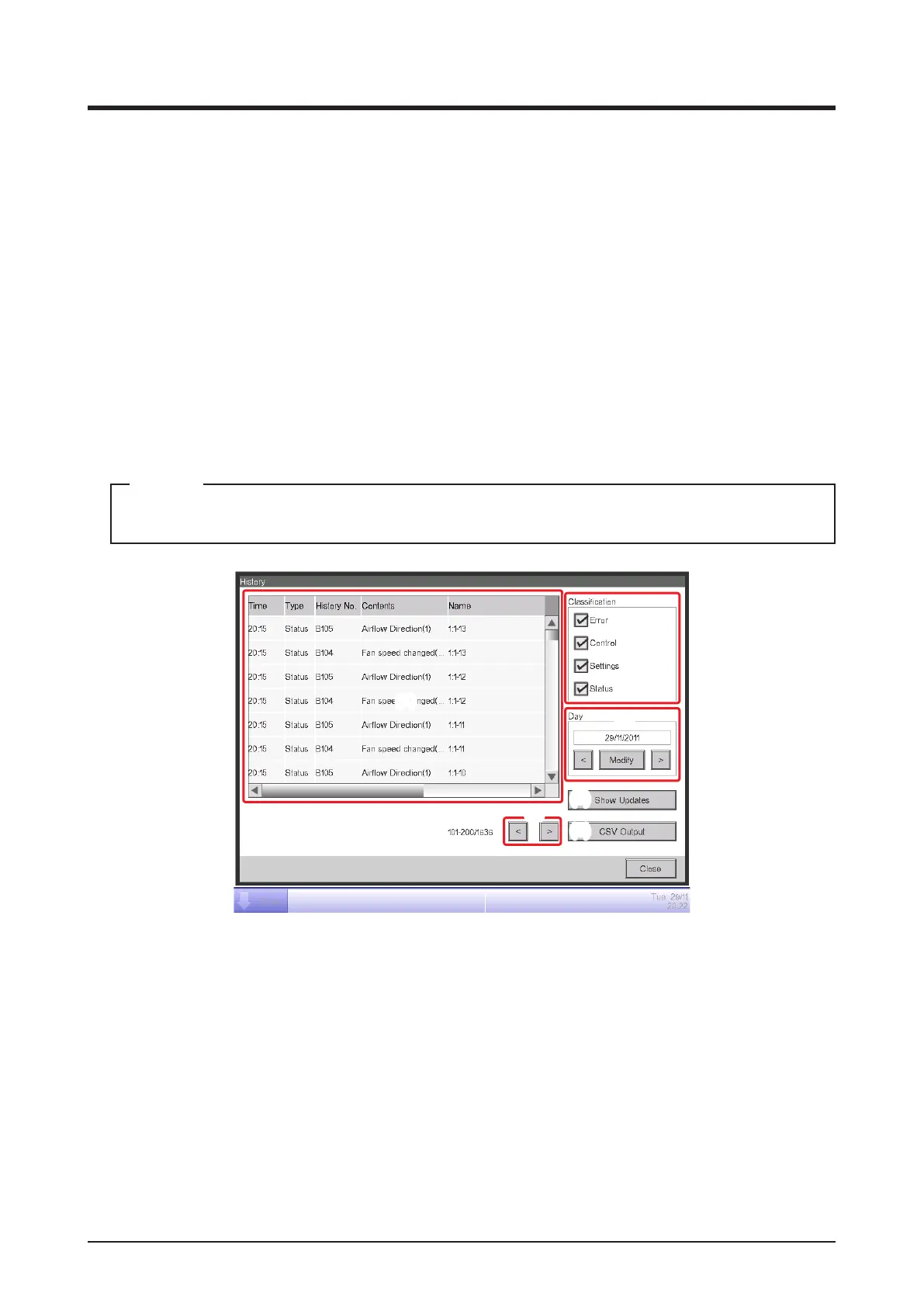
2. (1) displays the latest 100 history records.
Touch the < button in (2) to display the previous 100 history records and touch the > button to
display the next 100 history records.
The screen consists of the following columns from the left: Time, Type, History No., Contents,
Name, Instructed by, Port, Address, ID, and Code.
The type of history to be displayed can be selected in the Classication area (3). (1) displays
the history records of the selected types.
The Day field (4) specifies the date for which the history records will be displayed. When
opened, the current date is specied. To display the history records of a specic date, touch the
Modify button and enter the date in the Date Input dialog that appears.



 To Next Page