98
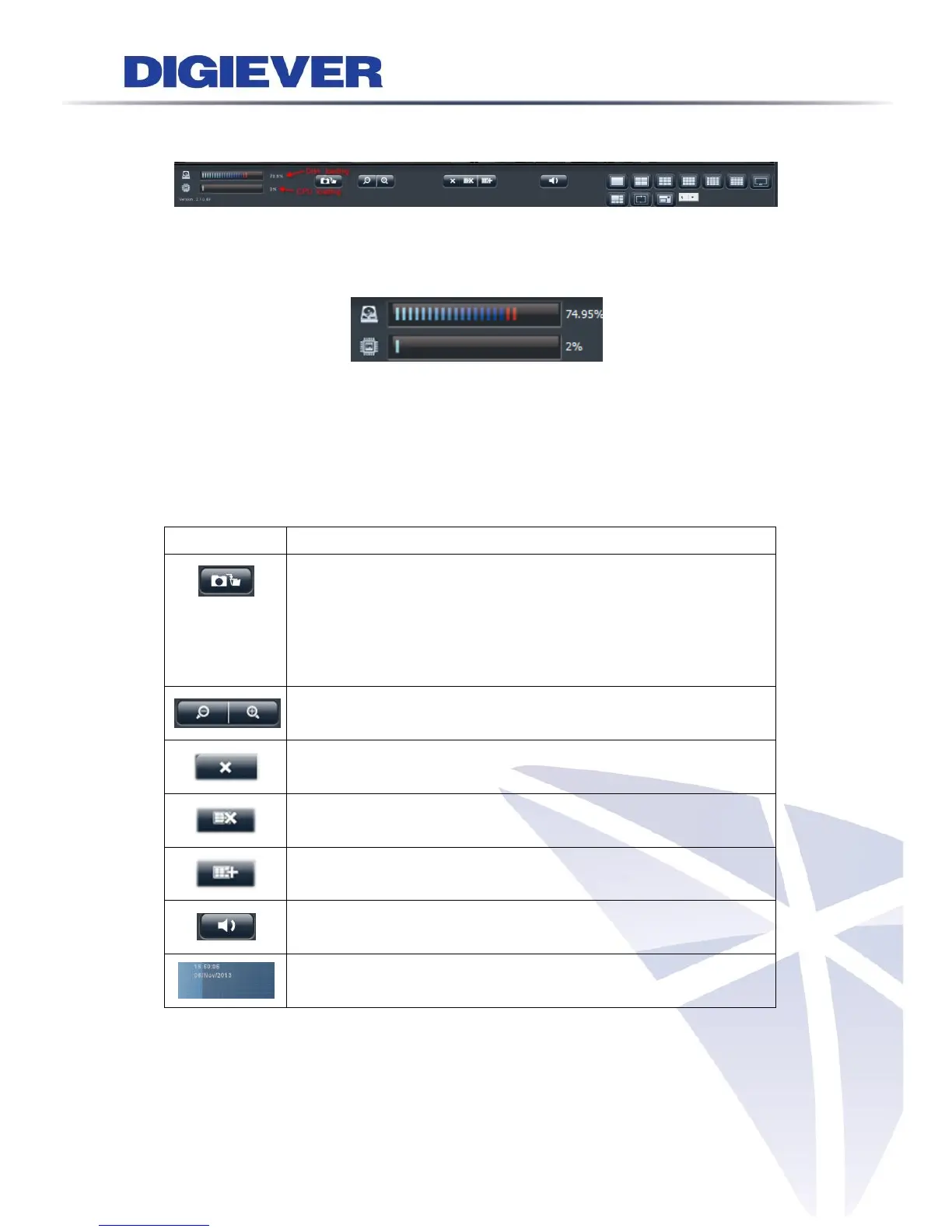
Disk and CPU loading indicator:
Users can find out Disk and CPU loading directly without entering configuration page.
Disk and CPU loading indicator shows blue when loading is 70% or under, and shows
red as a warning when it reach to more than 70%.
With changing the video configuration, like resolution, FPS and video quality or
changing RAID type, can influence the CPU loading, and users can easily find the best
balance in NVR.
3. Basic functions
Snapshot:
Take a snapshot on the camera that you select. The snapshot will
be saved in “Public ->liveview_snapshot.” It can be access through
Windows Networking or FTP service at File Sharing service in
Configuration page.
Digital zoom in/ out:
Select a channel to enable digital zoom function
Drop:
Drop the camera from monitoring.
Drop all:
Drop all cameras from monitoring.
Add all:
Add all cameras from monitoring.
Mute:
Alter sound instrument from camera.
Date & Time:
Showthe specific day and time.
4. Display mode
NVR supports multi-display modes for monitoring. Click the icon of display mode to
monitor live view. When you click a display mode, the mode icons will turn into blue.


 To Next Page