110
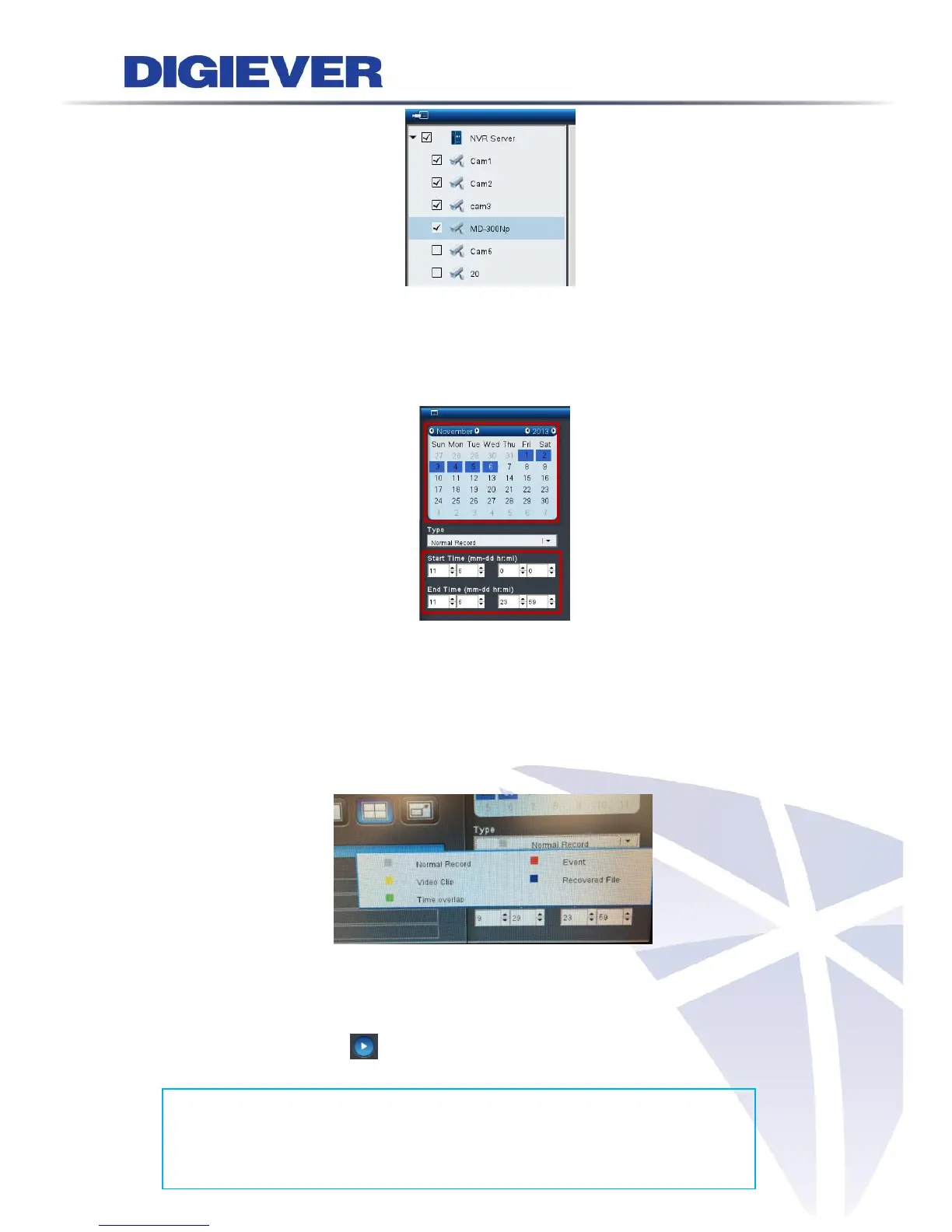
2. Select date and time
Users can designate the specific date and time to playback video.
If the selected cameras have recorded videos, the date will be shown in a blue
background in default (Normal Record).
Users can select the date from calendar to start playback for a specific day. Or users
can set up specific date and time in Start Time and End Time column.
3. Select recording type
There are five types of recorded videos in different colors: Normal Record (gray),
Event (red), Video Clip (yellow), Recovered File (blue)and Time Overlap (green).
The date will change the color of background when users select different recording
type.
4. Click “Play”
Please click play button to start playback.
Frame by Frame Playback



 To Next Page