19.10.13. Fault messages
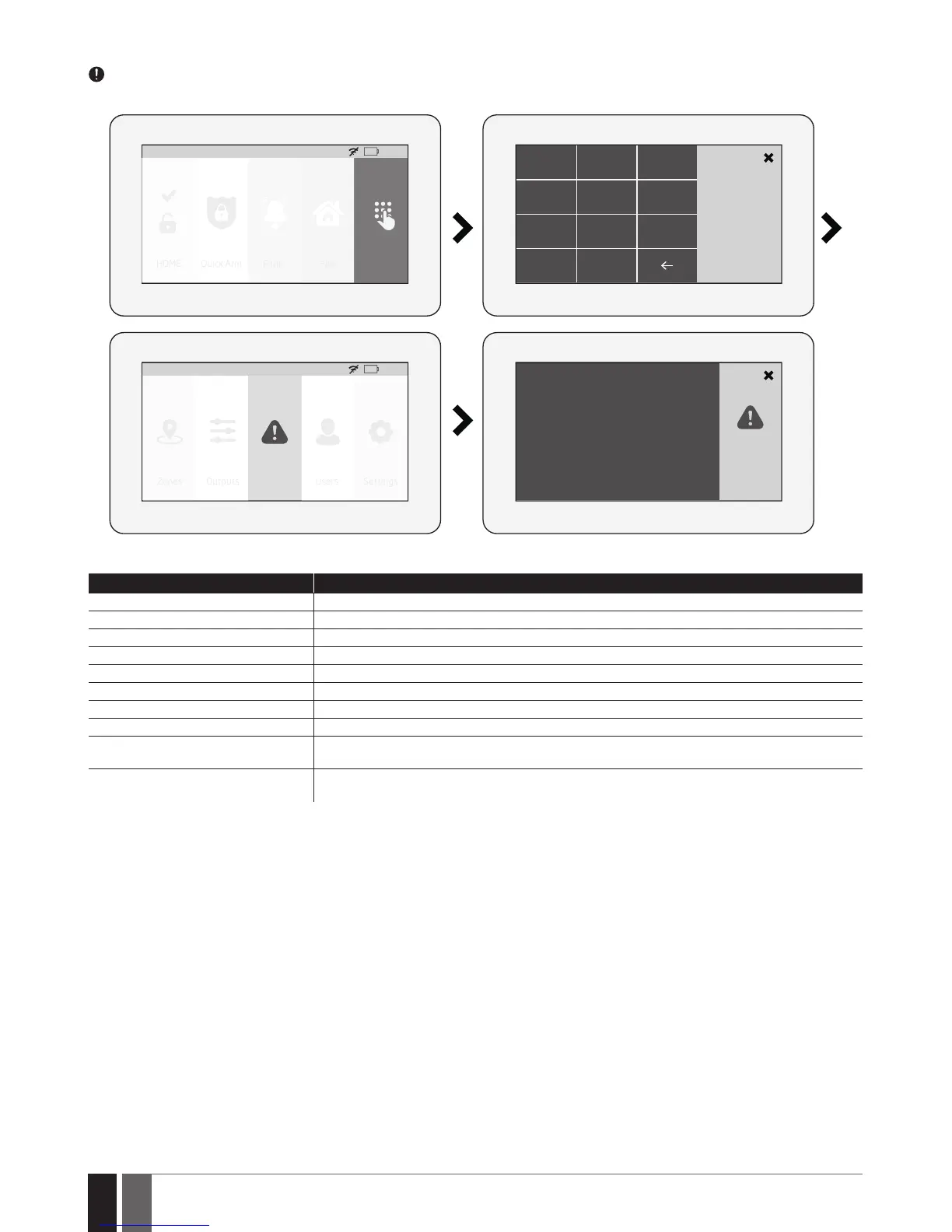
icon displayed on the Partition button indicates the presence of certain system faults. To view a detailed list of the currently present
system faults, please navigate through the menu as follows. Please, note that Master PIN code is required for this action.
HOME: 27
o
C
HOME Quick Arm Fire Settings
01:19
Panic
1 2 3
Master PIN
4
5 6
7
8
C
0
9
Tamper Violated
HOME: 27
o
C
Outputs Faults Users Settings
01:19
Zones
A more detailed description of each system fault is provided in the table below.
Message Description
MAIN POWER LOST Mains power is lost
LOW BATTERY Low backup battery power - backup battery voltage is lower than required
BAD BATTERY Backup battery requires replacement - backup battery resistance is 2,5 or higher
RF JAMMER DETECTED Wireless signal is blocked by jammer
TAMPER VIOLATED One or more tampers are violated
DATE/TIME NOT SET Date/time not set
GSM FAILURE GSM connection is lost
WIRELESS COMMUNICATION FAILURE Wireless connection with a certain (all) wireless device is lost for 20 minutes or longer
EWM1 FAULT One or more EWM1 device faults exist - enter this menu item to view the existing EWM1 device
faults.
COMMUNICATION TO MS FAILED In case the system ends up with all unsuccessful attempts by all connections to deliver data mes-
sage to the monitoring station.
In order to nd out which particular tamper is violated, please open the Master-code-secured Zones section by navigating through the
menu as follows.
19.10.14. Advanced
The availability of additional conguration on EWKB5 touchpad screen depends on user’s selection. Once the user wakes the touchpad up,
enters to the Main menu’s Settings section and slides his nger across the LCD display, there he’ll see the button “Advanced”. When the user
click on that button, the additional menu will open up and from there on the user will be able to check or congure the following:
Temperature - indicates the current temperature of the secured area premises, monitored by the alarm system’s temperature sensor.
Sound settings - allows to change various sound settings of the EWKB5 (to increase/decrease speech or sound volume, to enable speech
in case of re alarm, etc. )
LCD settings - allows to change EWKB5 screen’s wake up time and brightness settings.
Quick menu - allows to select those necessary options (menu buttons), which will be shown on the main screen of EWKB5. Arrows (directed
up and down) oers to re-order the current layout of menu buttons.
Service Mode - this mode should be used when it is necessary to re-install some of the peripheral devices (to change batteries, open/close
enclosure and etc.) or make other installation changes. In this mode, system does not check for tamper faults so it won’t start siren alarm.
About - section of additional information about the touchpad model, alarm system model, hardware and rmware.


 To Next Page