. . . . .
RECIPES
Creating, Editing and Changing Recipes
2-9317-372-00-0 Bravo™ 8105 Programming and Operations Guide 6-69
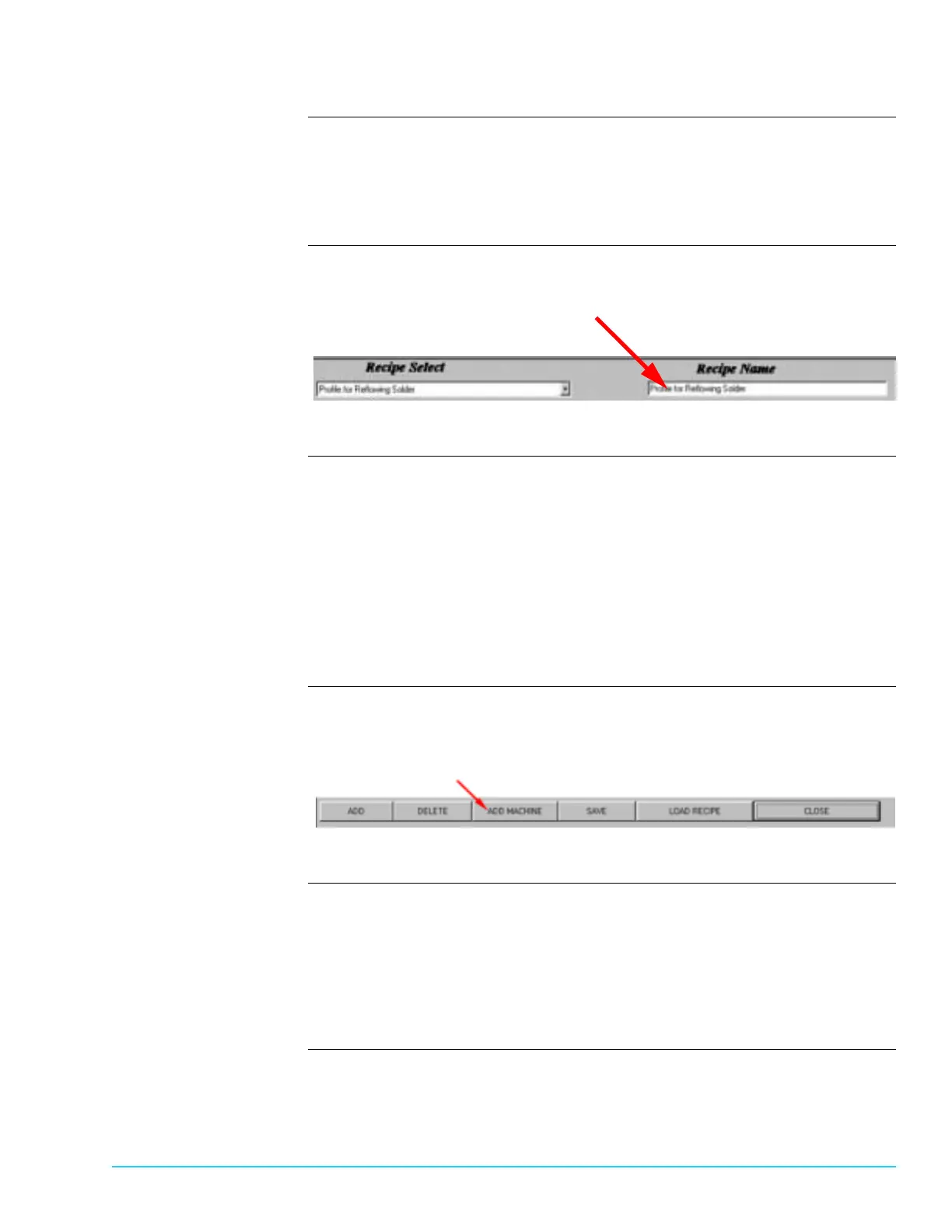
Naming a Recipe The Recipe Name field displays the name of the Recipe currently in the Recipe
Editor. To save a Recipe to a new name, change the name in the Recipe Name
field. Refer to Figure 6–4.
It is not saved until the "Save" button is selected at the bottom of the screen.
Software
Representation
The arrow points to the field to select when changing the recipe name.
Figure 6–4
Importing the Current
Machine States to a
Recipe
It may be desired to save the machine parameters as a new recipe. This is useful
if Zone settings or speed settings change and it’s desired to save the new
changes.
Press the Recipe Button at the top of the screen or press Function Key F7. In the
Recipe Editor Screen, select the "Add Machine" button from the bottom of the
screen. Refer to Figure 6–5.
The current machine parameters are loaded into the Recipe Editor. To save the
recipe, ensure the desired name is in the Recipe Name field, and press the "Save"
button located at the bottom of the screen.
Software
Representation
The arrow points to the “Add Machine” button at the bottom of the Recipe
Screen. The “Add Machine” button imports the current machine parameters into
the Recipe Editor.
Figure 6–5
Making a Recipe in the
Recipe Editor the
Active Recipe in the
Machine
To make a recipe that is viewed in the Recipe Editor the active Recipe in the
machine, select the “Load Recipe” button at the bottom of the screen. Refer to
Figure 6–6.
To verify that it is now the active recipe, select “Close” and view a Process
screen. If a Process Screen is not visible, press Function Key F8 (Tabular) or F9
(Graphic).


 To Next Page