Chapter 2 Getting Started
2-6 ER1 User Guide
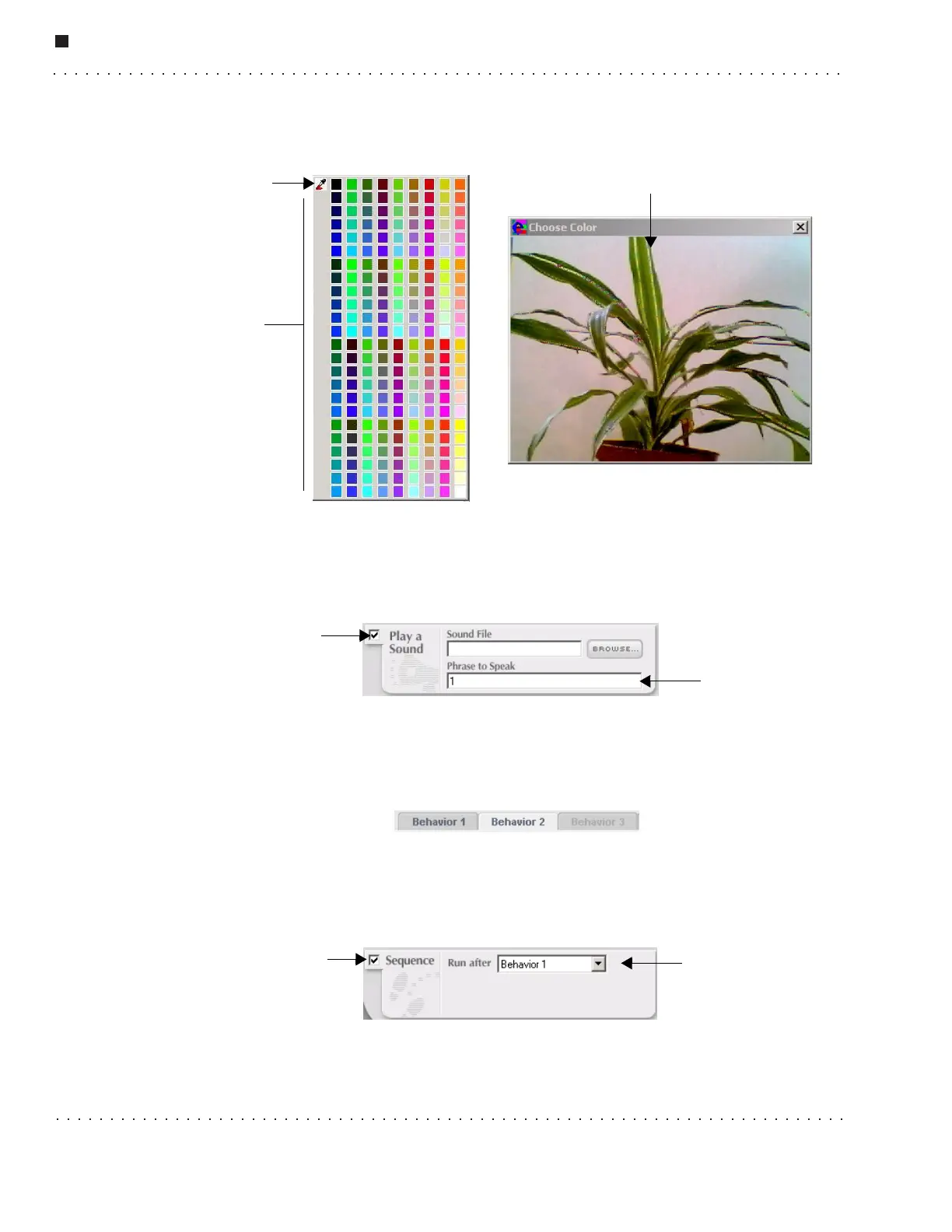
4. Select the dropper tool in the upper left corner. A snapshot of what the robot can
presently see is displayed.
5. In the snapshot, select a color. That color will be displayed in the color pulldown
menu. (Note that the Color Selection Palette can also be used to select a color.)
6. Select the Play a Sound checkbox in the Then column.
•In the Phrase to Speak textbox, type the number 1.
7. At the top of the screen, select the Behavior 2 tab.
• At the bottom of the If column, select the Sequence checkbox.
•In the Run after pulldown menu, select Behavior 1.
8. In the Then column, select the Play a Sound checkbox.
• Type the number 2 in the Phrase to Speak textbox.
Dropper
Tool
Color
Selection
Palette
Snapshot of what the robot sees
Play a Sound
checkbox
Phrase to Speak
textbox
Sequence checkbox
Run after
pulldown menu



 To Next Page