Chapter 7 Then Action
7-2 ER1 User Guide
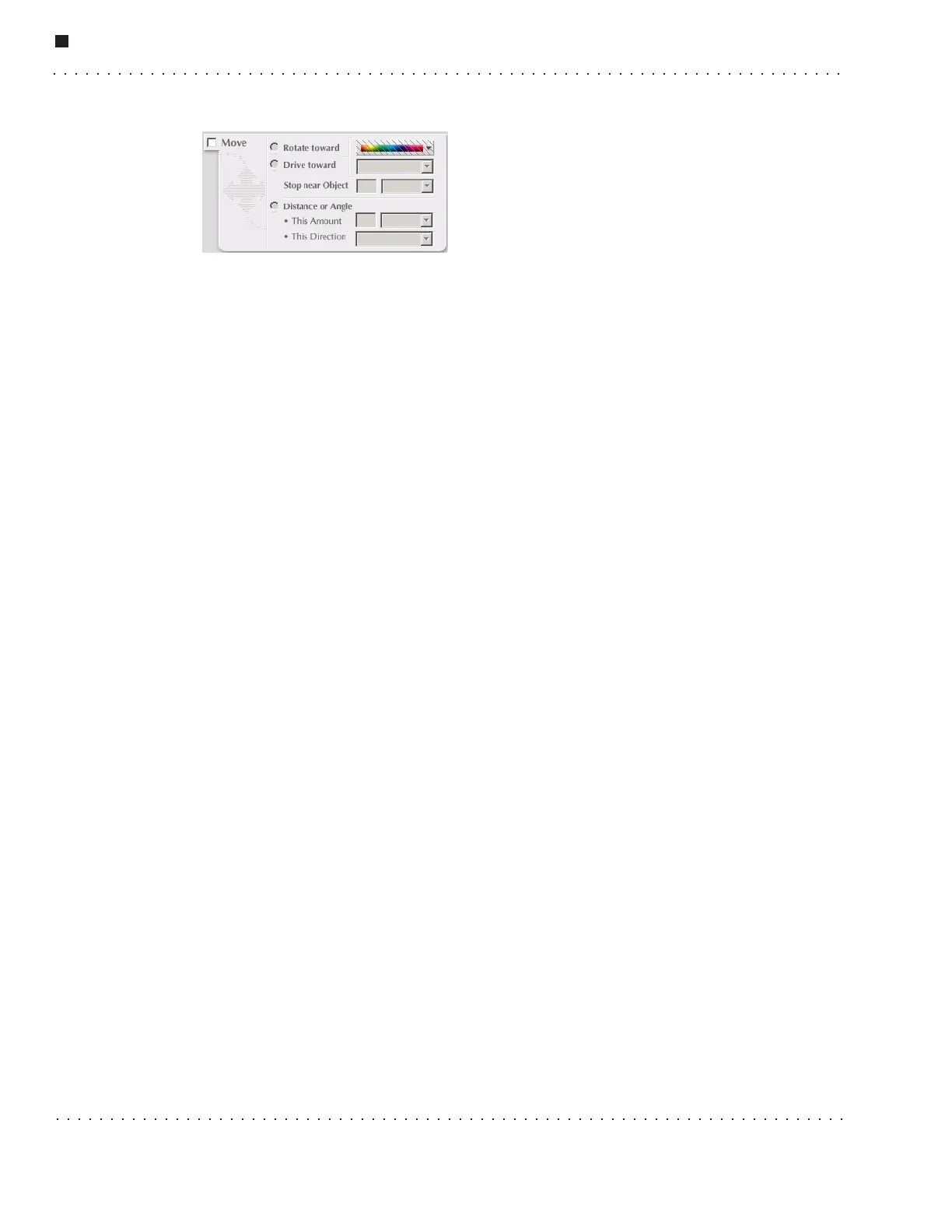
Move
Click on the Move checkbox to make this action
active. Options are:
•Rotate toward - This parameter, if set, tells the
robot to rotate until it sees the object or color you
specified using the adjacent color bar or the text
pull-down menu adjacent to the Drive toward
option. The color selection tool operates in the same
manner as the If color selection tool. This action is considered complete when one
of the following two conditions are met:
• The robot rotates and successfully finds the specified object or color, then stops
when facing the object or color.
• The robot completes a 360 degrees rotation and fails to spot the specified object
or color.
• Drive toward - When set, tells the robot to drive forward towards the object or
color you specified using the color selection tool or the text pull-down menu. Tell
the robot when to stop by specifying a distance and units in the next set of
pull-down menus. Note that the robot will not move until a value greater than 5cm
or 2'' is specified. This action is considered complete when one of the following two
conditions are met:
• The robot drives toward the specified color or object and successfully stops at
the distance specified by the user.
• The robot fails to see and drive toward the specified color or object after 30
seconds.
• Stop near Object - This parameter has two fields that allow you to specify how
close the robot should come to a specified object/color before stopping. Type in a
numerical value, and use the pull-down menu to specify the units. This value
should not be set to less than 5cm, so as to avoid collisions.
• Distance or Angle - This lets you specify the direction in which the robot should
move, and/or a set distance it should travel. This includes rotational directions.
• This Distance - As for Stop near Object, specify a numerical value and use the
pull-down menu to specify the units (feet, inches, meters, centimeters or
degrees). Note that this pull-down menu lists Degrees, allowing you to specify
the number of degrees in which you would like the robot to turn. The number of
degrees can be set to any positive number. Note that for every 360 degrees
specified, the robot will complete one full rotation.
• This Direction - This pull-down menu lets you specify a direction of travel.
The options are: forward, backward, right, left.
Important Note: UNPLUG THE LAPTOP'S CHARGER BEFORE INSTRUCTING THE
ROBOT TO MOVE. The robot should detect whether or not the laptop is plugged into a
wall outlet and should not move until the laptop is unplugged. However, take care to
ensure that the laptop is unplugged, because if the robot fails to detect that the laptop is



 To Next Page