Chapter 8 Settings
8-6 ER1 User Guide
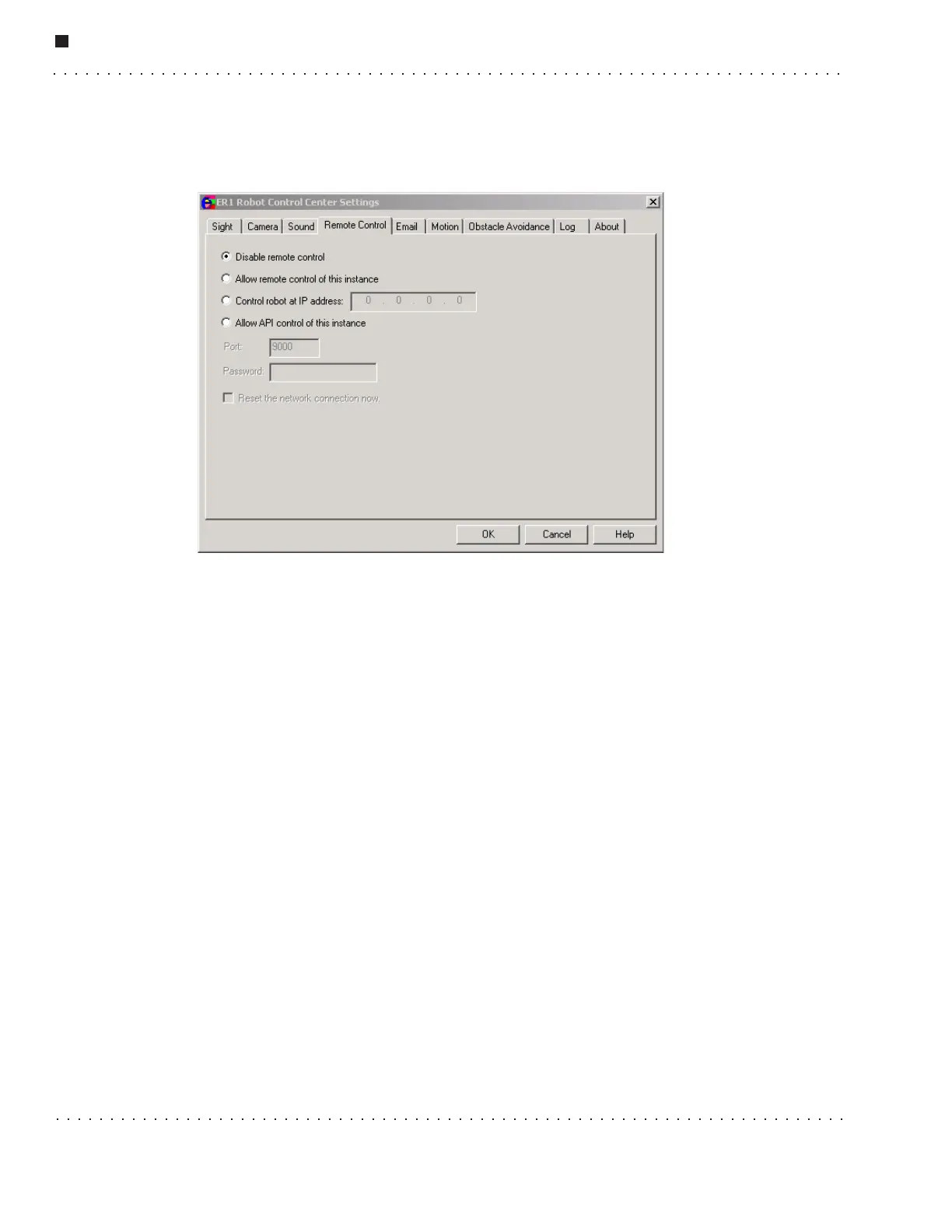
Remote Control Tab
This tab is used to enable, disable and customize your remote control parameters. Before
setting these options, you will need to configure your remote computer and your robot's
laptop computer so that they can communicate with each other.
Here's how:
1. Install a wireless network card in your remote computer according to the
manufacturer's directions. Do the same for your robot's laptop computer.
2. Install PCMCIA drivers on your remote computer according to the manufacturer's
directions. Do the same for your robot's laptop computer.
3. Install the drivers that came with your wireless card on your remote computer,
according to the manufacturer's directions. Do the same for your robot's laptop
computer.
4. Write down the laptop's name and wireless IP address.
5. Configure the remote computer's Windows operating system to connect directly to the
robot's laptop computer using a wireless connection. How you do this depends on
what version of the Windows operating system your computer is running. For
example, for Windows XP:
• Double-click on the wireless icon in the system tray (bottom right of your
Windows screen).
• In the Properties menu, select Wireless Net Tap.
• Add a new network.
• The SSID name for the new network should be: ADHOC.
•Go to Advanced Settings.



 To Next Page