Chapter 4 Audio, Video and Navigation Controls
4-2 ER1 User Guide
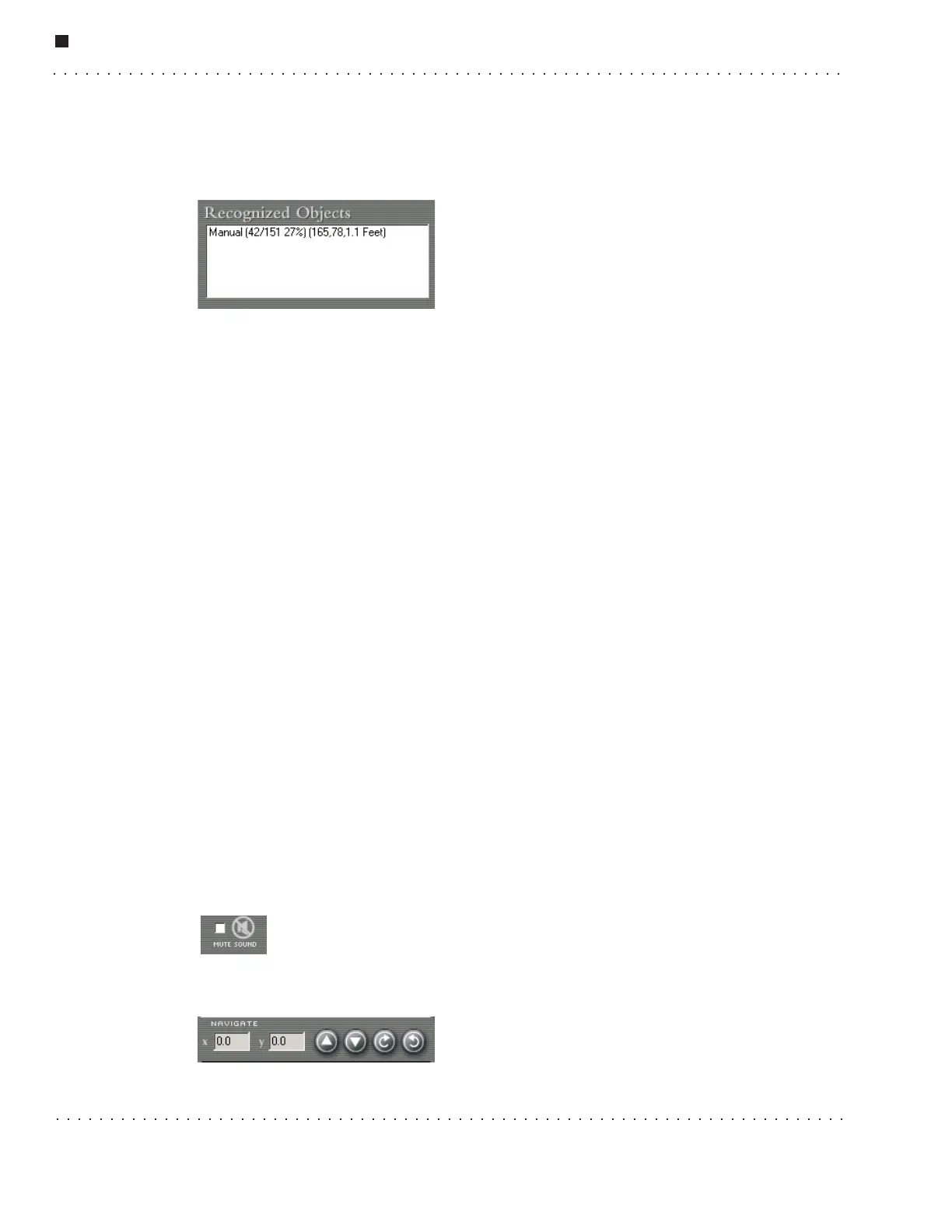
Recognized Objects
When the software recognizes an object, it will speak the object's name or a user-
specified phrase, and display the name and other information in the object area. See the
Sight Tab section for details on Object Recognition.
Click on the Settings button and then the Sight tab to
turn on/off recognition-related features.
Depending on your Sight settings, the object window
will display only the best match, or a list of all
possible matches. The object area is only active when
none of your behaviors are running.
The values displayed in the object window refer to the following:
•
Manual is the name of the object that was recognized.
•
42 is the number of features matched between the current video feed and the trained
object.
•
151 is the total number of features that were identified in the current video feed.
•
27% is the total percentage of features that were recognized.
•
165 is the horizontal position of the center of the object, in pixels, measured from
the top of the image.
•
78 is the vertical position of the center of the object, in pixels, measured from the
top of the image.
•
1.1 is the number of feet between the robot and the object recognized in the video
feed, based on the distance specified when the object was captured.
Obstacle Camera (optional)
The optional second camera is used by the software for simple obstacle avoidance. This
window will only be active if you have a second camera installed on your ER1. In order to
use your second camera for obstacle avoidance, you must calibrate it. Otherwise, you will
find that your obstacle avoidance simply is not avoiding obstacles. To calibrate your
obstacle avoidance camera, whether it is the original ER1 camera or an optional second
camera, follow the procedure described in the Obstacle Avoidance Tab section of
“Settings”.
Mute Sound Checkbox
The Mute Sound checkbox mutes sounds coming from the robot’s laptop.
Navigate
The navigation commands are used during
teleoperation to direct and describe the robot's
motions. The x,y coordinates are read-only values



 To Next Page