ER1 User Guide 7-3
Play a Sound
plugged in, it will move in response to your commands until it reaches the limit of the
laptop's power cord, then will continue to try to move, potentially damaging the laptop,
the laptop's charger, the robot, and the electrical outlet. This could start an electrical fire.
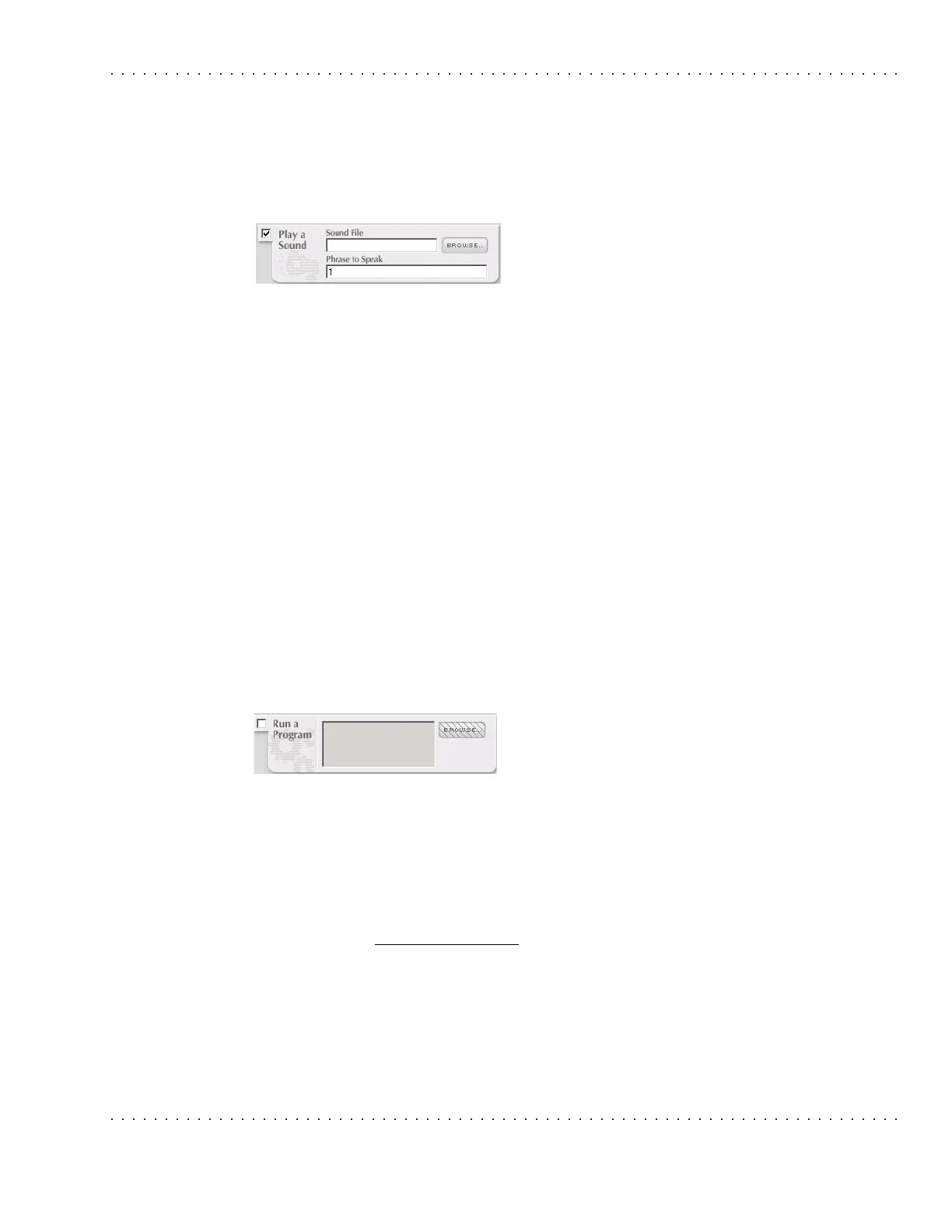
Play a Sound
Click on the Play a Sound checkbox to make this
action active.
This action uses the software's built-in
Text-to-Speech module. (You can change which
voice is used by clicking on the Settings button and selecting a voice type from the Sound
tab.) Options are:
• Sound File - This textbox is used to specify the path and name of a sound file. If
you are unsure of the path, use the Browse button to find your file. Remember that
you can create and use your own files to use in a behavior. RCC can use
.wav,
.txt, .mp3 and .wma file formats.
• Phrase to Speak - Type in what you would like the robot to say. The system will
first check to see if the file name entered exists on the hard drive. If so, the system
plays it. If not, the phrase is passed onto the Text-to-Speech module.
Run a Program
Click on the Run a Program checkbox to make this action active. Use the Browse button
to find the executable file, *
.exe, that you would like to execute. The selected path and
file name will be displayed in the textbox.
You can also pass parameters to the launched program, but the program name (or
.lnk file
name) must be surrounded by double quotes (") for this to work if it has spaces in the
name. The Browse dialog box takes care of this automatically for you.
This action allows you to specify a program to run
when the If condition is triggered.
A couple of hints about using this feature:
• If you need to specify a path that has spaces in it, for example
“
C:\My Documents\etc.” you must put quotes around the full path.
• If a document has a valid file association, for example Microsoft Word is used to
open
.doc files, you can just specify that file in the textbox. The program
associated with it will open automatically.
• Web pages can also be opened without specifying a program. For example you
could type www.evolution.com
in the textbox. Your default internet browser will be
used to open the webpage.
• If the file you wish to open is in the same directory as
er1.exe, you do not need to
specify the path to the file.



 To Next Page