Chapter 6 If Conditions
6-6 ER1 User Guide
Motion
This radio button, if selected, sets the motion detection feature. Motion detection can be
customized in the Sight Tab of the Behaviors Settings menu.
Sound Condition
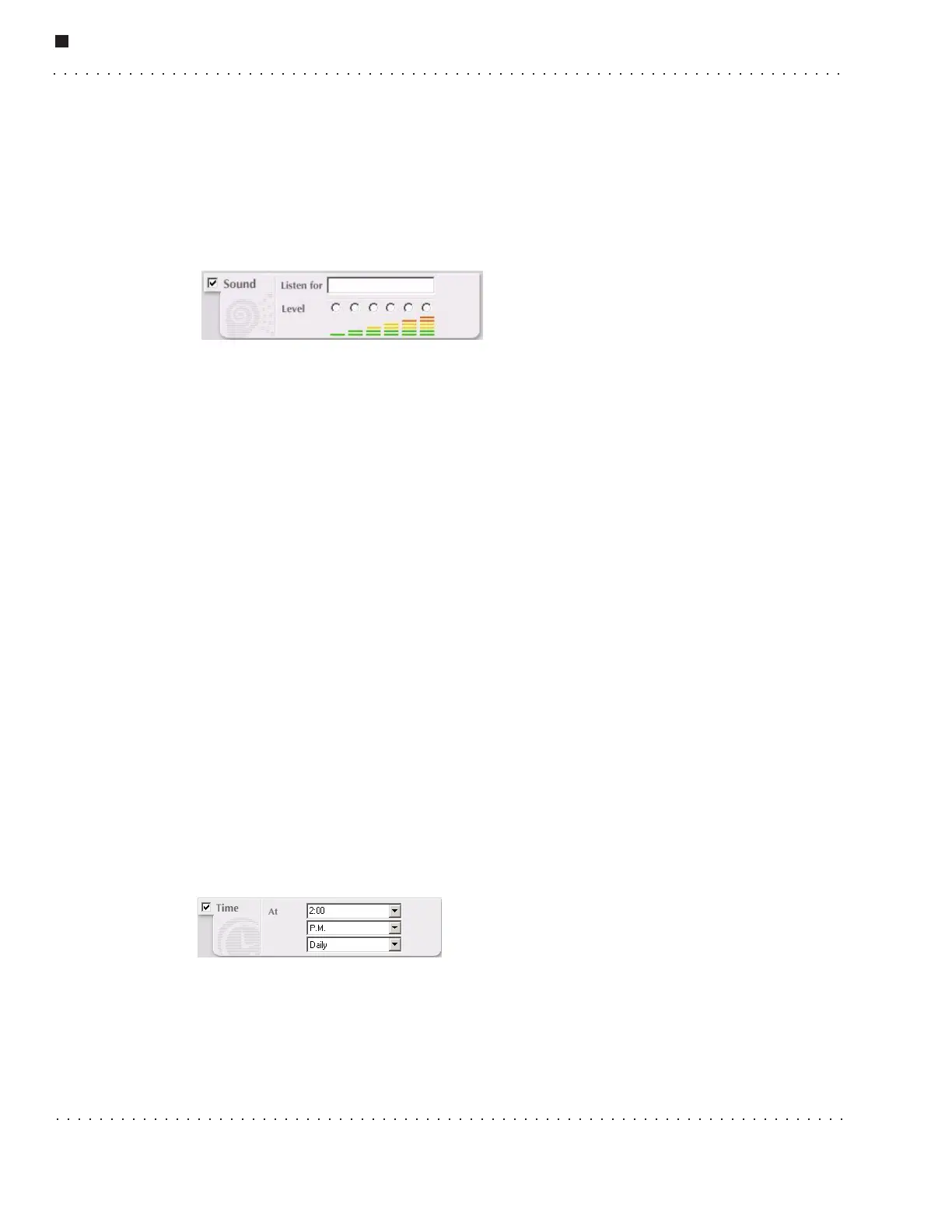
Click on the Sound checkbox to make this condition active. You will need a microphone
(not included with your ER1) to use this functionality.
The robot can be programmed to react based on one of two sound conditions:
• Listen for - Use this textbox to type the word or phrase that the robot should listen
for.
Important Note: In order for speech recognition to work accurately, you must take a few
minutes to use the Microsoft
®
Windows Control Panel > Sounds > Speech Recognition
submenu to train the software to recognize your microphone, your voice and your speech
patterns. Until you do this, the speech recognition quality will be poor. See your
Microsoft documentation for instructions on how to do this.
Speech recognition works without training, but improves in accuracy significantly with
training on you voice. Speech recognition is also considerably enhanced with a noise
cancelling headset microphone. This will either require a long cable or a wireless
microphone system, both optional accessories available from many sources. Both of these
help significantly. Short of that, you must be quite close to the microphone for speech
recognition to work, because of all the extra noise and reflections that come from the
room where the robot is located. Consult one of our Customer Support specialists before
purchasing a microphone.
• Level - Select one of the six sound levels by clicking on one of the six radio
buttons. When the robot hears a sound that crosses the threshold sound level
selected, the behavior's Then condition(s) will be triggered. You might want to test
the level you have chosen to determine the appropriate level.
Time Condition
Click on the Time checkbox to make this condition active.
Use the three drop-down menus to have ER1 perform an action at a specific time, or at a
regular interval (e.g., once, or hourly).
• The first drop down menu lets you choose time increments of one hour (1:00, 2:00,
etc.). If these times are not suitable, type in an exact time (1:12, 2:17, etc.). Valid



 To Next Page