ER1 User Guide 6-5
Sight Condition
Add
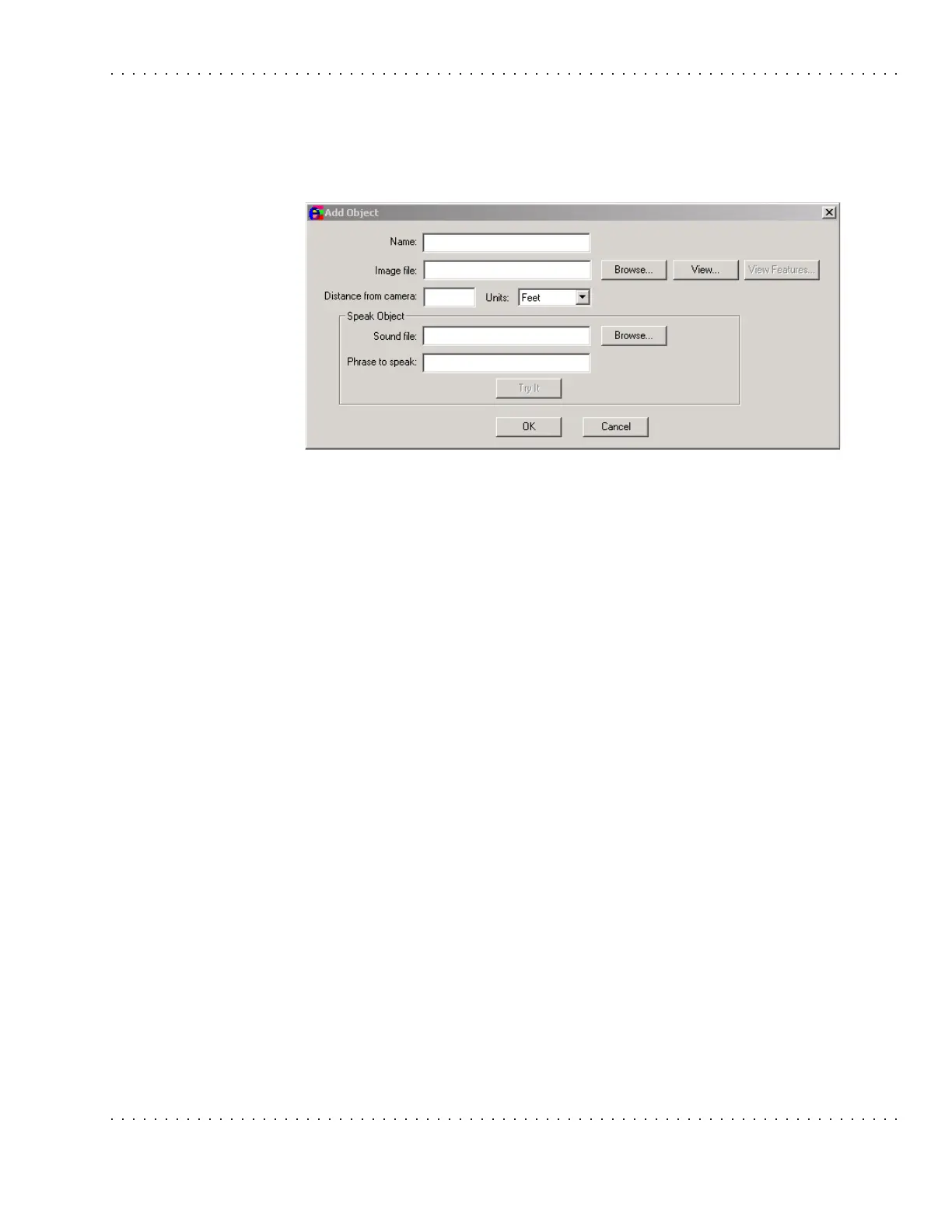
The Add button option allows you to add an existing image to ER1's library of recognized
objects. Click on the Add button and the Add Object Dialog box will appear.
It has the following parameters:
• Name - This will be the RCC, not the Windows, filename for the object.
• Image file - This is the Windows path and filename for the image to be added. If
you are unsure of the path, use the Browse button to find the file. Once the file has
been specified, you may view it by clicking on the View button. Click on the x in
the upper right hand corner to close the image. Use the View Features button to see
the features that RCC is using to identify an object. The features will be outlined in
purple circles. Note that RCC must have already been trained on the image in order
to have identified features.
• Distance from the camera - This textbox is used to select the number of units the
object is from the camera. Be as precise as possible, as the robot will use this
information to determine its distance from a target.
• Units - To specify a unit type, use the pulldown menu. Choices are: Feet, Inches,
Meters and Centimeters.
• Speak Object - This section is used to associate a sound file or a phrase to speak
with the image file.
• Sound File - To specify a sound file to be played when the image is recognized,
type in the path and filename of a sound file. You can also use the Browse
button to specify the file. RCC can use
.wav, .txt, .mp3 and .wma file formats.
• Phrase to Speak - To have RCC speak a phrase when the image is recognized,
type the desired verbiage in this textbox.
Delete
Allows you to remove an image from ER1's library of recognized images. Before it is
deleted, you will be asked to confirm that you wish to delete it. To delete the image, click
on the Yes button. To cancel the delete function, click on the No button.



 To Next Page