Chapter 8 Settings
8-2 ER1 User Guide
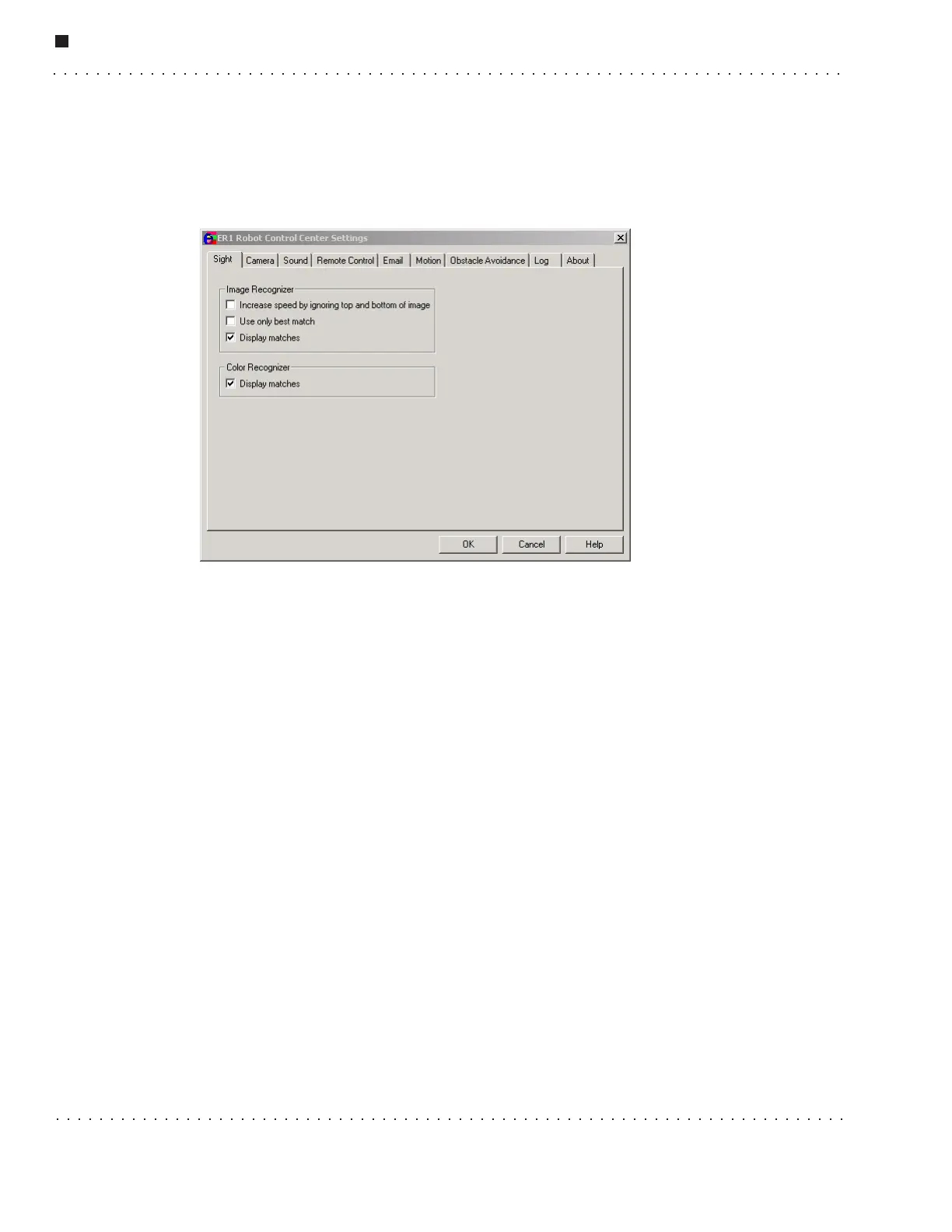
Sight Tab
This tab is used to fine-tune aspects of the software's object recognition capabilities.
These are used to recognize objects that the user has specified.
Most users will not need or want to adjust these values. Experienced users may want to
experiment with them.
Here are the Image Recognizer options:
• Increase speed by ignoring top and bottom of image - Checking this box reduces
the number of pixels required for processing recognition data by chopping off the
top and bottom of the image. This speeds up the recognition process. The trade-off
is that increased speed recognition only works reliably with objects that are level
with the camera. It can fail to recognize objects that are a little above or below the
camera. After you change this value, the software must recalibrate the saved images
before continuing. This may take several minutes.
• Use only best match - This checkbox toggles the recognition capabilities between
the best match and normal match object recognition strategies. If this option is
selected, the Recognized Object text box will only list the image with the most
matched features. If this option is not selected, the Object text box will list all
possible matches, ranking them in descending order from top to bottom according
to the confidence measure.
• Display matches - This checkbox, if selected, specifies the display of a blue
rectangle around each recognized object. Note that selecting this option will slow
the obstacle avoidance feature.
There is one Color Recognizer option:
• Display matches - This option lets you specify whether or not to show red boxes
around colors recognized by the robot in its environment. To improve recognition
speed, the robot does not look for behavior trigger colors once the behavior starts --
only colors needed for the specific behavior that was triggered are recognized.



 To Next Page