Chapter 7 Then Action
7-4 ER1 User Guide
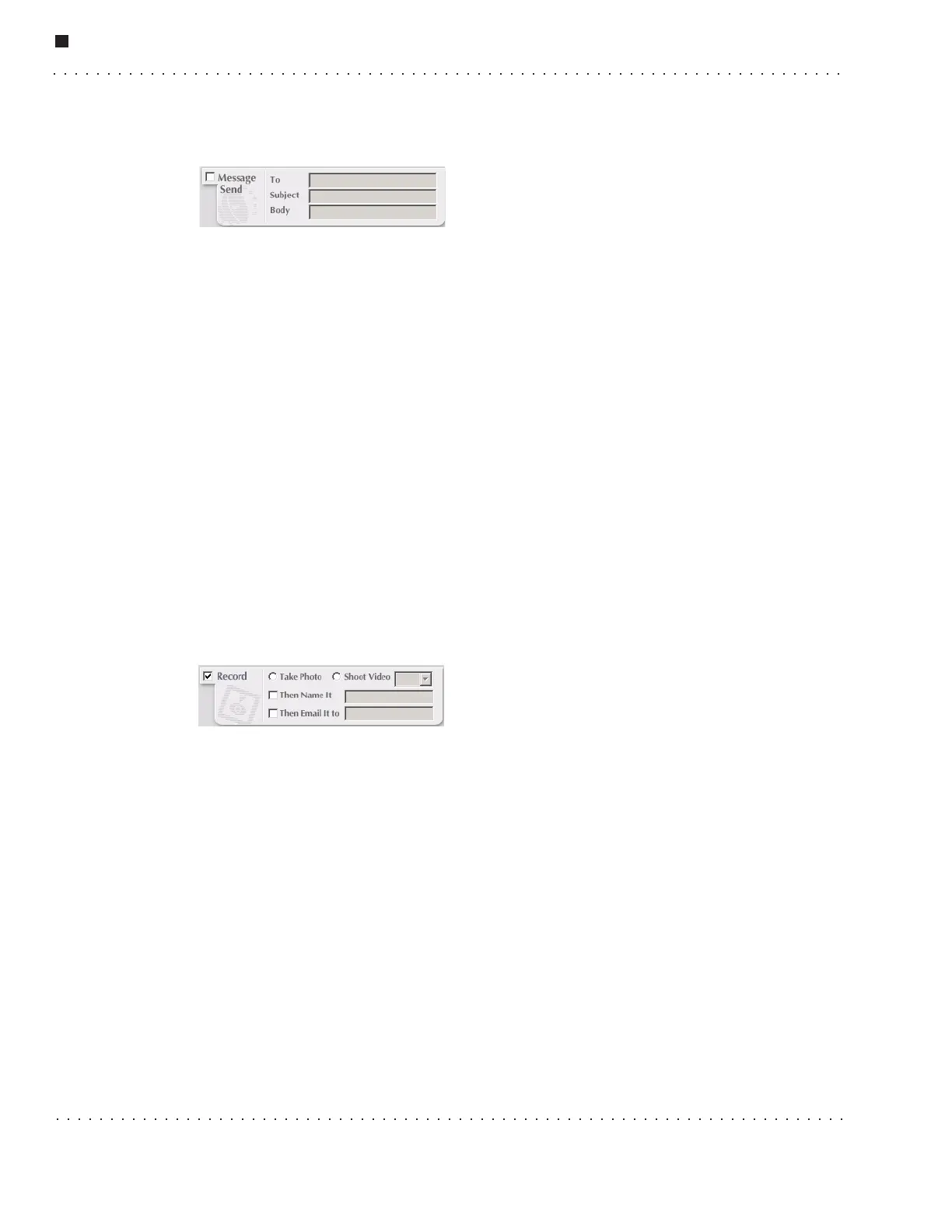
Message Send
Click on the Message Send checkbox to make this action active.
Use this option to create an email to be sent to one or more specified addresses upon
triggering of an If condition. The message send occurs immediately if the If condition is
true.
To use this option, your robot's laptop must have access to the Internet. You also must
have an email account set up with your ISP. Evolution Robotics RobotMail will not send
outgoing messages.
The fields are:
• To - Enter one or multiple email addresses to which the message should be sent.
Aliases are not supported; a full email address must be provided. Addresses should
be separated with semicolons. Be careful in specifying behaviors that have the
robot send emails. It would be easy to accidently send multiple spurious emails if
your trigger conditions are met multiple times. Click on the Behavior Settings
button and then the Run tab to set the way this behavior can be run.
• Subject - Enter the subject of the email message.
• Body - Enter the body of the email message.
Record
Click on the Record checkbox to make this action
active.
Use it to take and save a photo or video upon
triggering of the If condition. You can then have the
photo or video emailed to one or more addresses.
To use email, your robot's laptop must have an Internet connection. You also must have
set up an email account with your ISP.
• Take Photo - This parameter tells the robot to take a snapshot of the video image
once an If condition is satisfied.
• Shoot Video - Tells the robot to record the video image for a specified amount of
time (5 to 60 seconds) once the If condition is satisfied.
• Then Name It - Type in a filename for the recorded photo or video. The software
will store the file on the hard drive under that name. If no directory path is
specified, the image or video file will be stored in the same directory as the RCC
executable.
WARNING: If a behavior is run more than once, a video or photo file of the same
name will be created multiple times. Each time, the new file will overwrite the old
file. This will occur with no warning messages. If you wish to save all of the



 To Next Page