Chapter 6 If Conditions
6-2 ER1 User Guide
Sight Condition
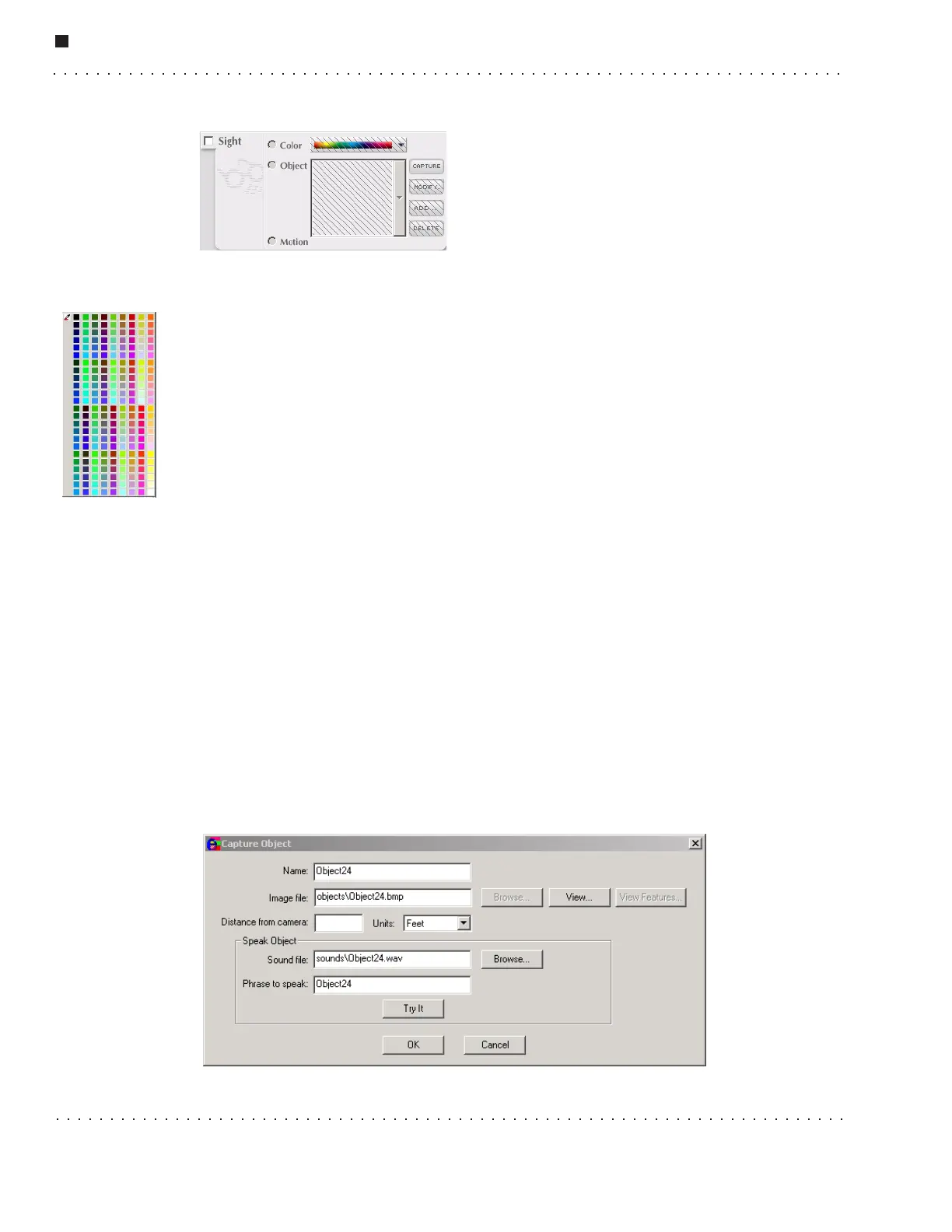
The Sight section allows you to set visual
conditions. Click on the Sight checkbox to make it
active.
Color Selection Tool
This tool allows you to specify a specific color as the trigger condition.
You can choose from the 256 colors on the pull-down color palette, or you can use the
dropper tool to capture a color displayed in the Video area. Either way, when the robot
sees an object of that color, the corresponding action is triggered.
When you click on the dropper tool, a pop-up menu displays a frozen image of the
current video feed, and your cursor changes to an dropper. Move the dropper to the
pop-up window, and click on the color you want to specify. That color appears in the color
bar. See “Trying Out the Software” for a tutorial that uses this function.
Object
The Object pulldown menu allows you to specify visual recognition of an object as the
trigger condition. You can select from the scrollable list of image library thumbnails
displayed in the viewer with the filenames under each, or you can capture a new image.
(Note that the most recently trained item is at the top of the pulldown menu list.) When
the robot recognizes the specified object, the corresponding actions are triggered.
To the right of the viewer are four buttons:
Capture Button
The Capture button allows you to capture an image from the robot’s video feed. If you
are using a wireless connection to control your robot, note that the picture file will be
stored on the robot’s laptop.



 To Next Page