Chapter 5 Function Buttons
5-2 ER1 User Guide
Open Button
The Open button allows you to retrieve and load a previously saved .rbt file. To do so:
1. Click on the Open button.
2. If you've made changes since your last
.rbt save, a dialog box will appear asking you
if you want to save your current settings before retrieving. Select Ye s or No. If you
select Yes , a dialog box will appear asking you to name your file. Do so as needed,
then click Ok.
3. A standard Windows-like file selection dialog box appears.
4. Navigate to the
.rbt file you would like to use.
5. Select the file.
6. Click Ok. The robot behavior set that you have selected will be displayed on the
screen.
Save Button
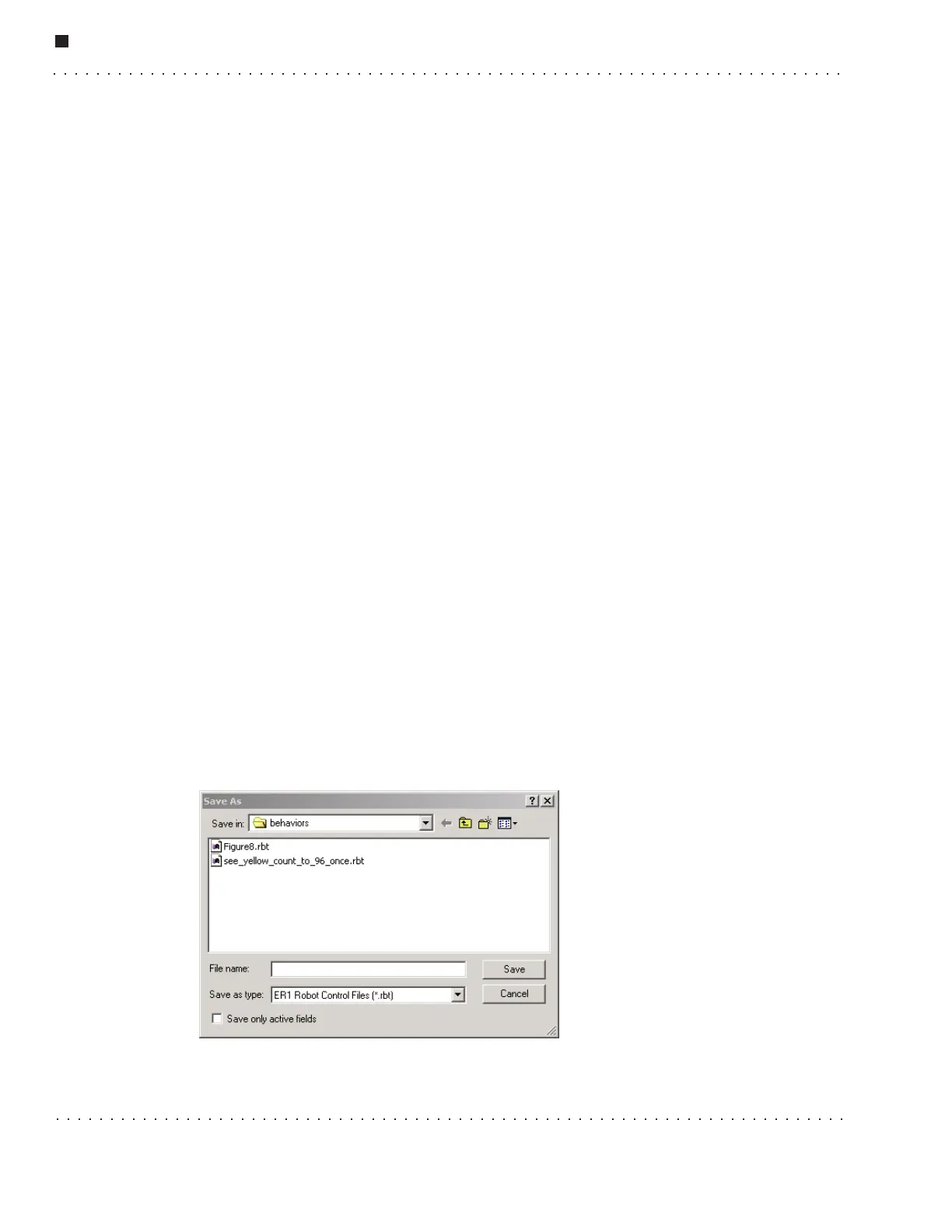
The Save button saves the current settings to disk using a standard Windows dialog box.
Click on the Save button and a Save As dialog is displayed. Type in a name for your
behavior set. Make sure that the name is unique and descriptive so that the file will be
easy to find as you add more behavior sets. Click on the Save Button. You may click on
the Cancel button at any time to cancel and return to the main RCC screen. The default
directory is named
behaviors and is in the ER1 program directory. If you have already
named your behavior set, just type
Ctrl S to save your behavior set. The behavior set
will be saved with no feedback.
Save Only Active Fields
In the Save dialog box there is a new checkbox entitled, Save only active fields. This is
disabled by default. If you click this checkbox, only the active settings will be saved. For
example, if you filled in some Move settings, then deselected the Move checkbox, then
used Saved only active fields, your Move settings would not be saved. Non-saved
settings are not recoverable.



 To Next Page