Chapter 10 Application Programmer’s Interface
10-2 ER1 User Guide
• Use the ER1’s vision system to control external devices. For example, you could
write a program which integrates the robot with your home automation system and
have it turn on your home theater system and dim the lights when you show it a
particular DVD box.
Because the APIs are written in a language neutral way, they can be used by most
programming and scripting languages (e.g. C, C++, Perl, Java, Visual Basic, etc.). They
also work equally well when issued from the laptop controlling the robot and from
another machine via a (wireless) network.
Accessing the API
The API is accessed by opening a TCP/IP socket to er1.exe and sending text
commands along the socket.
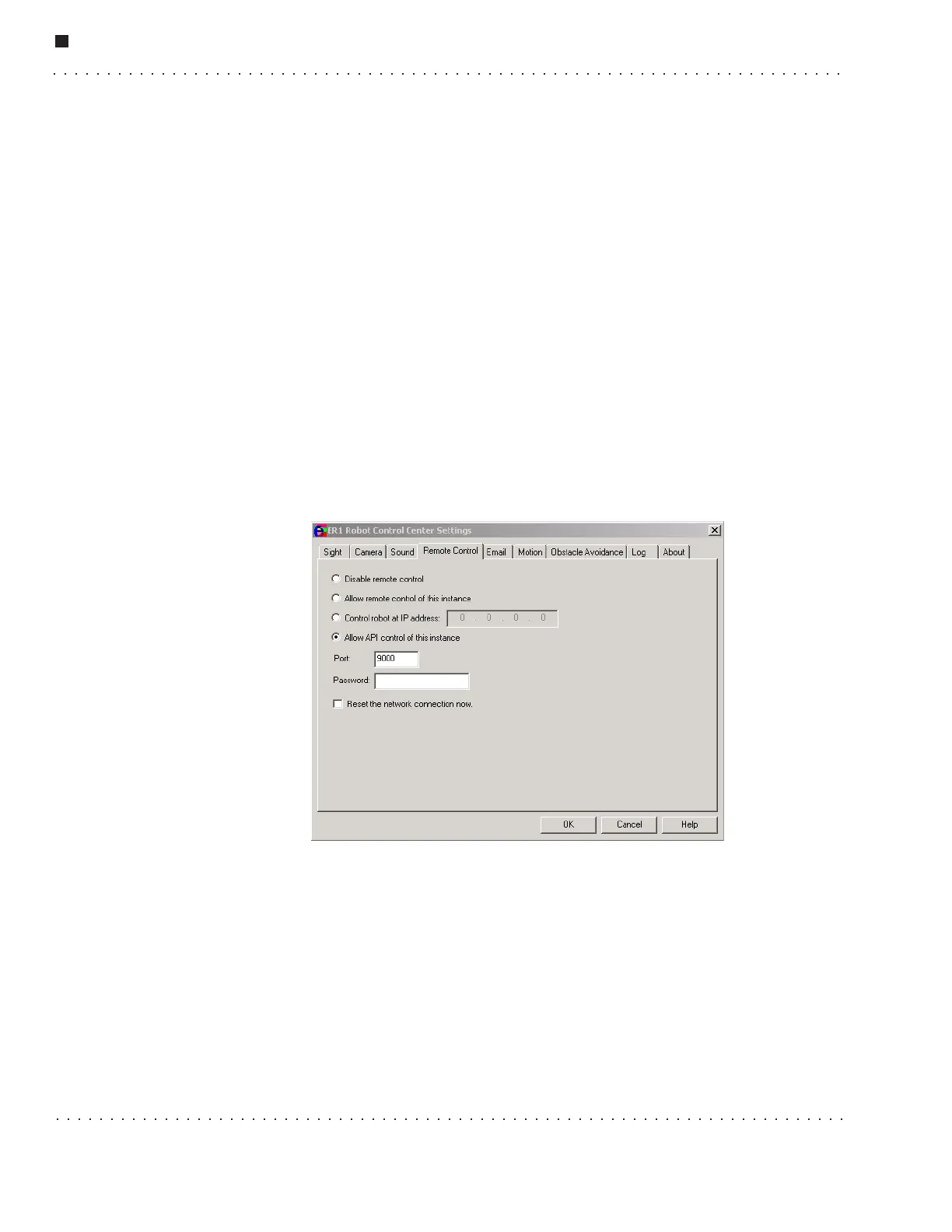
Activating the feature is done via the Remote Control tab of the Settings dialog box.
There is a new remote control option, labeled Allow API control of this instance. To
activate:
1. On the robot’s laptop, with ER1 running, choose the Settings button, select the Sight
tab and click on the Allow API Control of this instance checkbox.
2. On the remote client running ER1, click on the Settings button, and then the Sight tab
and click on the Disable Remote Control checkbox.
This makes it such that you cannot control a robot with both remote control and the API at
the same time.
Also, once the API connection is established and the user has "logged in" (see below), a
modal dialog box pops up on the robot's system. This prevents any GUI interaction with
the robot until the API connection is closed, or the button in the dialog box which allows
the connection to be terminated is pressed.



 To Next Page