FLEX-6000 Signature Series - SmartSDR for Windows Software User’s Guide
Page 147
Copyright 2018 FlexRadio Systems. All Rights Reserved.
35 RADIO SETUP
35.1 INTRODUCTION
The Radio Setup menu, located in the Settings menu of the main SmartSDR window, is used to
configure various settings of the radio.
35.2 CONFIGURING A RADIO
To configure a radio, select the radio you wish to connect to from the SmartSDR start screen. Once
selected, the radio will be highlighted in blue. Double click the radio to start it. Open the Settings
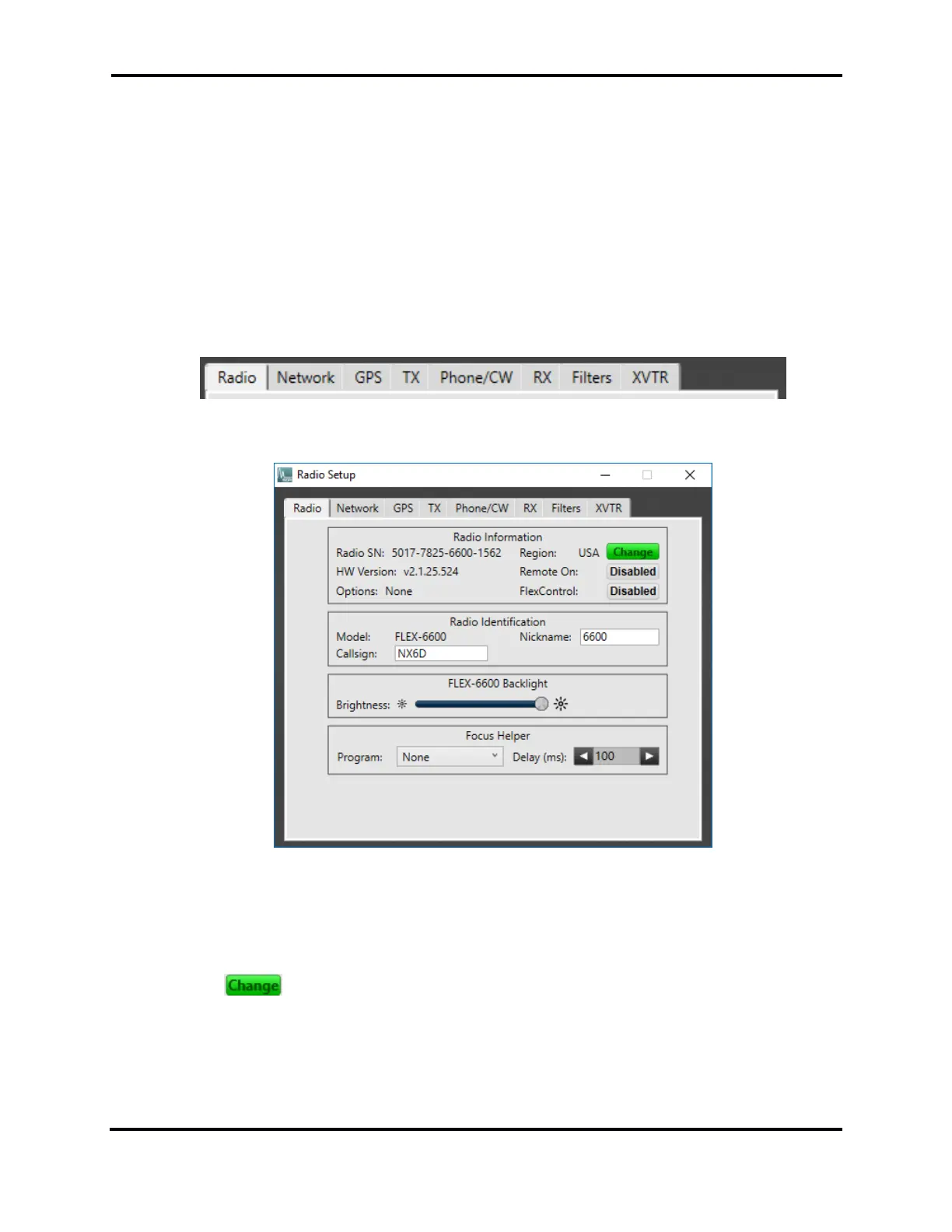
menu from the main window menu list. Use the tabs toward the top of the window to navigate to
the different areas for configuration.
35.3 RADIO TAB
Located in the “Radio” tab is basic information about the selected radio. The tab contains the radio
serial number, installed options and hardware version. Radio Hardware version refers to the software
and firmware that is loaded into the radio itself.
The “Region” indicator which displays the country for which the radios transmit capabilities are
based. The button opens an explorer window to select a TURF file for changing the region. A
TURF file is supplied by FlexRadio Systems or the international distributor where the radio was
purchased. Navigate to the TURF file and click “Open”. The radio will automatically update the radio
to the new region.


 To Next Page
 Loading...