•
Press [Yes] and the menu changes to the Cine Calculation menu, from where you
proceed as described in
'Cine Calculation'
on page 9-57
9.4.3 MagiCut
This software has the ability to electronically edit the images, and makes it possible to cut
away structures obstructing the view onto the ROI.
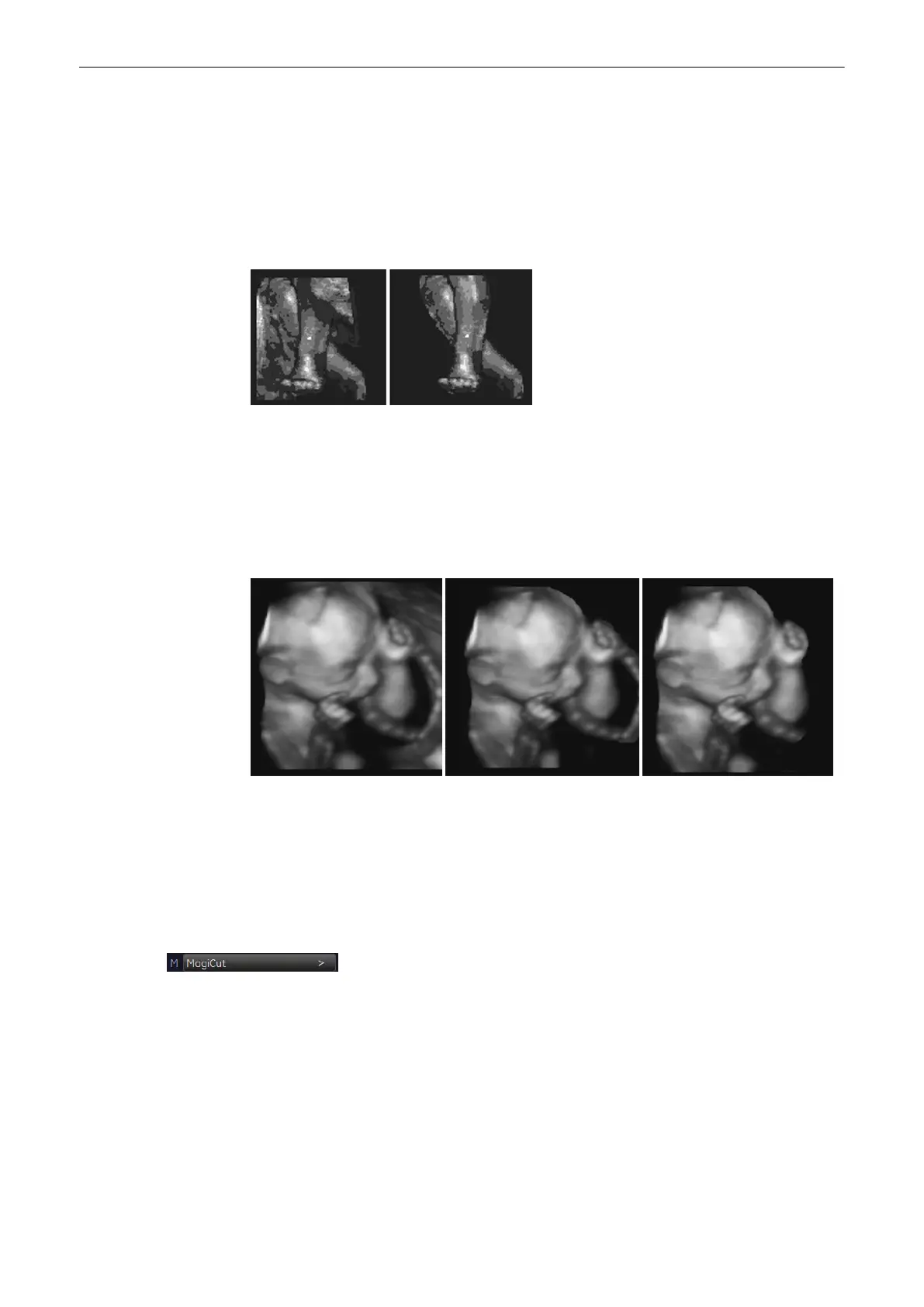
The left image displayed above is rendered without cutting, whereas the right image has had
cutting techniques applied to give a clearer view of the object of interest.
There are six methods available for cutting. These different methods can be used (in different
cases) to facilitate an unobstructed view to the object of interest.
The following image shows a 3D rendered image before 3D cutting, and after. The cutting was
performed by rotating the image to give the best view and utilizing the ’contour inside’ method.
For operation: 'MagiCut Operation'
on page 9-69
Note
The cutting function is only available on a 3D rendered image. In a combined display mode
(Pictogram mode: 3D image + 2D sectional planes) the cut information still remains in the 2D
planes.
9.4.3.1 MagiCut Operation
1. Select the [MagiCut] key to switch on the MagiCut function.
The following menu appears on the manu area.
Volume Mode
Voluson® S6/S8 Basic User Manual
5433669-100 Revision 4 9-69


 To Next Page