13.1.6.4 Changing Password
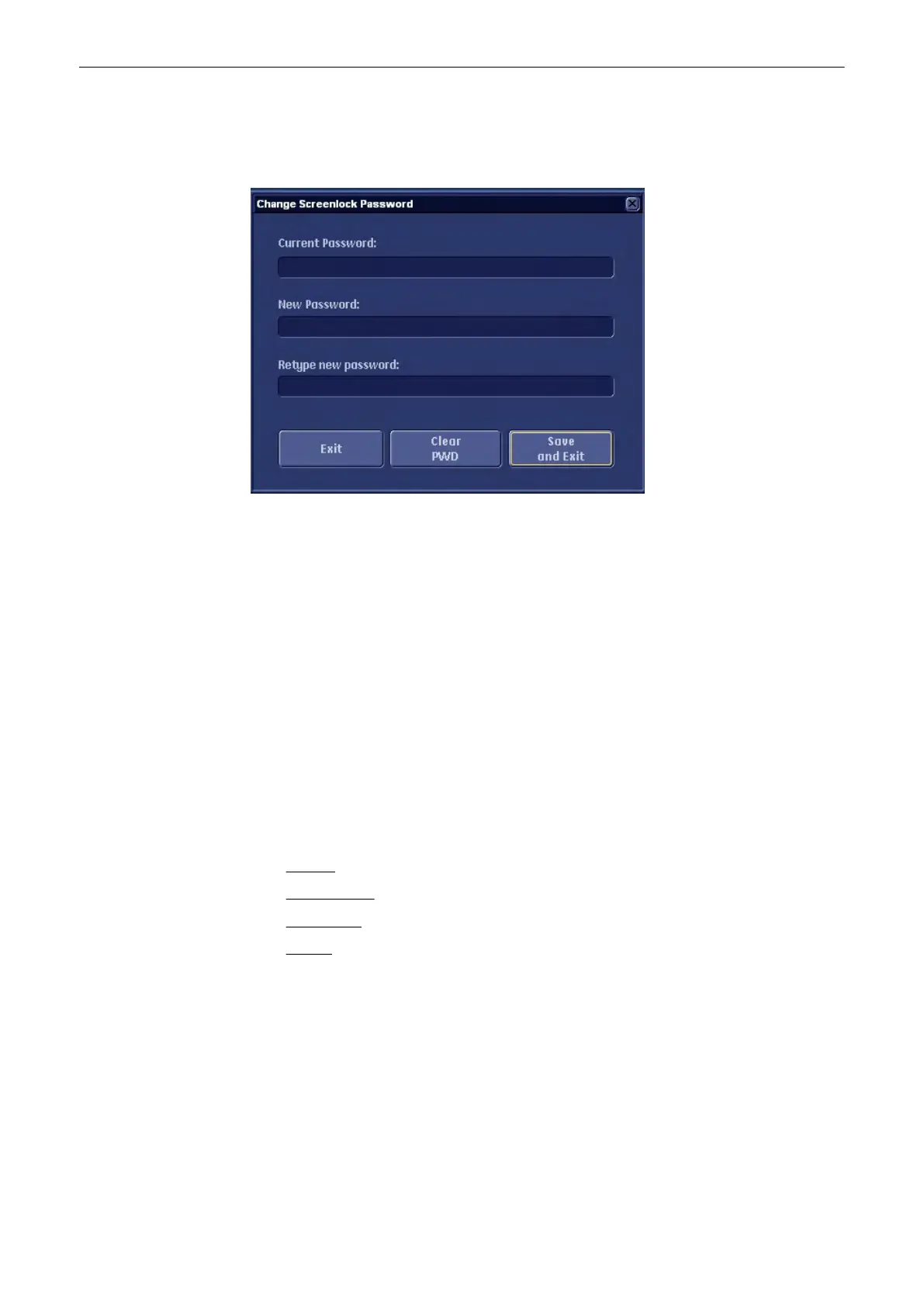
When Lock Screen is active, you can also change the existing password. Press the the
[Change PWD] button. The following dialog appears:
1. Enter the current password.
2.
Then enter and retype the new password.
Note
A valid password must be at least 6 characters long and has a maximum length of 80
characters. A password must contain at least 2 non-letter characters, ..9 or ! @ # $ % ^ * ( ).
3. Press [Save&Exit] to save the new password, disable Lock Screen and return to the
previous operating state. If you want to discard your new password, press [Exit] and
return to the Lock Screen dialog.
13.2 System Setup
Introduction
Diverse dialog pages and windows on the system setup desktop support modifications of
system parameters.
The System Setup desktop offers different Pages:
•
General
(chapter
'General'
on page 13-15
)
•
Administration
(chapter
'Administration'
on page 13-27
)
•
Connectivity
(chapter
'Connectivity'
on page 13-30
)
•
Backup
(chapter
'Backup'
on page 13-47
)
Utilities and System Setup
13-12
Voluson® S6/S8 Basic User Manual
5433669-100 Revision 4


 To Next Page