This mode allows you to read and edit the device’s
parameters, but you cannot get its image data.
This mode allows you read the device’s parameters and get
its image data, but you cannot edit its parameters.
When the multicast function is enabled, the device icon on the client software of other PCs
will become , and you can connect the device via the data receiver mode.
You can set multicast function for both the available device and connected device in the
device list, but the specific settings are different.
12.10.1 Set Multicast (Available Status)
Follow steps below to set multicast function if the device is in available status.
Steps
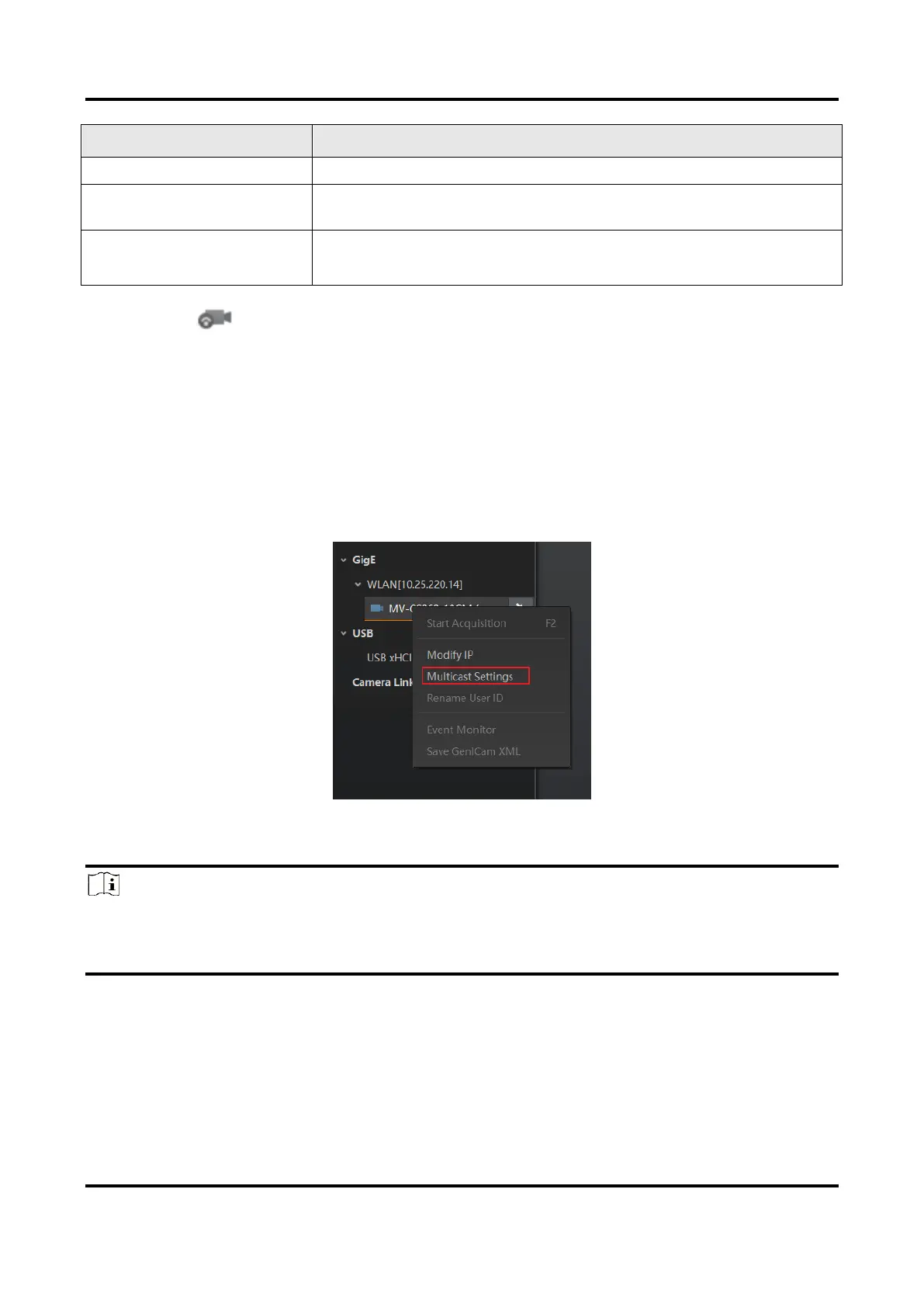
1. Right click the available device, and click Multicast Settings.
Figure 12-21 Multicast Settings
2. Select Role, and enter the IP Address and Port.
Note
●
The available status device can use multicast function in Controller and Data Receiver
mode or Controller mode.
●
The IP address should be class D IP address, and the port ranges from 0 to 65535.


 To Next Page