GigE Area Scan Camera User Manual
14
5.3 Set Device Network
You can set and operate the device in the client software only when the device is in the
same network segment with the PC where the client software is installed.
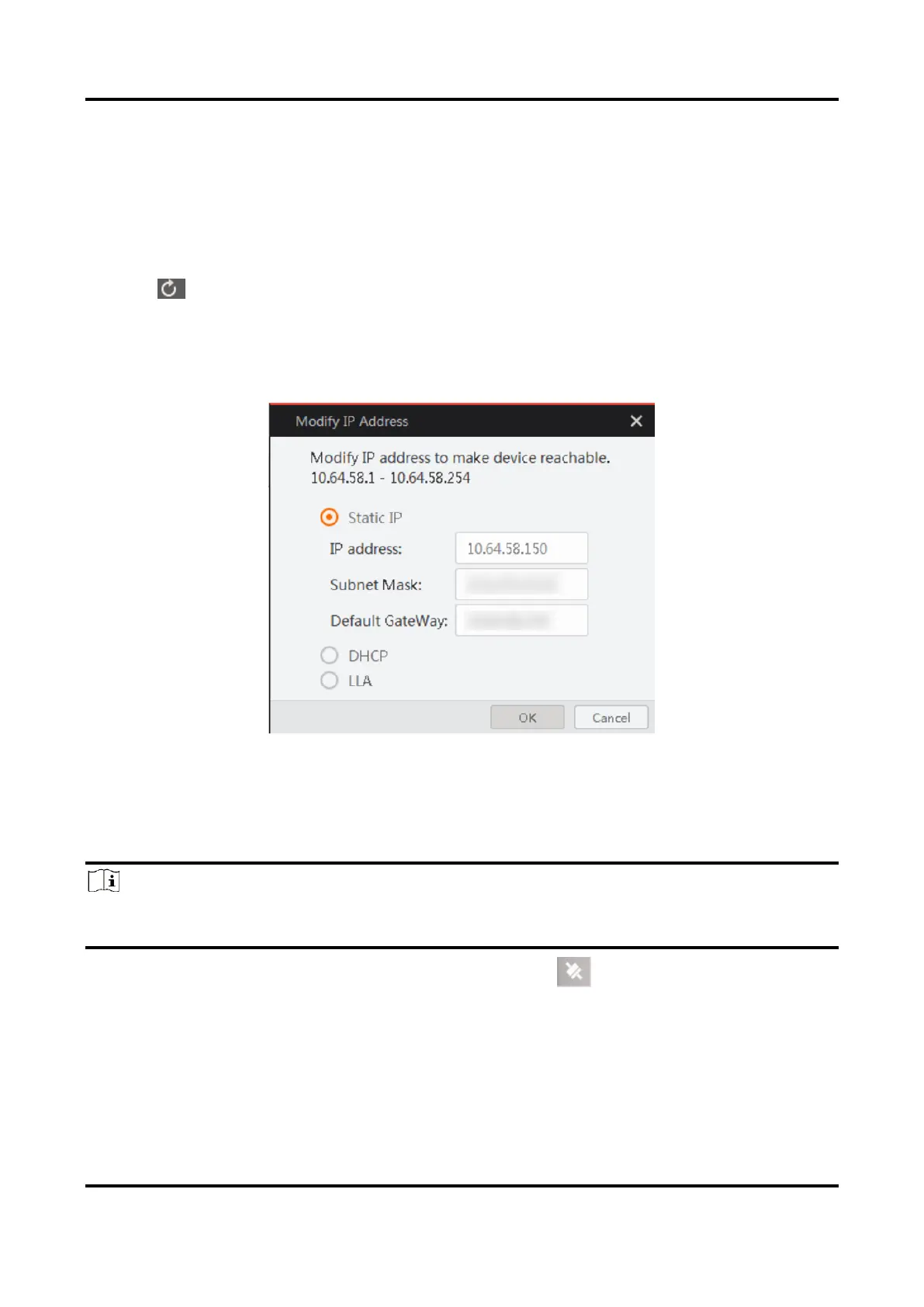
Steps
1. Double click the client software to run it.
2. Click in device list to search the device.
3. Select a device to be connected.
4. Right click the device and click Modify IP.
5. Set the IP address of the device in the same network segment with the PC.
6. Click OK.
Figure 5-7 Set Device Network
5.4 Connect Device to MVS Client Software
Note
Make sure that your device’s IP address is in the same network segment with the PC
where you installed the client software before connecting the device to it.
Double click the device name in the device list, or click to connect the device to the
client software.


 To Next Page