GigE Area Scan Camera User Manual
15
Chapter 6 Client Software Layout
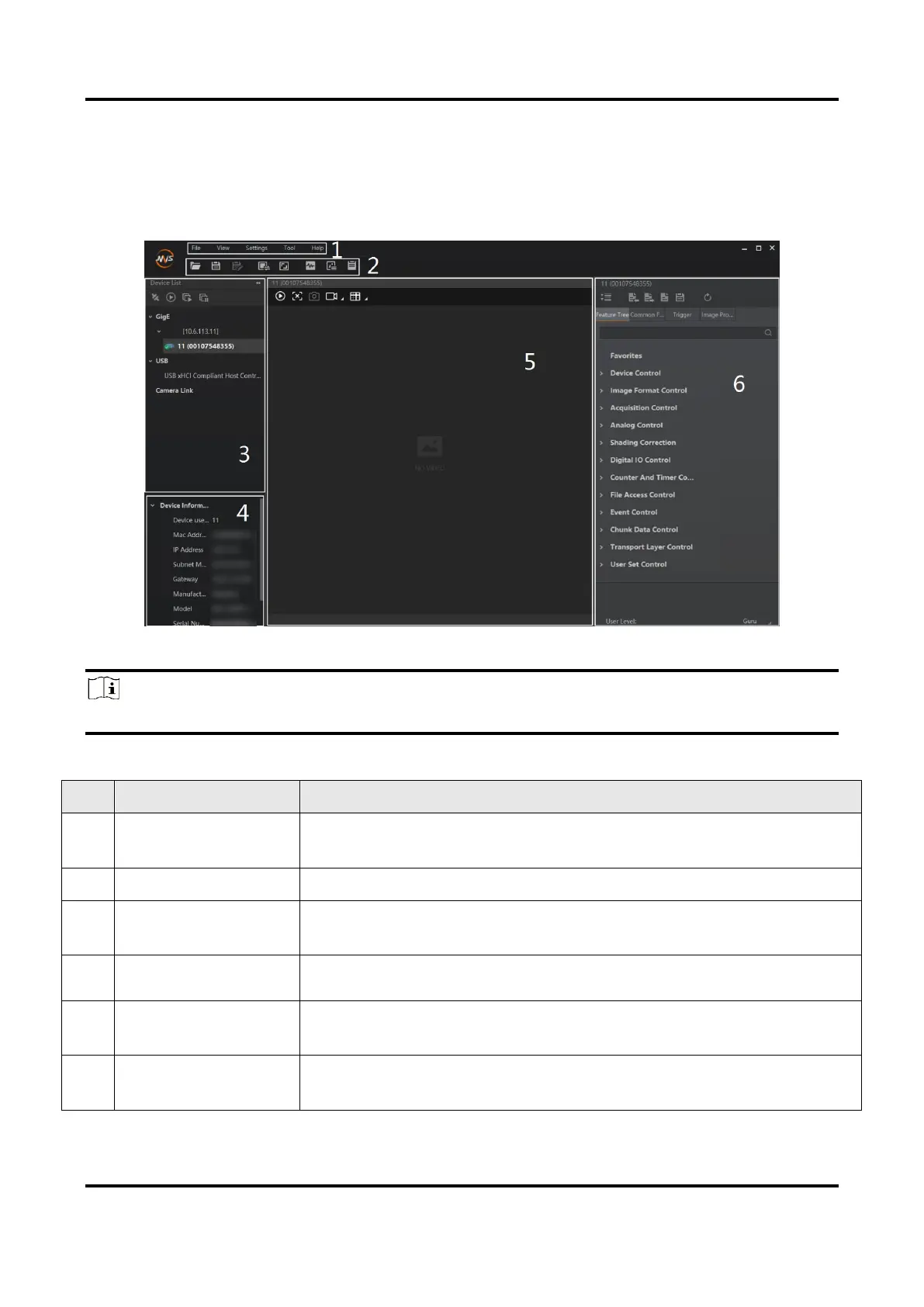
After connecting to the device, the client software can read its attributes and display them.
Figure 6-1 Main Window
Note
For specific main window of the client software, please refer to the actual one you got.
Table 6-1 Main Window Description
The menu bar displays function modules, including File, View,
Settings, Tool, and Help.
The control toolbar provides quick operations for the device.
This panel displays device list, and you can connect or disconnect
device, modify device IP address, etc.
This panel displays the detailed device information.
This area displays the acquisition images in real-time. You can
click different icons to capture and save image, record, etc.
You can view and set features of the selected device, and perform
operations such as importing, exporting, and saving features.


 To Next Page