GigE Area Scan Camera User Manual
23
Note
●
If the real-time frame rate is smaller than the value you set, the device acquires images
by the real-time frame rate.
●
If the real-time frame rate is larger than the value you set, the device acquires images by
the value you set.
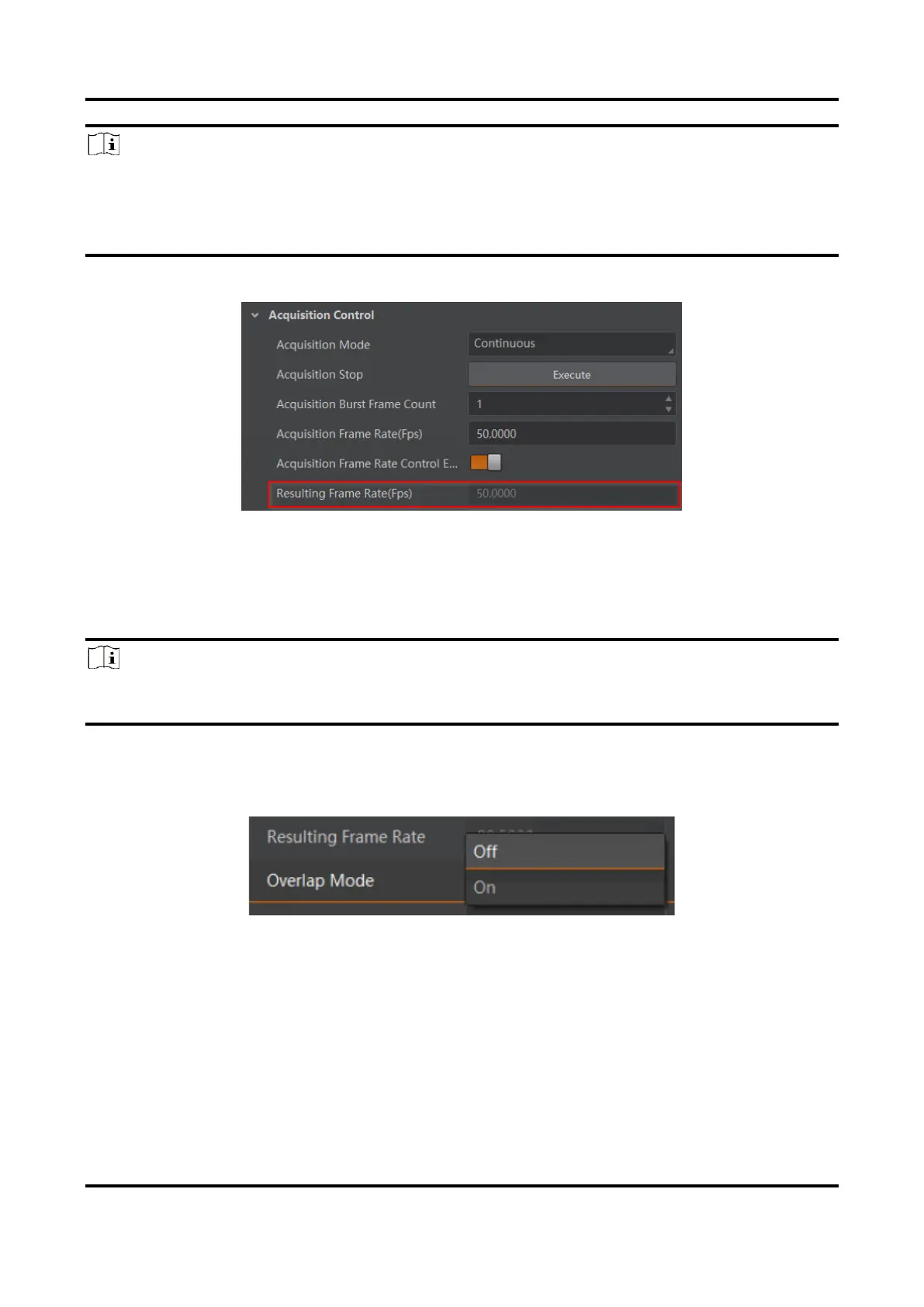
3. View the device’s final frame rate in Resulting Frame Rate.
Figure 8-2 View Resulting Frame Rate
8.2 Set Overlap Mode
Note
The overlap mode may differ by device models. Refer to section Non-Overlap Exposure
and Overlap Exposure for detailed introduction.
The device’s overlap function is controlled by the overlap mode. Go to Acquisition Control
→ Overlap Mode, select On as Overlap Mode to have overlap exposure, and select Off as
Overlap Mode to have non-overlap exposure.
Figure 8-3 Set Overlap Mode


 To Next Page