GigE Area Scan Camera User Manual
90
8. Enable Scheduled.
9. Click in Benchmark Camera to select one device as benchmark device. Once
benchmark device is selected, other devices keep time synchronization with it.
10. (Optional) Enter Delay Time according to actual demands.
Note
●
The delay time should NOT be shorter than the maximum time required to transmit the
command across the network.
●
When the benchmark device receives the command, all devices will trigger certain
actions simultaneously after the specified delay time.
11. (Optional) Enable Periodically Send to enable the client to send commands periodically,
and enter Sending Interval according to actual demands.
Note
The default value of sending interval is 1000 ms, and its range is from 1 ms to 3600000
ms.
12. (Optional) Enable Request Acknowledgement to display the acknowledgement
messages.
13. Click Start Sending.
12.4 File Access Control
Note
The file access control function may differ by device model.
The file access function can import or export the device’s feature files and save them in
mfa format. The supported feature files include User Set 1/2/3, DPC, and LUT Luminance
1/2/3.
Steps
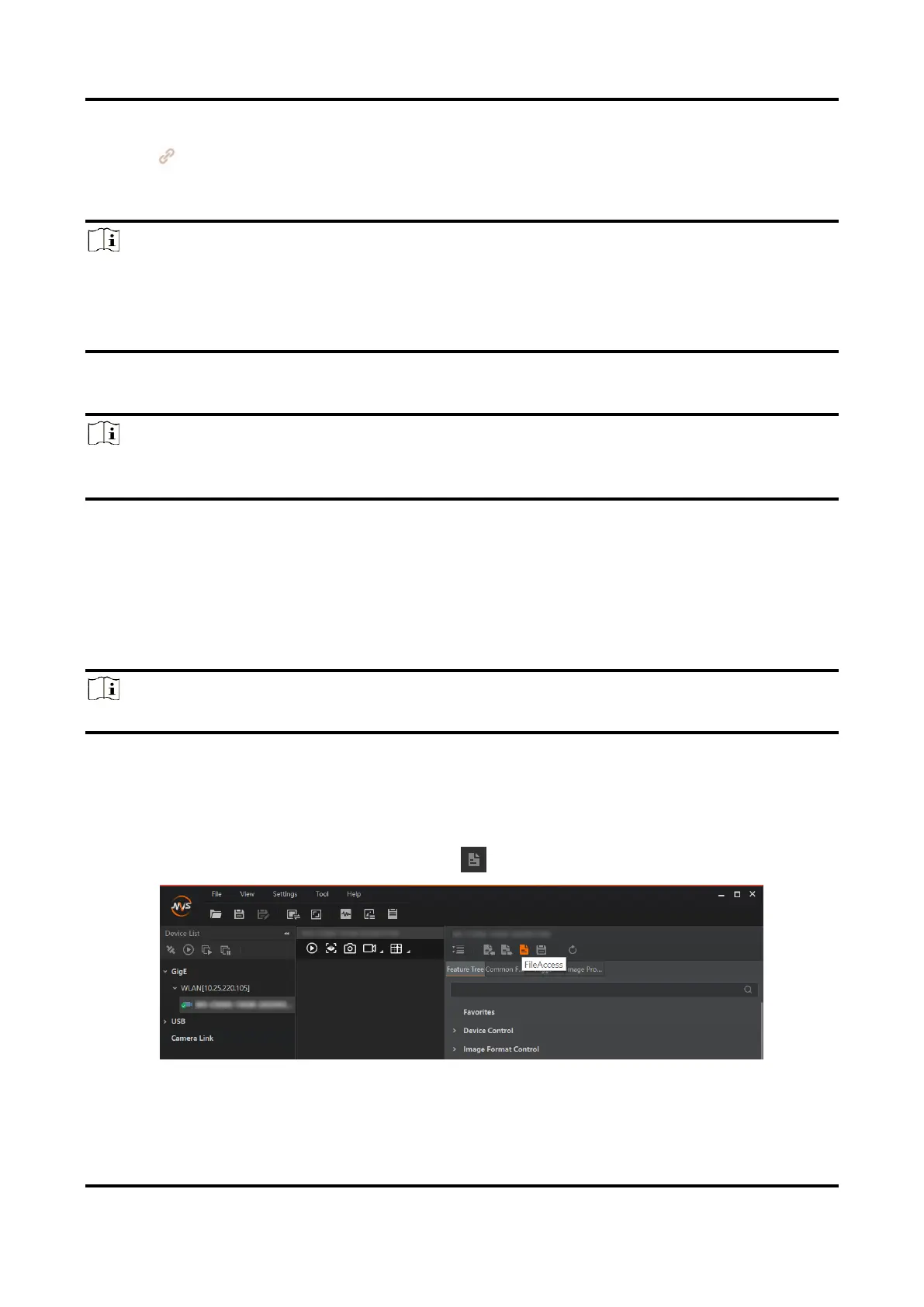
1. Select a device in the device list, and click to open the file access dialogue box.
Figure 12-8 File Access
2. Select Device Feature and click Import or Export.


 To Next Page