GigE Area Scan Camera User Manual
75
11.25 Set Color Transformation Control
Note
●
The function of color transformation control is only available for color devices.
●
Currently, RGB to RGB is available for Color Transformation Selector only.
After the image is processed by the white balance, the overall image will be dark, and at
the same time, various colors may deviate from their standard values to varying degrees.
At this time, it is necessary to multiply the color of the image by the correction matrix to
correct each color to its standard value, so that the overall color of the image is more vivid.
The color correction function is implemented by multiplying each RGB component by a
correction matrix. The currently supported color conversion module is RGB to RGB.
Two methods are available to set color transformation control.
●
Method 1:
Steps
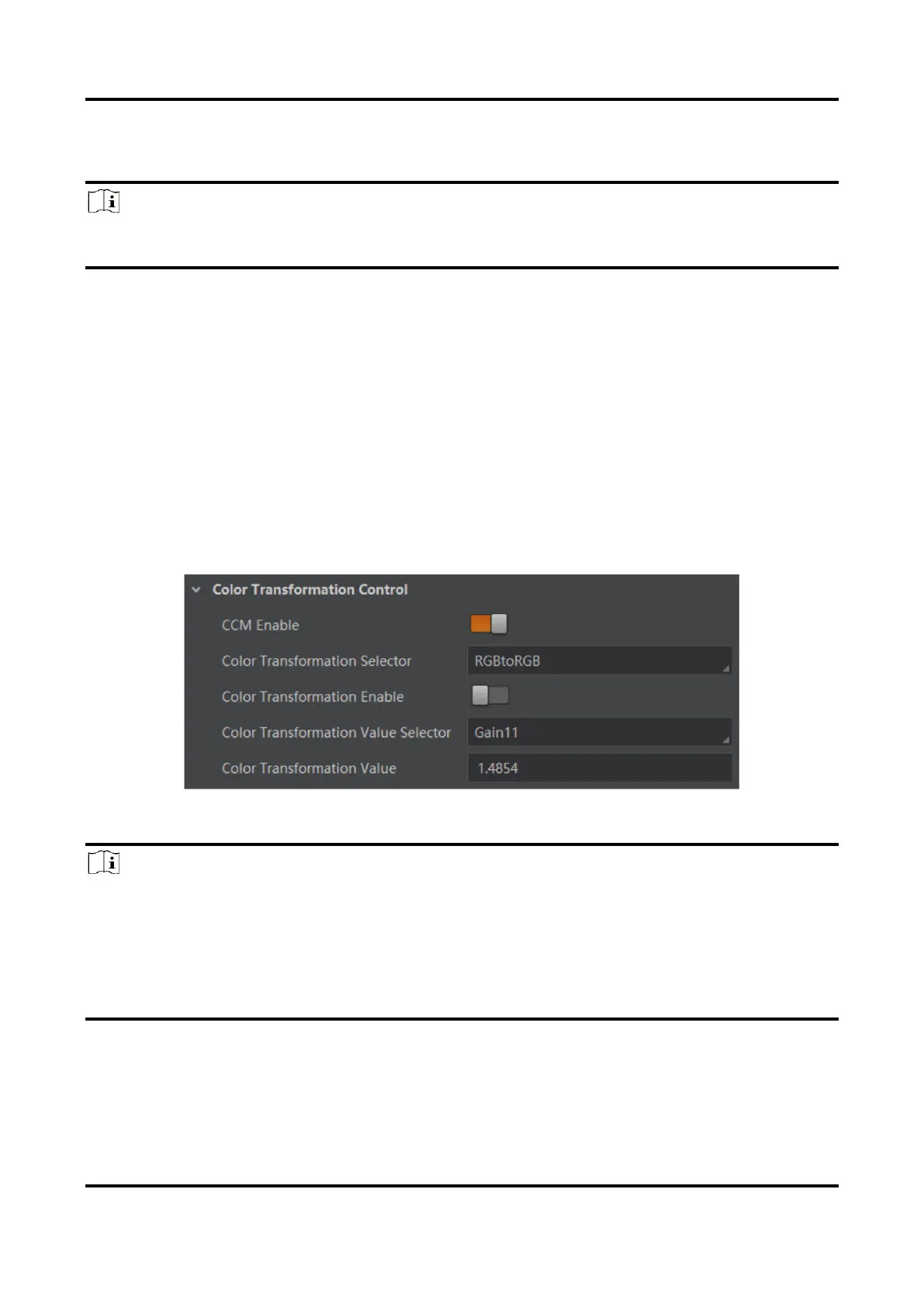
1. Go to Color Transformation Control, and enable CCM Enable.
2. Select Color Transformation Value Selector, and set Color Transformation Value
according to actual demand.
Figure 11-46 Method 1
Note
●
CCM Enable is used to enable color correction function. If the device you purchased
does not have CCM Enable, then the color correction function is enabled by default.
●
Color correction is achieved by adjusting the values of the parameters in Color
Transformation Value Selector, where Gain00, Gain10, and Gain20 adjust the R
component of the red pixel, Gain01, Gain11, and Gain21 adjust the G component of the
green pixel, and Gain02, Gain12, and Gain22 adjust the B component of the blue pixel.
●
Method 2: Go to Color Transformation Control, enable Color Transformation Enable, set
Hue and Saturation to adjust Color Transformation Value.


 To Next Page