GigE Area Scan Camera User Manual
65
started.
8. (Optional) Click Execute in Sequencer Restart to let the sequencer start from the
beginning group.
11.13.2 Set HDR
Note
●
The HDR function may differ by device models.
●
The device supports HDR (High Dynamic Range) function that the device acquires
images based on customized settings, and each with its own exposure time and gain.
Steps
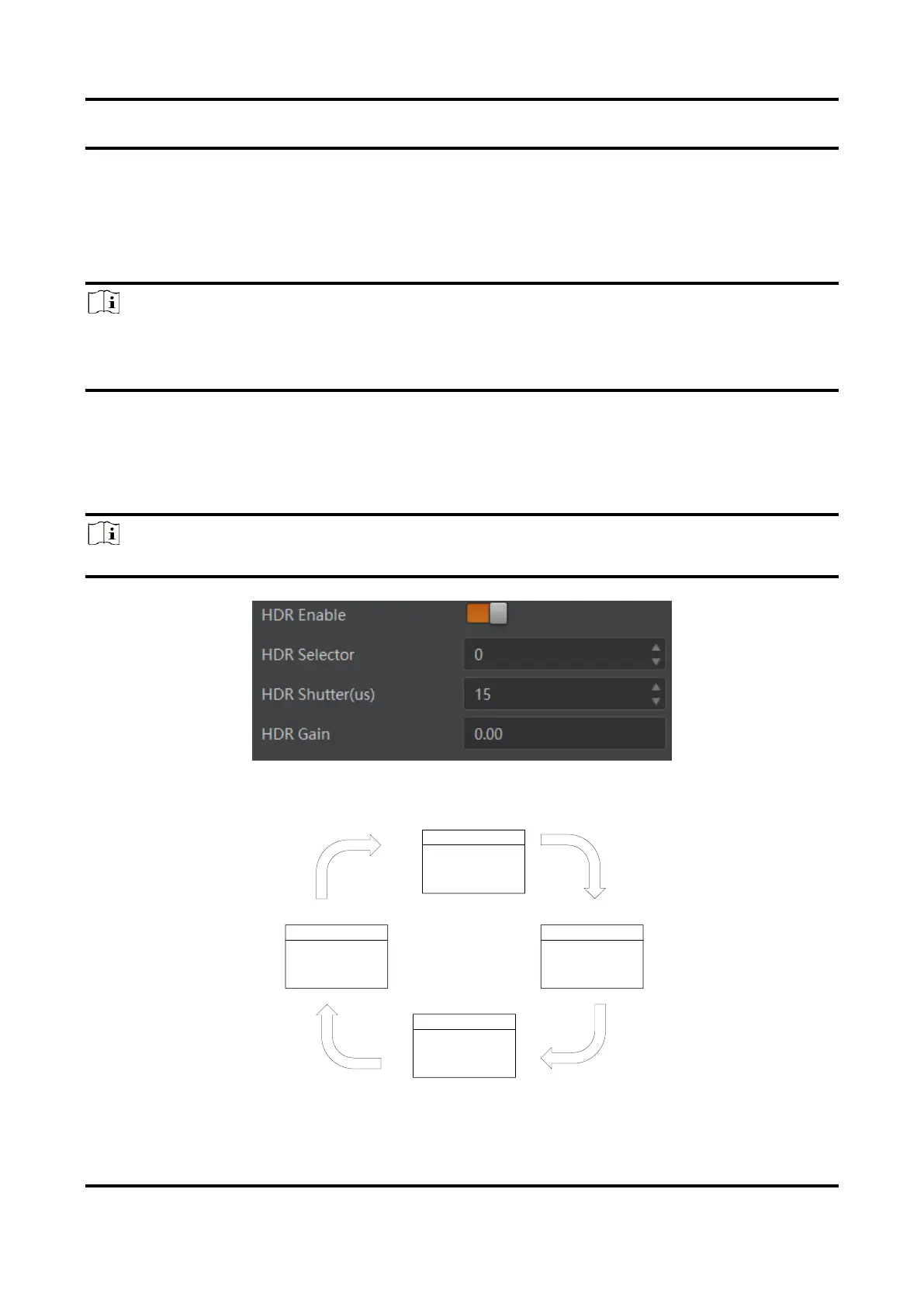
1. Go to Acquisition Control → HDR Enable, and enable HDR Enable.
2. Select 0, 1,2 or 3 as HDR Selector according to actual demands.
3. Set corresponding HDR Shutter and HDR Gain.
Note
Up to 4 HDR groups can be configured.
Figure 11-31 Set HDR


 To Next Page