NOTE:
Deleting a barcode template does not affect the cartridges that were created using it.
To add or delete a barcode template:
1. Open a Command View VLS session and log in as the administrator. See
“Opening a Command View VLS Session from a Web Browser” on page 143.
2. Click the System tab.
3. Select Cartridges in the navigation tree.
4. Click Add/Remove Barcode Templates in the task bar.
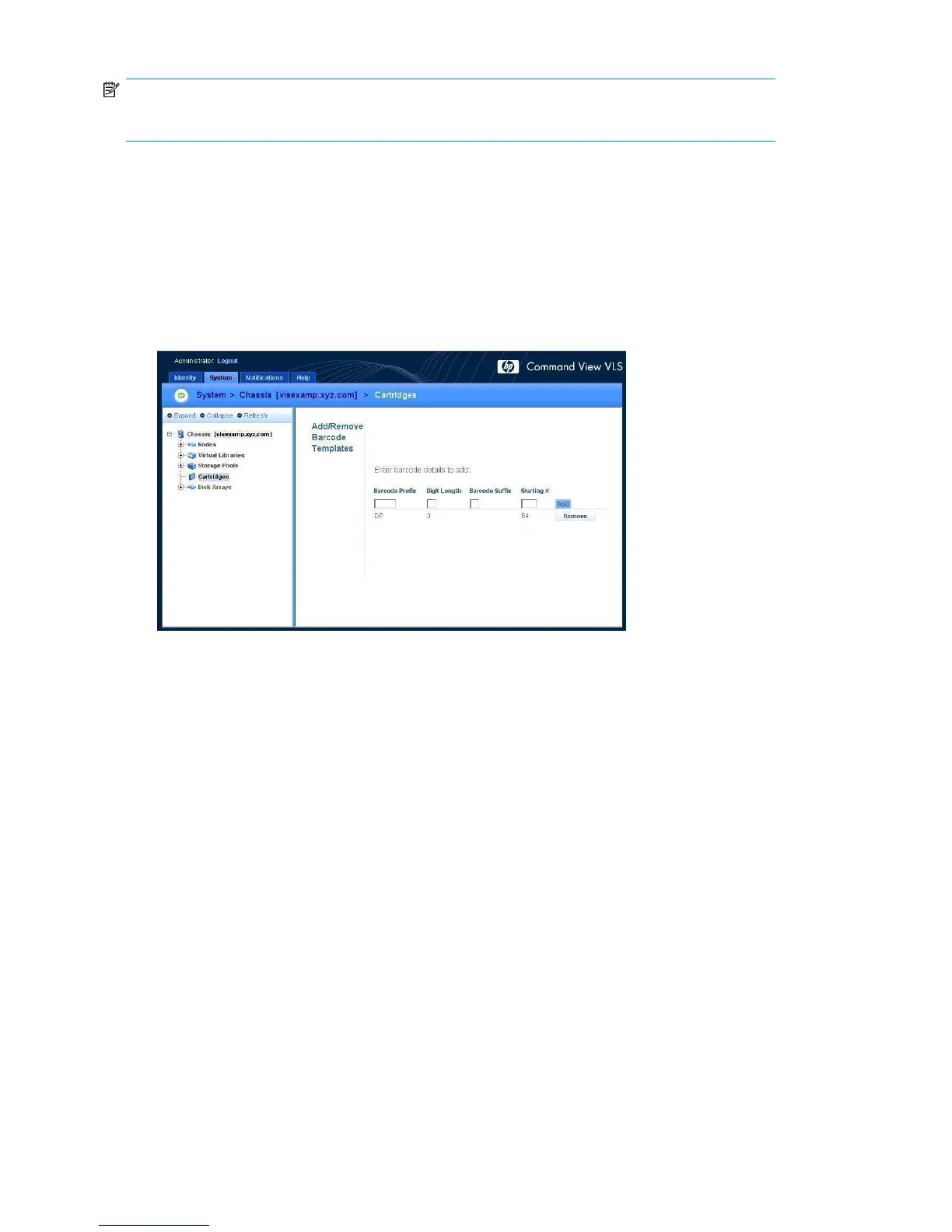
The Add/Remove Barcode Templates window opens (Figure 61).
Figure 61 Add/Remove Barcode Templates window
.
5. To delete a barcode template, click the Remove button for the barcode template.
The window refreshes when the deletion operation is finished.
6. To add a barcode template:
a. Enter the barcode prefix (one to five alpha characters) in the Barcode Prefix box.
b. Enter the number of digits for the barcode number in the Digit Length box.
c. Enter the barcode suffix (one to two alpha characters) in the Barcode Suffix box.
d. Enter the starting barcode number in the Starting # box.
e. Click Add to add the new barcode template.
f. To add another barcode template, repeat these steps.
Configuration180








 To Next Page