4 Storage Configuration
This section describes how to configure the storage pool policy and add or remove storage as needed
after the nodes have been configured.
Managing VLS9000–series Capacity
There are several ways to manage the capacity of your system:
• Increase the number of VLS9000 nodes
• Increase the number of VLS9000 arrays by adding capacity kits. See Adding a VLS9000 Capacity
Kit.
• Reduce the number of VLS9000 arrays by removing capacity kits. See Removing a VLS9000
Capacity Kit.
• Create storage pools. See Configuring the Storage Pool Policy.
Adding a VLS9000 Capacity Kit
Add capacity by increasing the number of VLS9000 arrays in your VLS9000-series system. Up to two
arrays may be added per node installed in a VLS9000-series system. To add an array, purchase and
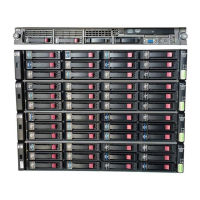
install a VLS9000 capacity kit. A VLS9000 capacity kit includes one VLS9000 array with an upgrade
capacity license for the additional array.
If you have a VLS9000 7.5 TB or 10 TB system, you can purchase expansion disk array enclosures
up to a total of four enclosures (equal to one array) for your system. If you purchase a VLS9000
capacity kit to increase your capacity, you must also purchase a 20– or 32–port connectivity kit and
additional nodes.
NOTE:
The VLS sequentially numbers arrays as they are added, starting with Array 0. Only add one VLS
array at a time so you can control the number assigned to each array.
To add a VLS9000 capacity kit:
HP StorageWorks 75








 To Next Page