Page 31
Copyright© 2019 Ingenico
Transaction Selection
Sale transactions may be initiated from the ‘Idle Screen’ or from the ‘Transaction
Menu’.
All other transaction types can only be initiated from the ‘Transaction Menu’ screen.
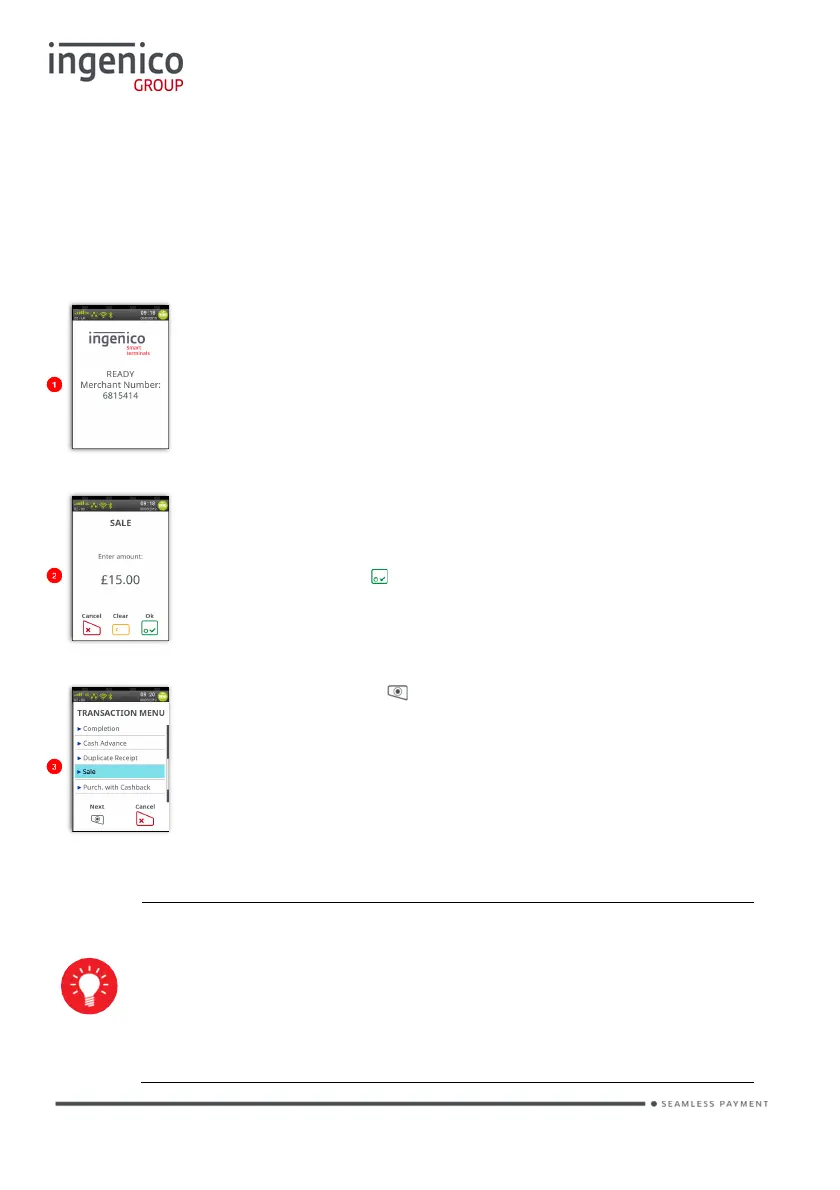
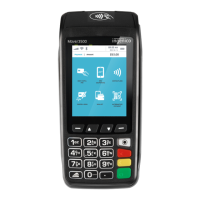
This is the default ‘Idle Screen’ which,
the terminal has been installed successfully.
The logo may differ from that shown in this example.
Start typing in a transaction amount to initiate a ‘Sale’
transaction.
The screen will change to the ‘Amo
unt Entry’ screen as soon
as you start typing in the amount.
The icons displayed are dependent on the transaction
amount entered and pressed. You may, then be given
the option to Present/Insert/Swipe the cardholder’s card.
Alternatively, pressing will display the ‘Transaction Menu’.
Touch the screen to select the required transaction type
from the menu. You may need to scroll down the menu to
view the required transaction type.
There will be a scroll bar on the right-hand side of the screen if there
are more options available but not visible on the display. Simply
touch the scroll bar and swipe your finger in the direction you wish
the menu to go. Your finger must keep contact with the screen
whilst swiping.






 To Next Page