Page 19
Copyright© 2019 Ingenico
Display/Icons
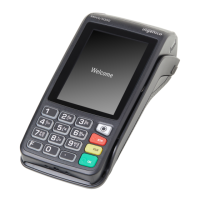
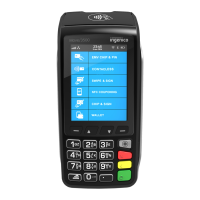
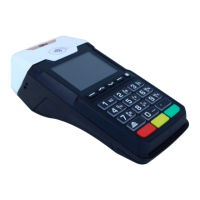
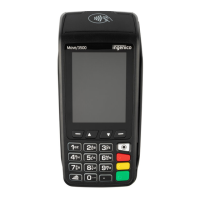
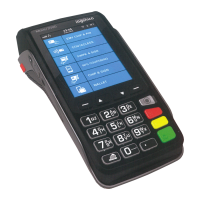
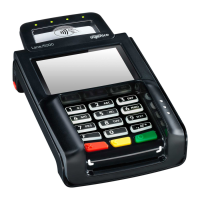
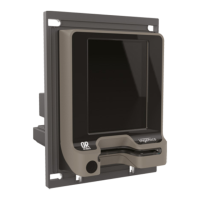
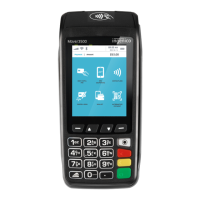
Icons displayed on your terminals display will depend on your
terminal type
Time displayed in 24 hour format with long date format
Time displayed in 12 hour format with short date format
Date and time formats can be changed to suit your preference.
Please call helpdesk for further information.
Terminal Operation Icons
The following images may be displayed along the bottom of your terminal display.
They are a reference to which physical buttons are active at that point in the
transaction and may be pressed in place of the physical button.
This is the ‘Ok’ button and is used primarily to confirm or submit data for
verification during a ‘Transaction Processing’ or ‘Function Code’. It is also used to
select a highlighted item from a menu.
This is the ‘Cancel’ button which; is used to delete all of the data typed in
during a transaction, to cancel a transaction at specific times and in some admin
operations.
This is the ‘Clear’ button which; is used as a backspace button to delete
one character at a time. It is also used to confirm errors during a transaction.
The Move 5000 is a touch screen device. Icons displayed on
screen may be pressed instead of their equivalent physical
buttons.
NOTE: Touch Screen functionality is NOT available during
PIN Entry.






 To Next Page