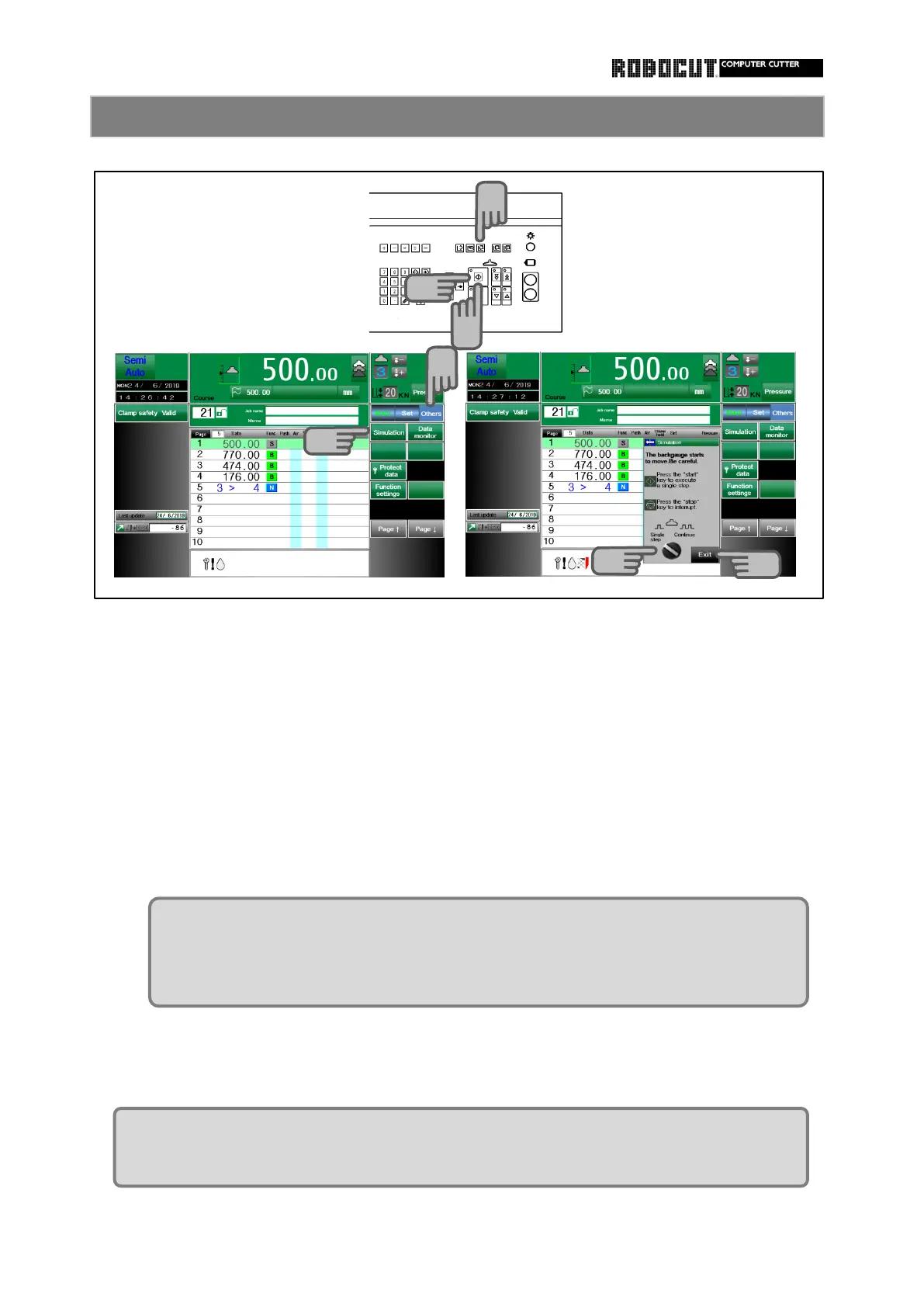
Select the automatic mode.
Press sub mode menu 【 Others 】 .
Press 【 Simulation 】 .
Press 【 End 】 , the simulation ends.
To execute continuously, turn to "Continue " and press "Start"-key.
It warks one step each time you press "Start"-key.
You can check the movement of the backgauge before cutting .
How to use the simulation function
IN case of returnimg to page 1 ( or, in the course division case, first page of division
or course jump, continuous simulation is finished and the step motion starts.
Paper cutting is impossible during excution of continuous simulation.
Robo-trim will not work if it is equipped.
(Do not open and close the front table .)
1
2
3
4
5
5
6



 To Next Page