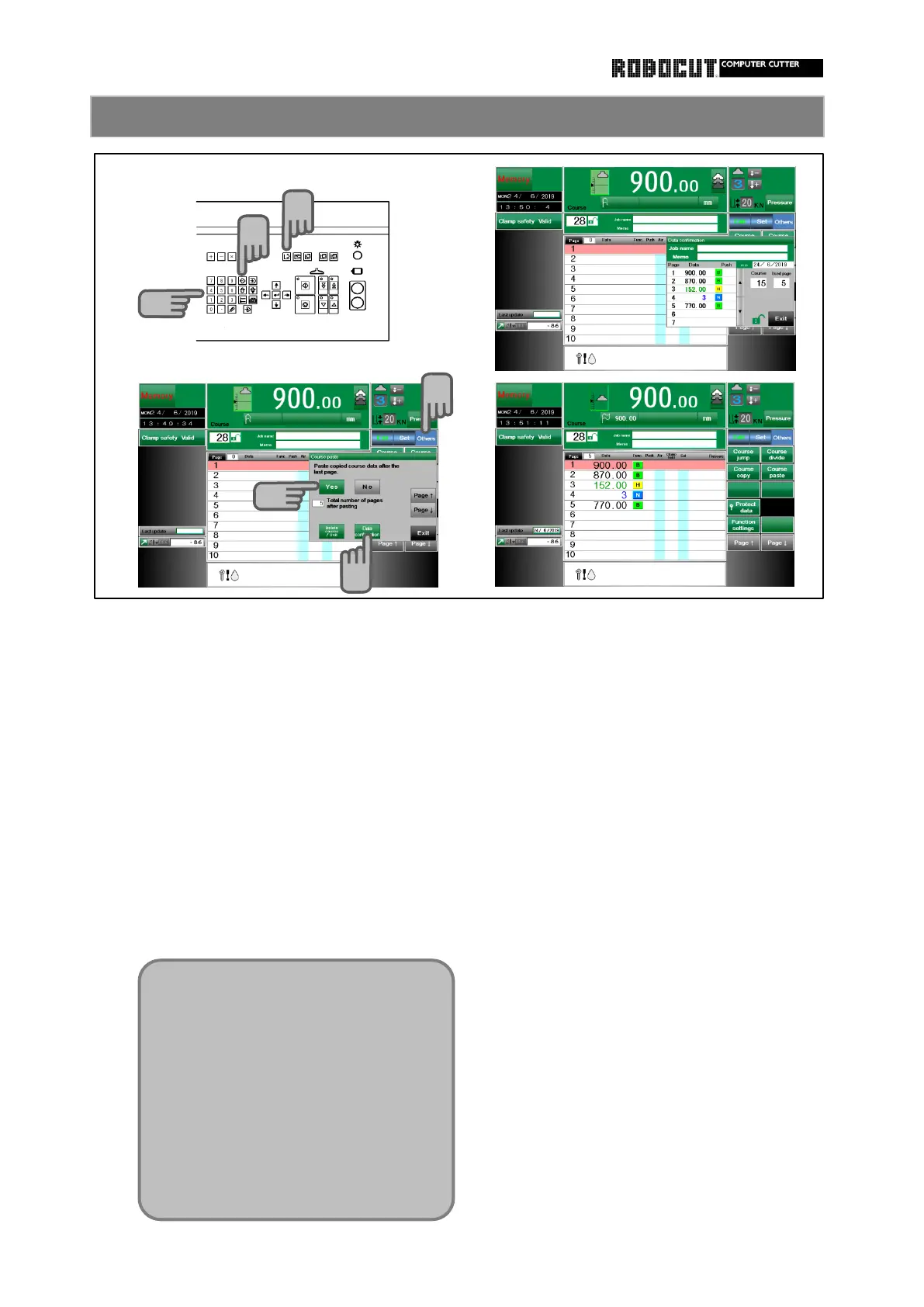
Select the memory mode.
◆ Paeting can be made even if the result
of pasting overflows 50 pages while the
Call up the destination course of pating. data after page 50 is cut.
Press sub mode menu 【 Others 】 . ◆ Pating at other units is impassible.
Press 【 Course past 】 . ◆ If the number of divisions exceeds 9 as
a result of pasting, pasting is impossible.
Press 【 Deta check 】 to display the job
name, memo and course number, and data
◆ If the destination course of pasting is
in up to seven pages. blank, the job name and memo of the
course of copying are also pasted. If the
Press 【 Yes 】 to execute pasting. destination course is not balnk, neither
the job name nor the memo field is
written even if they are blank.
◆ Use the copy-and-past function to past
course data at the last of another cour-
se; thus multiple job can be stored in a
single course divisively.
Copied data can be moved to another course through course pasting or it can be duplicated.
◆ If the destination course of
pastingis blank (an unused course
without data), the data is pasted
from the first page. If the called
course already contains data, the
data is pasted after a division line
added next to the last stored page.
◆ If the data of the called course is
unnecessary, use [Delete course]
to delete the course and past the
data from the first page.



 To Next Page