June 2018
Legrand PDU User Guide 217
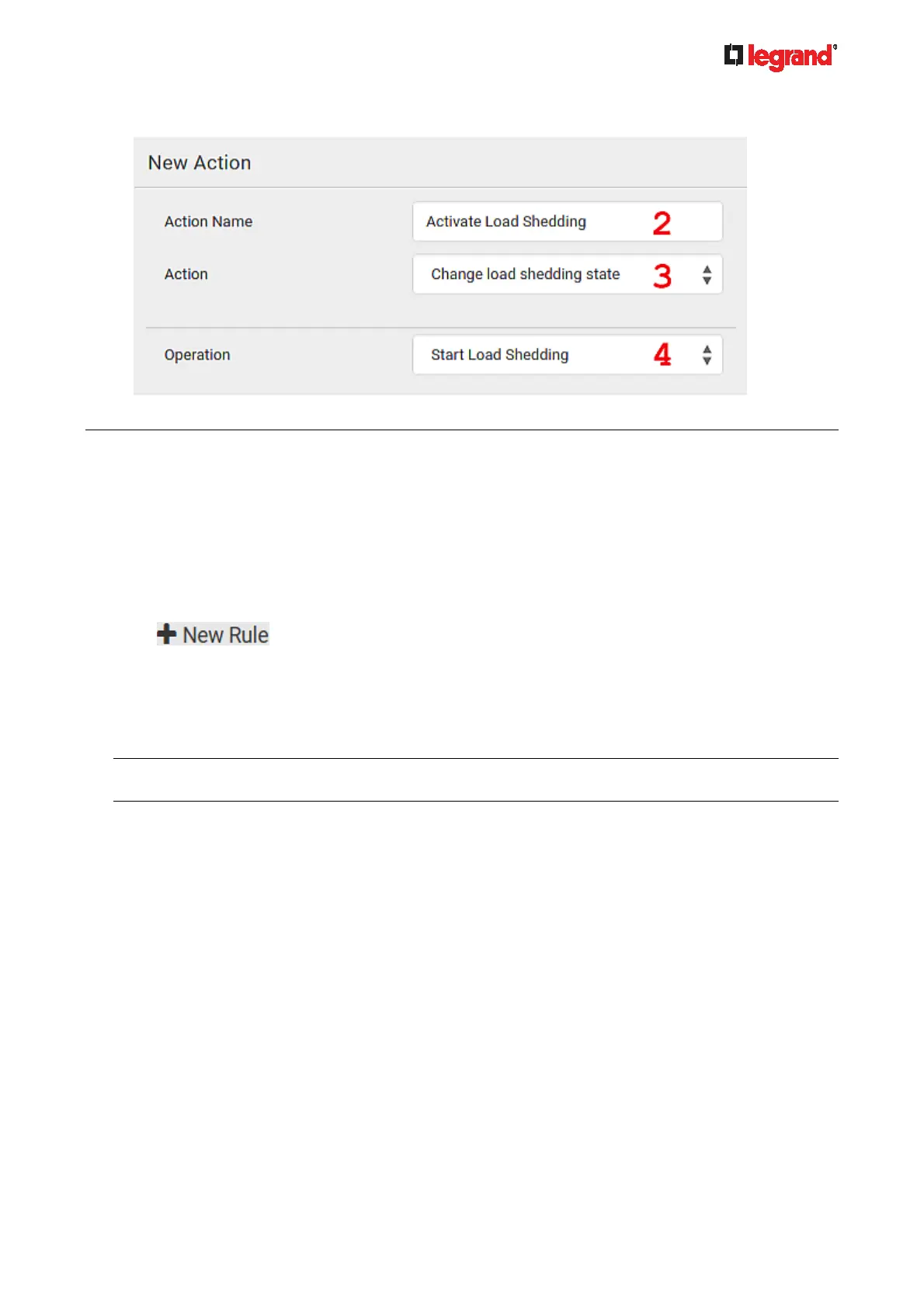
4. In the Operation field, select Start Load Shedding.
5. Click Create to finish the creation.
After the new action is created, follow the procedure below to create an event rule that triggers the load
shedding mode when the contact closure sensor enters the alarmed state. This event rule involves the
following:
Event: Peripheral Device Slot > Slot 1 > State Sensor/Actuator > Alarmed/Open/On
Trigger condition: Alarmed
Action: Activate Load Shedding
Step 2: create the contact closure-triggered load shedding event rule
1. Click
on the Event Rules page.
2. In this illustration, assign the name "Contact Closure Triggered Load Shedding" to the new rule.
3. In the Event field, select "Peripheral Device Slot" to indicate we are specifying an event related to the
environmental sensor package.
4. Select the ID number of the desired contact closure sensor. In this illustration, the ID number of the
desired contact closure sensor is 1, so select Slot 1.
Note: ID numbers of all sensors/actuators are available on the Peripherals page. See Peripherals (on
page 116).
5. Select "State Sensor/Actuator" because the contact closure sensor is a state sensor.
6. Select "Alarmed" since we want the Legrand PDU to respond when the selected contact closure sensor
changes its state related to the "alarmed" state.
7. In the "Trigger condition" field, select the Alarmed/Open/On radio button so that the action is taken only
when the contact closure sensor enters the alarmed state.


 To Next Page