June 2018
Legrand PDU User Guide 67
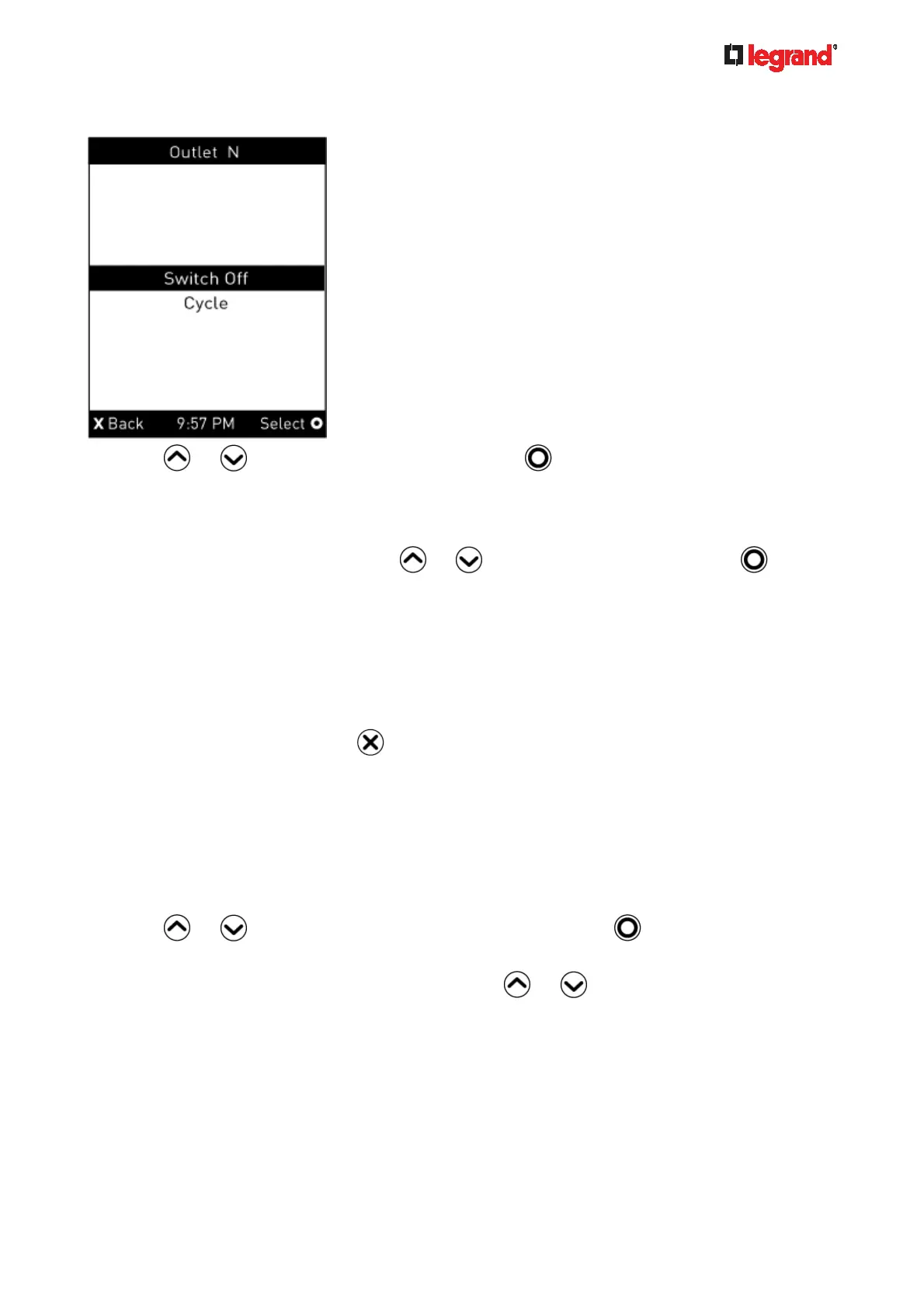
When the selected outlet has been turned off, 'Switch On' replaces the option of 'Switch Off'.
5. Press
or to select the desired option, and press .
Switch Off: Turn off the outlet.
Switch On: Turn on the outlet.
Cycle: Power cycle the outlet. The outlet is turned off and then on.
6. A confirmation message appears. Press
or to select Yes or No, and then press .
Yes: Confirm the operation.
No: Abort the operation.
7. Verify that the selected outlet is switched on or off, depending on the option you selected in the above
step.
Check the outlet state shown on the LCD display -- red or green circles.
Check the outlet LED. A green LED indicates that the outlet is turned off, and a red LED indicates
that the outlet is turned on.
8. To return to the Main Menu, press
several times until the Main Menu is shown.
Peripherals
If there are no Raritan environmental sensor packages connected to your Legrand PDU, the LCD display
shows the message "No managed devices" for the "Peripherals" menu command.
If you have enabled the front panel actuator control function, you can switch on or off a connected actuator
using the LCD display. See Miscellaneous (on page 229).
To sho
w
environmental sensor or actuator information:
1. Press
or to select "Peripherals" in the Main Menu, and press .
2. The display shows a list of environmental sensors/actuators.
If the desired sensor or actuator is not visible, press
or to scroll up or down.
When the list exceeds one page, the currently-selected sensor/actuator's ID number and total of
managed sensors/actuators are indicated in the top-right corner of the display.
If any sensor enters the warning, critical, or alarmed state, like 'Tamper Detector 1' shown below, it is
highlighted in yellow or red. For color definitions, see Yellow- or Red-Highlighted Sensors (on
page 120).



 To Next Page