12.1 wxPropView 89
12.1.1.8 Import and Export images
wxPropView (p. 74) offers a wide range of image formats that can be used for exporting captured image to a file.
Some formats e.g. like packed YUV 4:2:2 with 10 bit per component are rather special thus they can't be stored
into a file like e.g. offered by the BMP file header. When a file is stored in a format, that does not support this data
type wxPropView (p. 74) will convert this image into something that matches the original image format as close as
possible. This, however, can result in the loss of data. In order to allow the storage of the complete information
contained in a captured image wxPropView (p. 74) allows to store the data in a raw format as well. This file format
will just contain a binary dump of the image with no leader or header information. However, the file name will
automatically be extended by information about the image to allow the restoring of the data at a later time.
All image formats, that can be exported can also be imported again. Importing a file can be done in 3 different
ways:
• via the menu (via the "Menu Bar": "Action -> Load image...")
• by dragging an image file into an image display within wxPropView (p. 74)
• by starting wxPropView (p. 74) from the command line passing the file to open as a command line param-
eter (p. 99) (under Windows® e.g. "wxPropView.exe MyImage.png" followed by [ENTER])
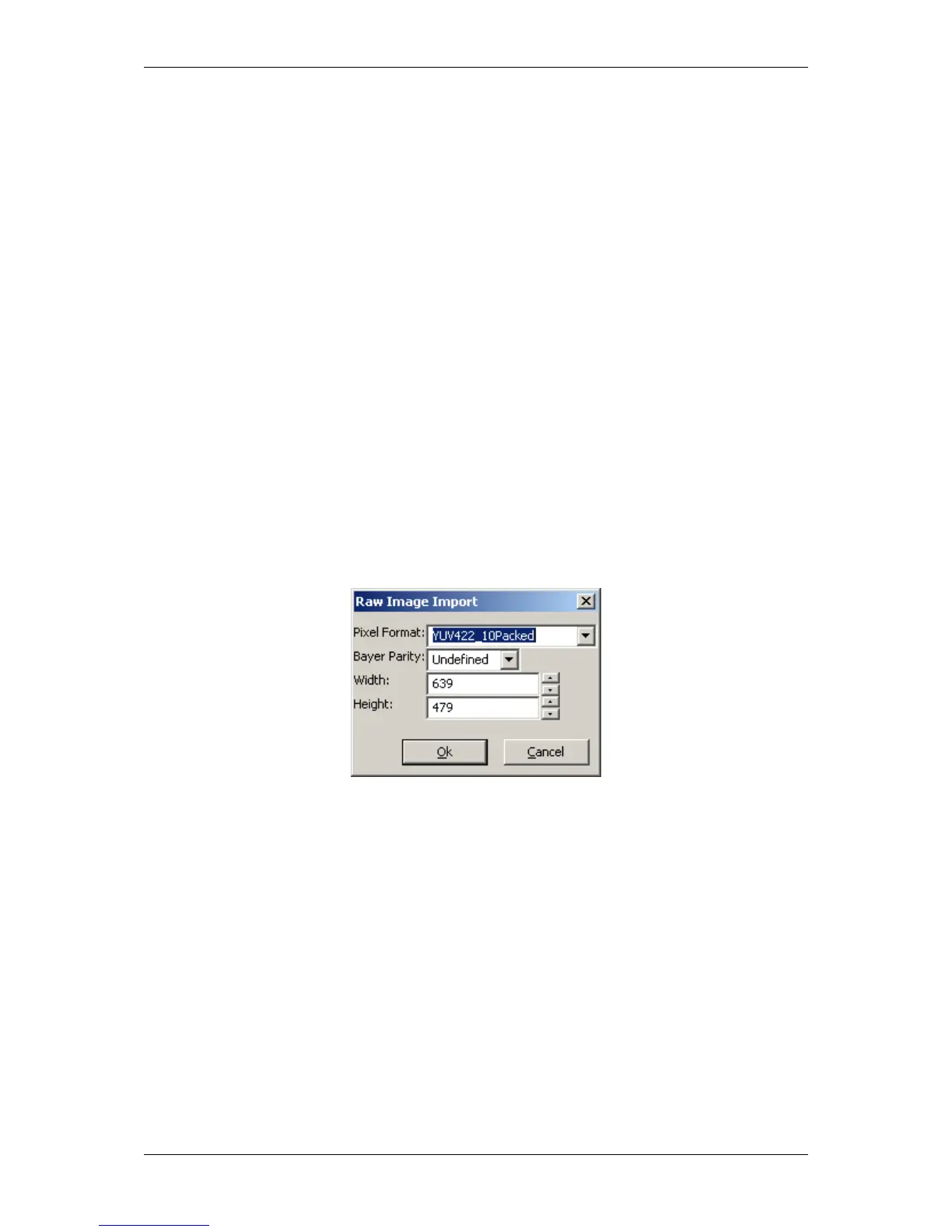
When importing a "∗.raw" image file a small dialog will pop up allowing the user to define the dimensions and
the pixel format of the image. When the file name has been generated using the image storage function offered
by wxPropView (p. 74), the file name will be passed and the extracted information will automatically be set in the
dialog thus the user simply needs to confirm this information is correct.
Figure 14:wxPropView - Raw image file import
12.1.1.9 Setting up multiple display support and/or work with several capture settings in parallel
wxPropView (p. 74) is capable of
• dealing with multiple capture settings or acquisition sequences for a single device and in addition to that
• it can be configured to deal with multiple image displays.
The amount of parallel image displays can be configured via the command line parameter (p. 99) "dcx" and
"dcy". In this step by step setup wxPropView (p. 74) has been started like this from the command line:
wxPropView dcx=1 dcy=2
This will result in 1 display in horizontal direction and 2 in vertical direction.
MATRIX VISION GmbH


 To Next Page